
A tablet at the bar or the till can be shared by the whole team. Instead of someone's email and password, it signs in once with a code and then opens only bills. Each person unlocks it with their own PIN, so everything is recorded under the right name, and it locks again by itself.
Before you start: turn bills on for the location (see Tables and bills). Owners and managers set up tills on the Team page.
Add a shared till
- Open Team. Under Devices, select Add device.
- Give it a name (for example "Bar"), choose Till and the location, and select Get the code.
- On the tablet, open
menucraft.pro/app/device, type the 6-digit code and select Set up.
The code works once, for 10 minutes. The tablet then opens on the till every time. A Kitchen screen works the same way and opens only the kitchen. If a tablet is reset or lost, select New code to set it up again, or remove it: it stops working at once.
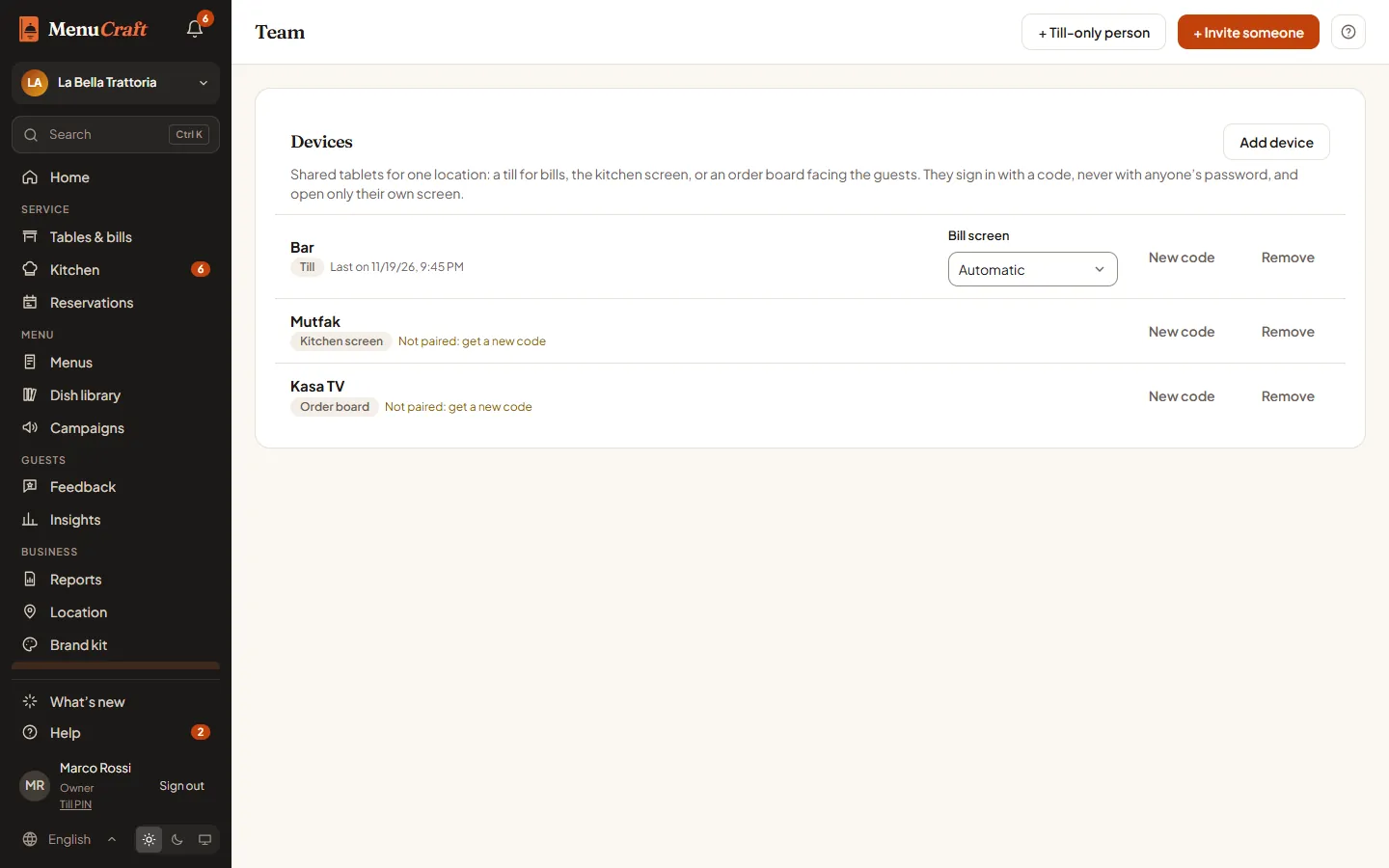
For a till, Bill screen chooses how it shows bills: Automatic (the Full screen on a tablet in landscape, the Simple one on a narrow screen), Simple or Full (POS). The tablet switches within a few minutes. See Tables and bills for the Full screen.
Give each person a till PIN
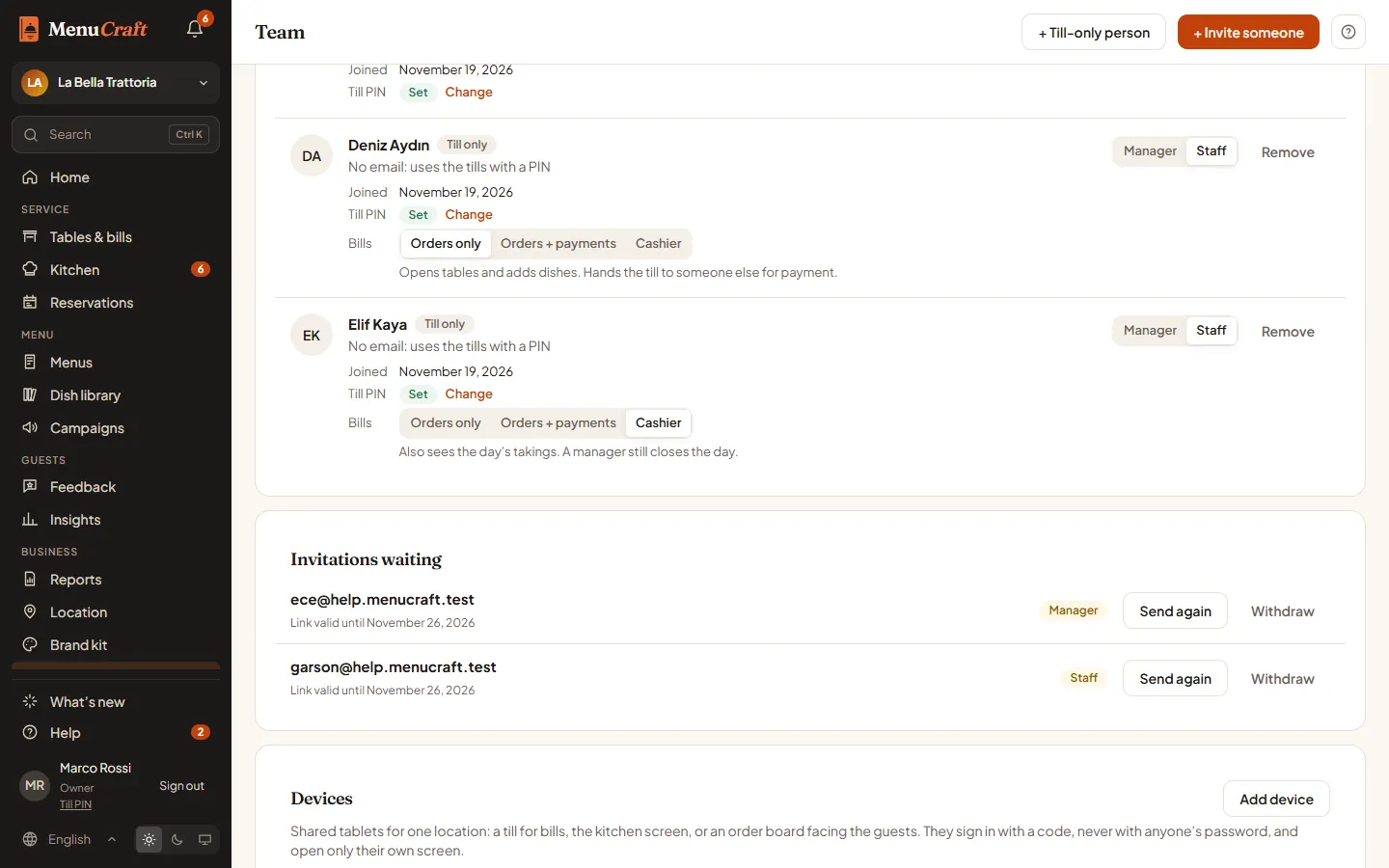
On Team, each person's row has a Till PIN. Select Set PIN and type 4 to 6 digits, then tell the person. Each person can also set their own: Till PIN at the bottom of the sidebar. A PIN only unlocks this business's tills.
Five wrong PINs lock that person out for 5 minutes, then 15, then until a manager sets a new PIN.
Unlock and lock the till
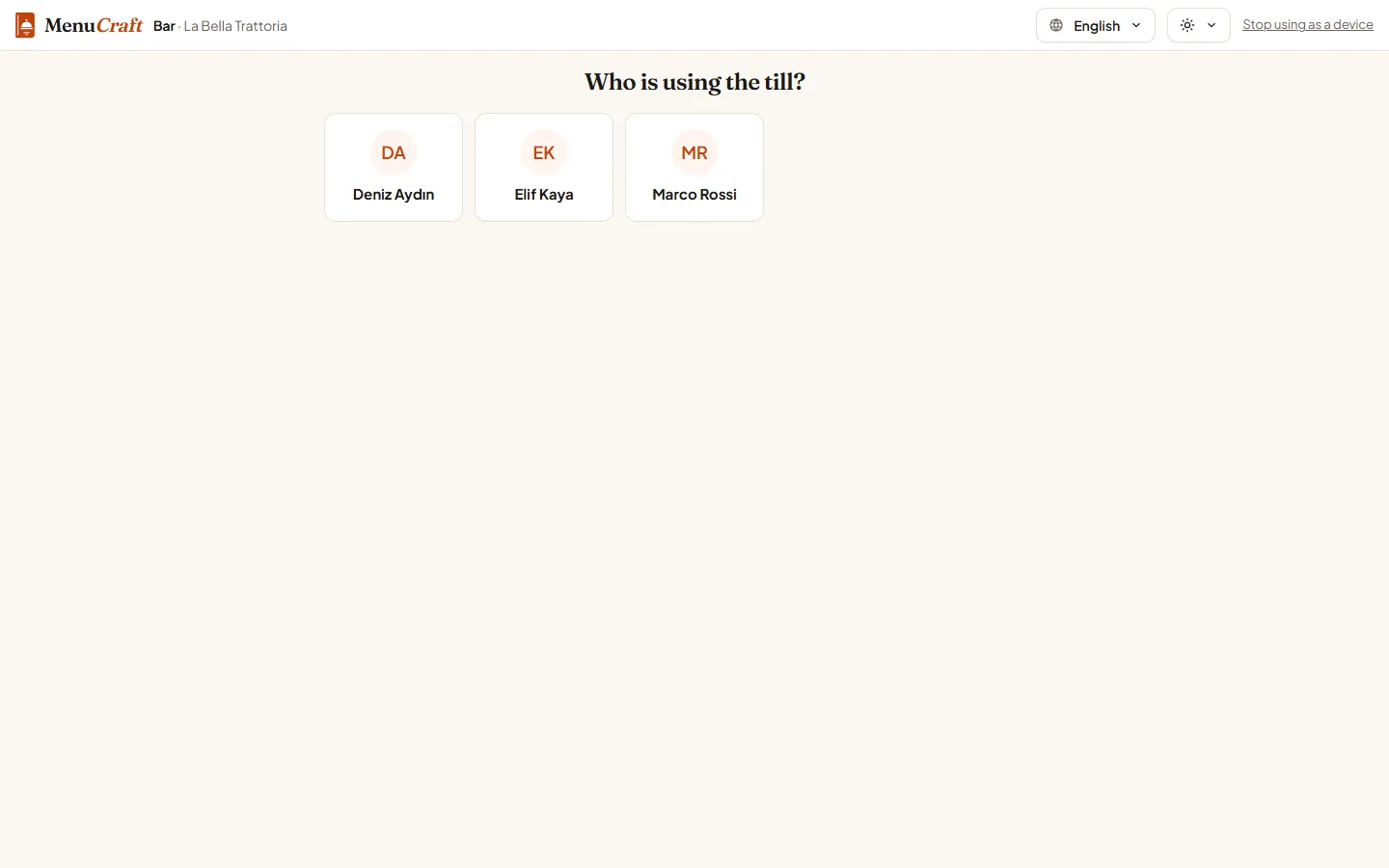
The till shows Who is using the till? with the names of everyone who has a PIN at this location. Tap your name and type your PIN: Tables & bills opens, as you. Tap Lock when you step away.
The till also locks by itself after a few minutes without use, and after someone closes a bill. Change both on the Location page, under Tables & service, in Shared tills: Lock when not used for and Lock after closing a bill. Reloading the page locks it too.
Add someone without an email
For a waiter who won't make an account: on Team, select Till-only person, type their name, choose their role and PIN, and select Add. They show as Till only: they can unlock this business's tills and nothing else, and they don't take a place on your plan.
Choose who takes payment
For each member of staff, choose under Bills on Team:
- Orders only: opens tables, adds dishes, moves and splits, but doesn't take money.
- Orders + payments: also takes payment and closes bills. Everyone starts with this.
- Cashier: also sees the day's takings. A manager or the owner still closes the day.
A change reaches the person's phone within a minute; on a till they're unlocked on, the till locks.
Hand over for payment
Someone with Orders only sees Take payment with a lock. On a till, tapping it locks the till and asks Who takes the payment?, showing only the people who may. They unlock with their PIN and land on the same bill. On their own phone, the waiter asks a cashier or a manager instead.
A manager approves on the till
Ikram, taking off a dish the kitchen has started, discounts, refunds, reopening, voiding a bill and closing the day are for managers and the owner. On a till, the person unlocked can still do them:
- Fill in the sheet as usual (the dish and reason, the discount, the cash counted). It says a manager approves it.
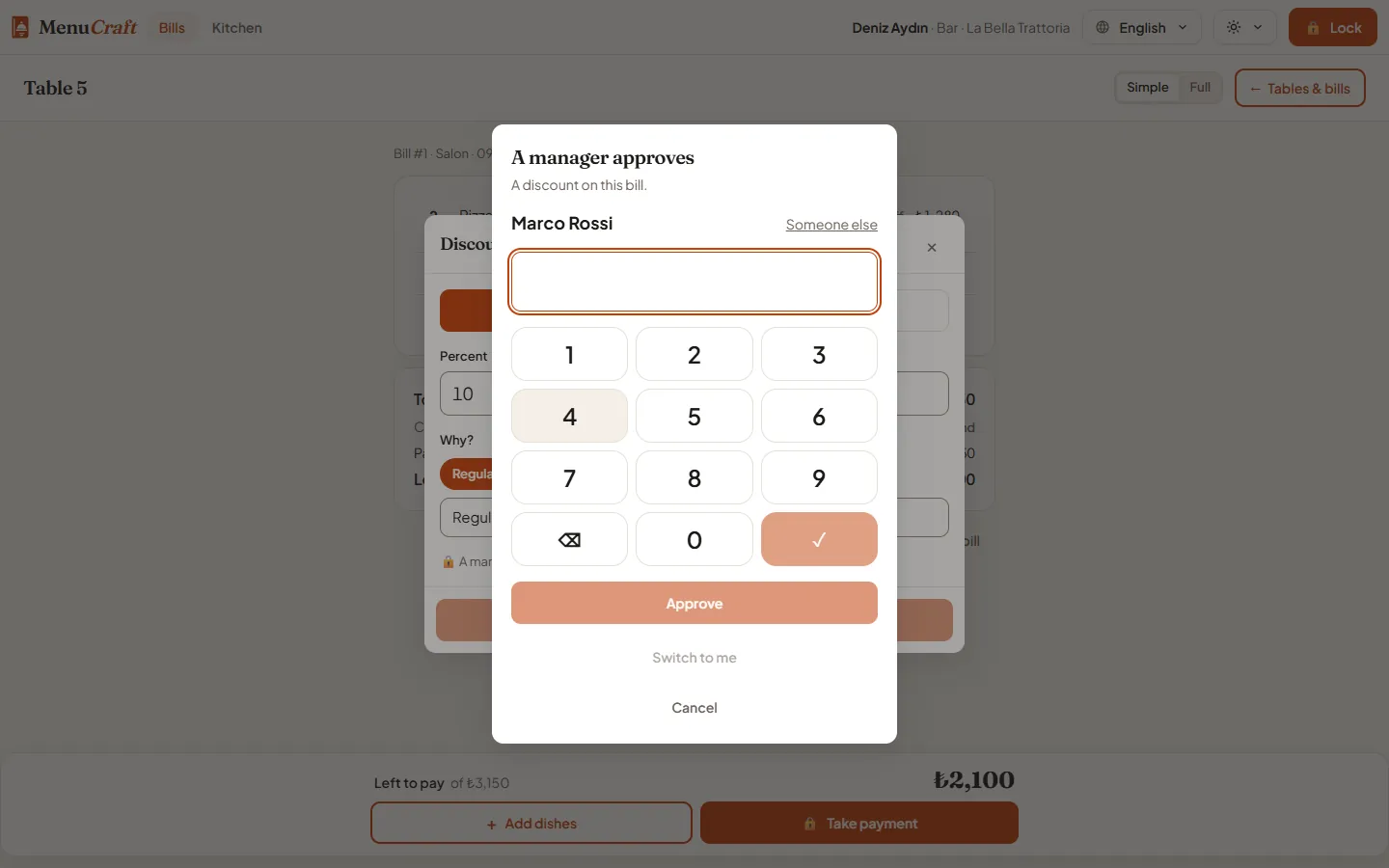
- Submit: A manager approves opens. The manager taps their name and types their PIN, then Approve.
It goes through as the person on the till, and the bill's Record shows who approved it. The approval is for that one thing, on that bill, and only for 2 minutes. Switch to me instead unlocks the till as the manager, who then does it themselves.
Keep the tablet on MenuCraft
On an Android tablet, pin the screen so staff can't leave the app: turn on "App pinning" (or "Screen pinning") in the tablet's settings, under Security, open MenuCraft, then open the recent apps and choose "Pin". To unpin, hold Back and Overview together. Keep the tablet charging, and set its screen to stay on while charging.