
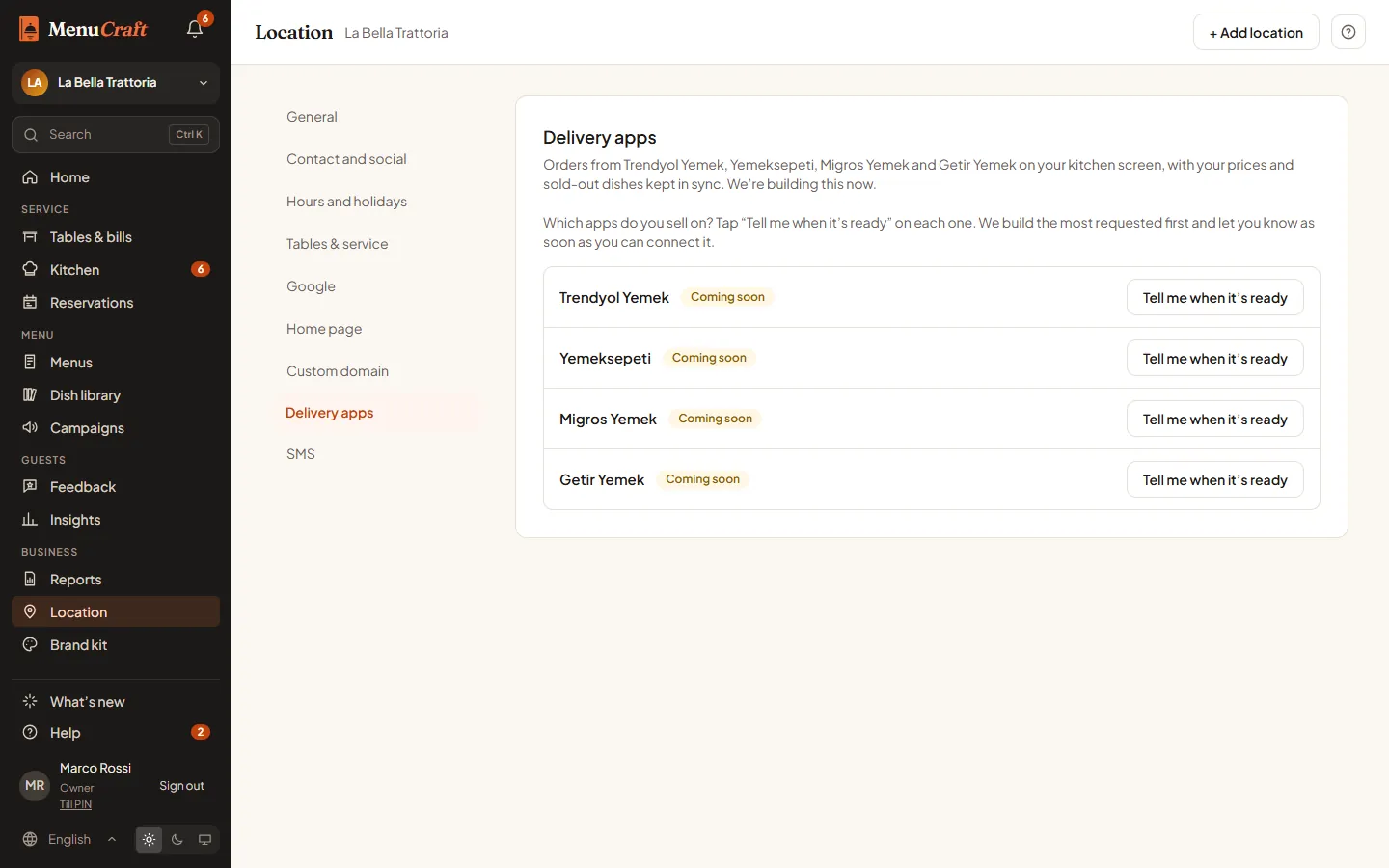
If you also sell on delivery apps, their orders can come to the same Kitchen page as the orders from your menu. Dishes you mark sold out switch off on the app too, and if you like, your menu's prices go to the app when you publish. Delivery apps are offered for locations in Turkey, under Location → Delivery apps.
See which apps you can connect
- Open Location and select Delivery apps.
- Apps you can connect now each have a card to connect them.
- Apps marked Coming soon are still being built, or tried with a few restaurants first. Tap Tell me when it’s ready on the ones you sell on: we open the most requested first and let you know when you can connect.
Connect an app
Each app gives you its codes in its own seller panel. The card says where to find them.
- Trendyol Go: copy the Seller ID, API key and API secret from the seller panel (Hesap Bilgilerim → Entegrasyon Bilgileri).
- Yemeksepeti: ask your Yemeksepeti contact for your Chain code and Vendor code, and give them the remote ID the card shows, so they link this restaurant to MenuCraft.
- Migros Yemek: in its panel, choose MenuCraft under POS integrations, create an API key and paste it.
Then choose the menu under Match its dishes to this menu and select Connect. MenuCraft checks the codes and shows Connected when they work.
Match the app's dishes to your menu
Under the app's dishes, each dish on the app is matched to one on your menu. Dishes with the same name are matched for you; choose the rest yourself, or Not on my menu for a dish you only sell on the app. If you change the menu on the app, select Read the app’s menu again.
Matched dishes are what make sold-out switches and prices reach the app.
Delivery orders on the kitchen screen
App orders appear on the Kitchen page with the app's name, the guest's dishes and notes, whether it is Paid online or paid at the door, and who delivers: the app's courier or yours.
- Tap Accept · 20 min (the time you offer; change it if you need longer), or Reject and choose why. The app tells the guest.
- Tap Ready when the food is done, then Handed to the courier or, when you deliver yourself, Delivered.
App orders move only with the app, so their buttons are the app's own and they can't be moved back a step. See The kitchen screen.
Prices and sold-out dishes
Open the app's Settings on its card:
- Send this menu’s prices to the app when you publish: on, the app gets your menu's prices each time you publish, raised by Price on the app: menu price plus (%) if you charge more there. Off, prices stay as they are on the app.
- Sold-out dishes are always switched off on the app, as soon as you mark them.
- Preparation time offered first (minutes): the time the accept button offers.
Pause, change or disconnect
- Paused: no orders are fetched and nothing is sent; take orders in the app's own panel meanwhile.
- Change details: enter new codes, for example after you created a new key on the app.
- Disconnect: orders stop coming to the kitchen screen and the dish matches are forgotten.
If the card says the app needs reconnecting, its codes stopped working: select Change details and enter new ones.