
Everyone who works with MenuCraft can have their own sign-in. On the Team page you invite people by email, give each one a role and, if you have several locations, choose where they work. Only owners and managers see this page.
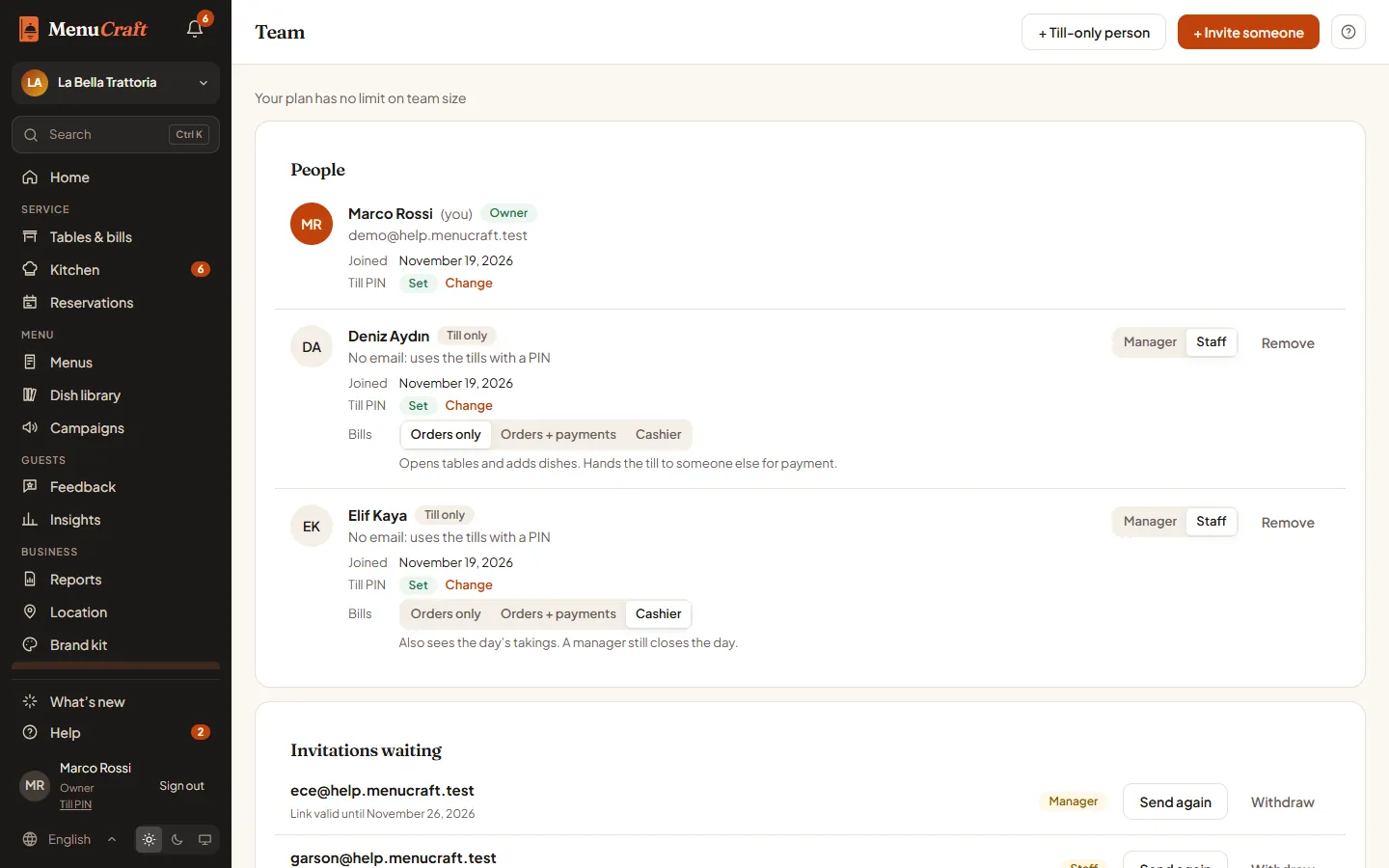
What each role can do
- Owner: everything, including the plan and billing. The person who created the account is the owner.
- Manager: menus, locations, bookings and staff. Not the plan or billing. A manager can invite and remove staff, but not other managers.
- Staff: made for a shift. Staff answer table bookings and add phone bookings, mark dishes sold out under Sold out today, use the kitchen screen and mark waiter calls done. They see the menus and insights but can't change the menus themselves, and they don't see the location, feedback, team or plan pages.
Tip: A shared tablet in the kitchen or at the door is best signed in as Staff.
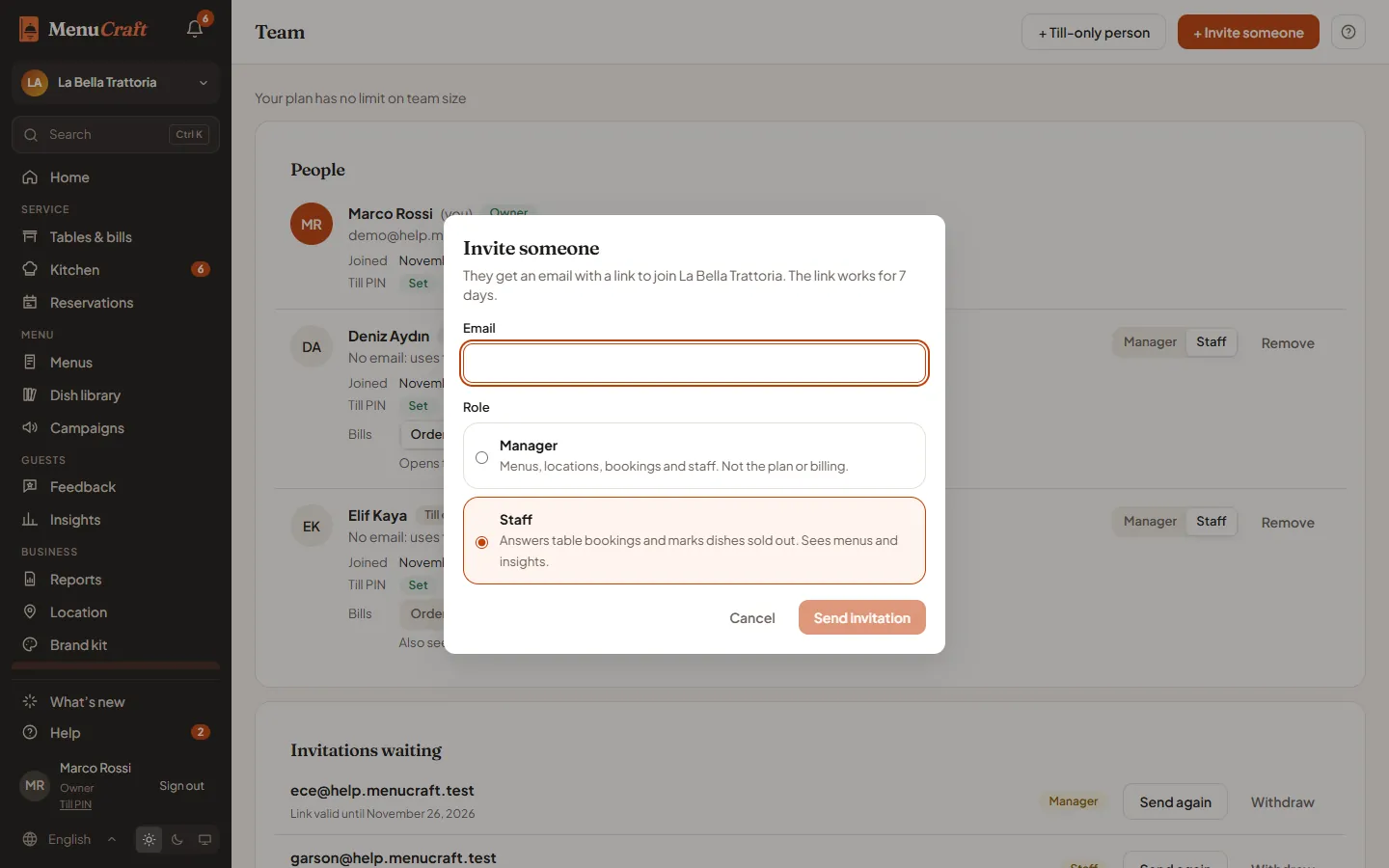
Invite someone
- Open Team and select Invite someone.
- Enter their Email.
- Under Role, choose Manager or Staff. A manager can only invite staff.
- If you have more than one location, choose under Locations: All locations or Chosen locations, then tick the locations.
- Select Send invitation.
They get an email with a link to join. The link works for 7 days. At the top of the page you see how many places your plan allows, or that your plan has no limit on team size. See Plan and billing.
Joining the team
The invited person opens the link in the email, enters Your name and a password (Choose a password), and selects Join the team. If they already use MenuCraft with that email, they enter Your MenuCraft password instead.
Waiting invitations
Invitations not used yet are listed under Invitations waiting, with the role and the date until which the link works.
- Send again: sends a new email, for example if it went to spam or the link ran out.
- Withdraw: cancels the invitation; the link stops working.
Change someone's role
Under People, the owner switches a person between Manager and Staff. The person signs in again to continue with the new role. The owner's own role can't be changed.
Choose where someone works
With several locations, each person shows Works at and their locations.
- Select Change.
- Choose All locations or Chosen locations and tick the ones they work at.
- Select Save locations.
They then only see those locations' menus, bookings, orders and notifications. Their app signs in again.
Remove someone
Select Remove next to the person, then Yes, remove. Keep cancels. They can no longer sign in to your business. The owner can remove managers and staff; a manager can remove staff.
What next
- Set up the kitchen tablet: The kitchen screen.
- Let staff answer bookings: Table reservations.