
The home page is a page for your restaurant itself rather than for one menu. It shows your logo, name and about text, your campaigns, a card for each published menu, the Book a table button, your opening hours and how to find you. It is made from what you have already set up, so there is nothing new to fill in.
Use it as the link in your Instagram bio and as the website on your Google profile. Table QR codes keep opening the menu straight away, because a guest at the table wants the menu, not another page first.
Home pages are part of the Pro and Business plans.
Turn on the home page
- Open Location in the menu on the left, then Home page.
- Turn on Show a home page.
- Its address appears below the switch: select Copy to paste it where you need it, or Open to see the page.
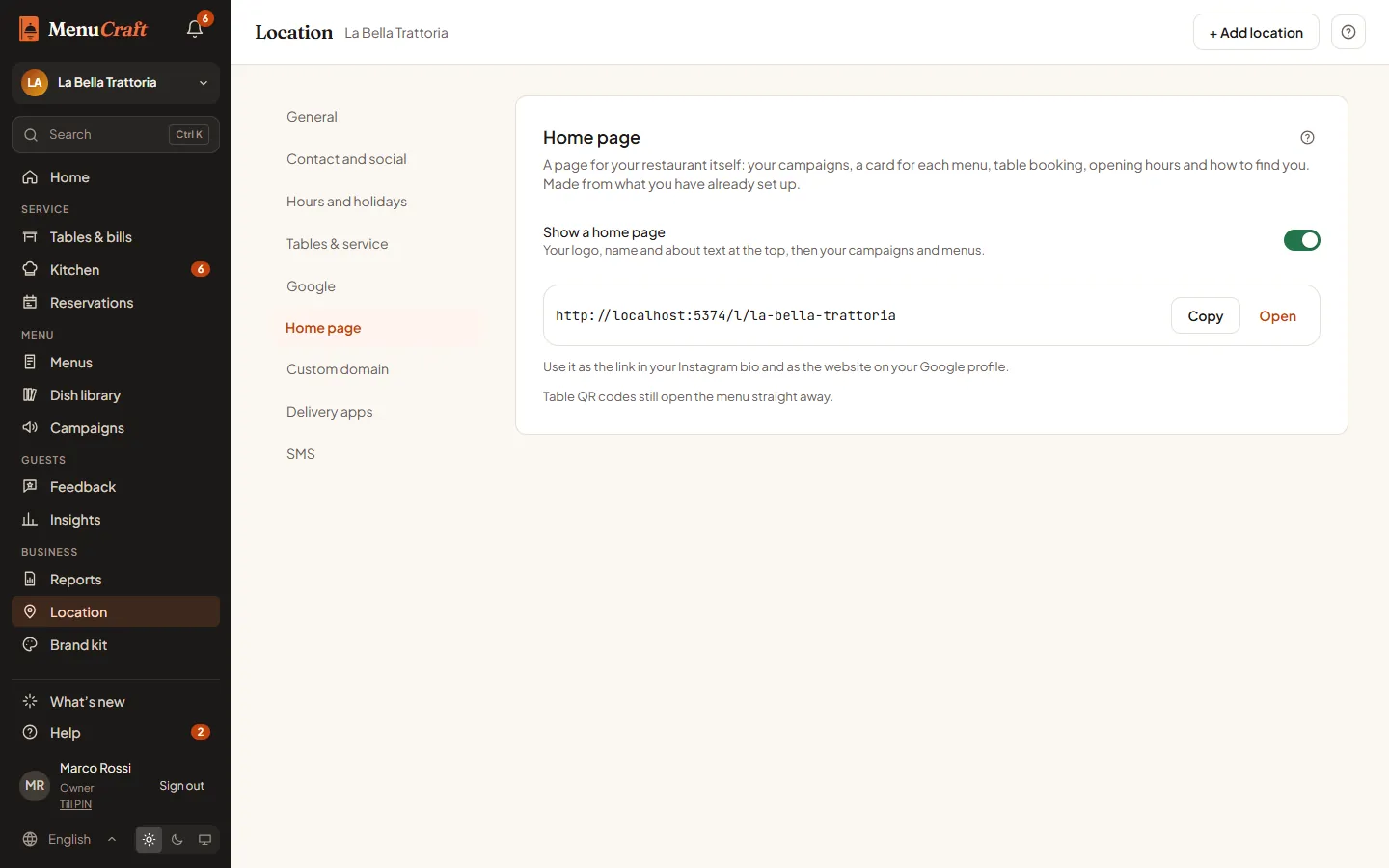
The address is made from your restaurant's name, for example menucraft.pro/l/la-bella-trattoria, and stays the same if you turn the page off and on again. Search engines such as Google find it by themselves.
What guests see
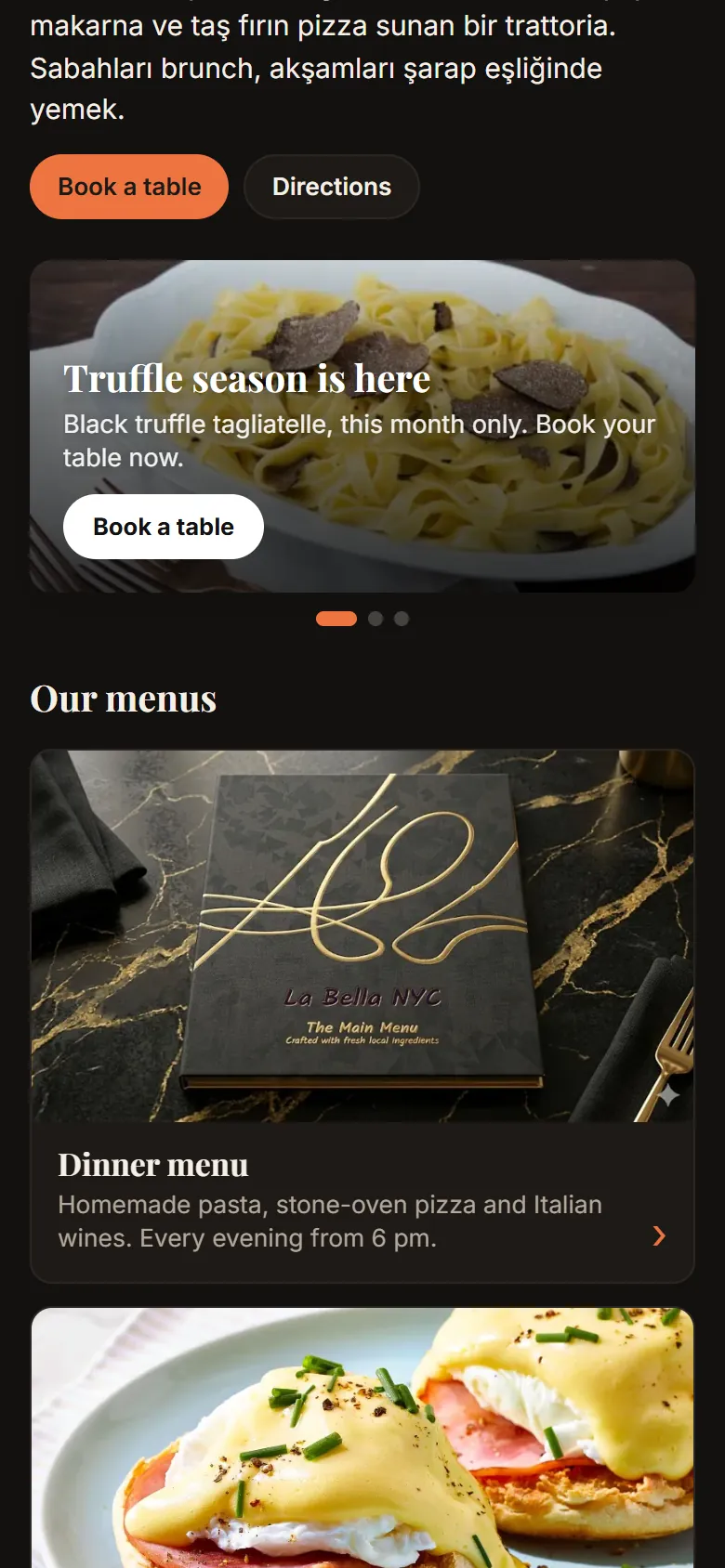
- At the top: your logo, name, whether you are open now, and the About text from the Location page.
- Campaigns: the same slides as on your menus. See Campaigns.
- Your menus: a card for each published menu, with its cover photo and description. Menus protected with a PIN aren't shown.
- Opening hours and how to find you: your hours, address and contact buttons, as set on the Location page.
The page takes its colours and fonts from your first menu's design. On a computer, your hours and how to find you stay beside the menus as guests scroll.
One page for all your branches
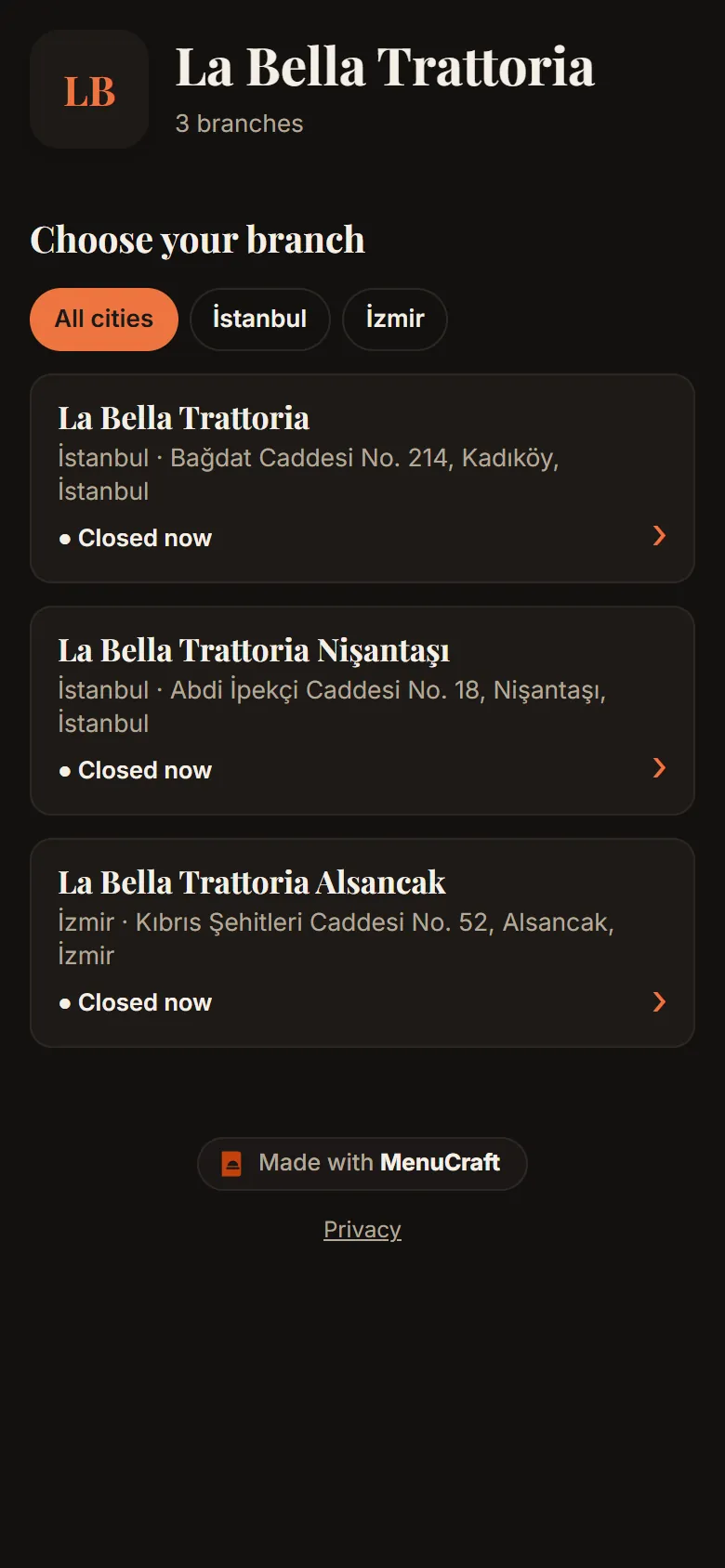
With two or more locations, the All-branches page card under the home page gives you one link and one QR code for all of them. Put it on flyers, the door, ads and your Instagram bio: guests choose their branch, and each branch opens its home page, or its menu when it has none.
- Open Location in the menu on the left, then Home page.
- Turn on Show the all-branches page.
- Copy its address, or select Download SVG or Download PNG to print its QR code.
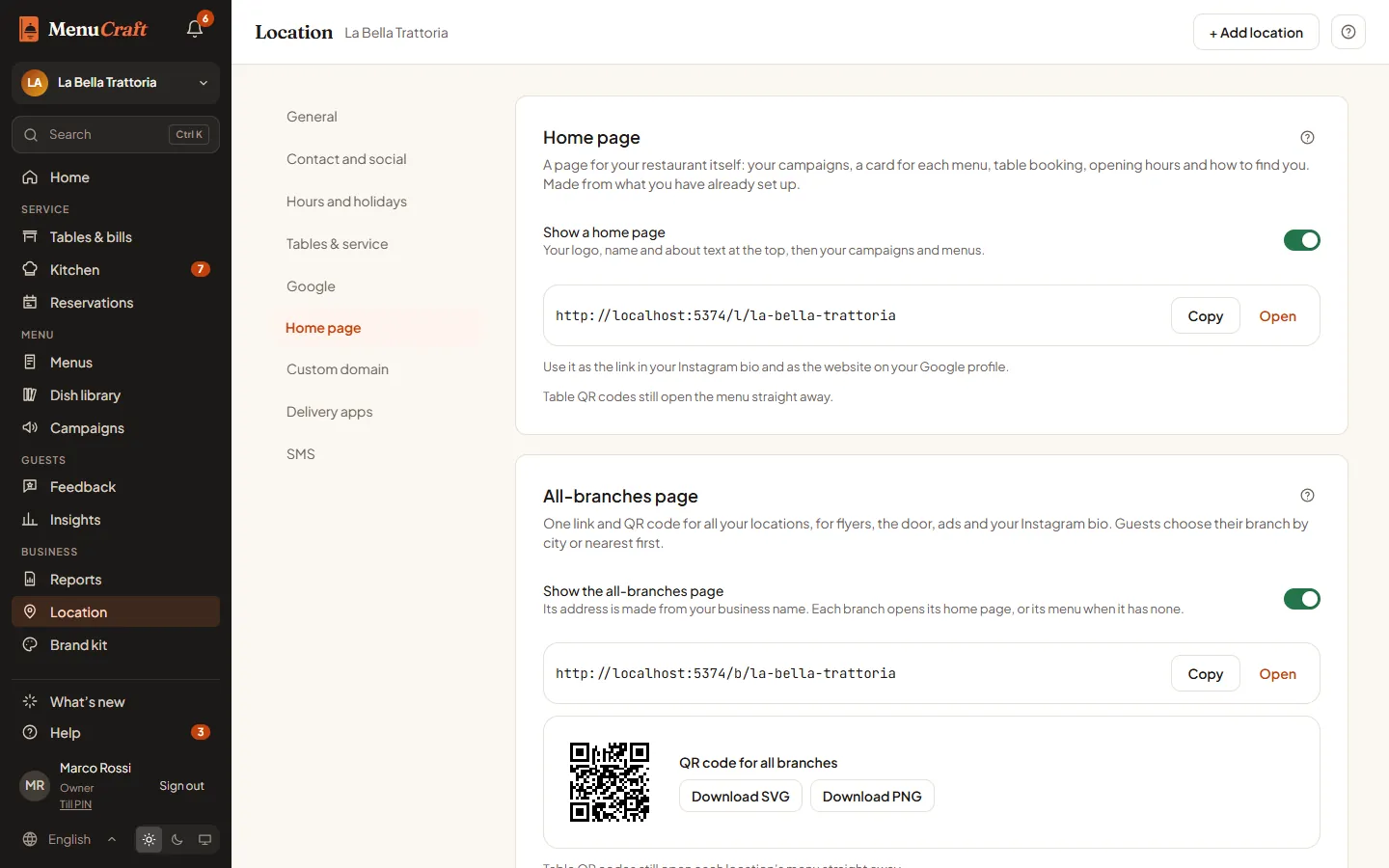
The address is made from your business name, for example menucraft.pro/b/la-bella. Guests can filter the branches by city and put the nearest first:
- Give each location its City under Contact, next to the address. The city filter shows when your branches are in two or more cities.
- Nearest first uses each location's position, set in Guests at the restaurant only under Tables & service, or copied from Google. The guest's own position stays on their phone.
Table QR codes still open each location's menu straight away.
On your own domain
When the location has its own domain, the domain's main address (for example labella.com) opens the home page, and each menu gets its own address under it, such as labella.com/m/dinner. Printed QR codes keep working. See Your own domain.