
With bills on, every table has one open bill. Waiters add dishes from their phones, guests' orders from the table's QR code land on the same bill, and the dishes reach the kitchen screen as usual. When the table pays, you take the money, in one go or in parts, and close the bill. At the end of the day you count the cash and close the day.
Before you start: add your areas and tables in Location, then Tables & service. Bills use the same table names as the QR codes. Bills don't replace your cash register (yazarkasa) or e-Adisyon yet.
Turn bills on
- Open Location, then Tables & service.
- Turn on Bills at this location. Tables & bills now appears in the sidebar for your whole team.
Bills are an add-on for each location; a trial includes them at one location. The card shows how many locations your plan has room for. Turning bills off keeps every bill, and bills that are still open can be settled.
Open a table
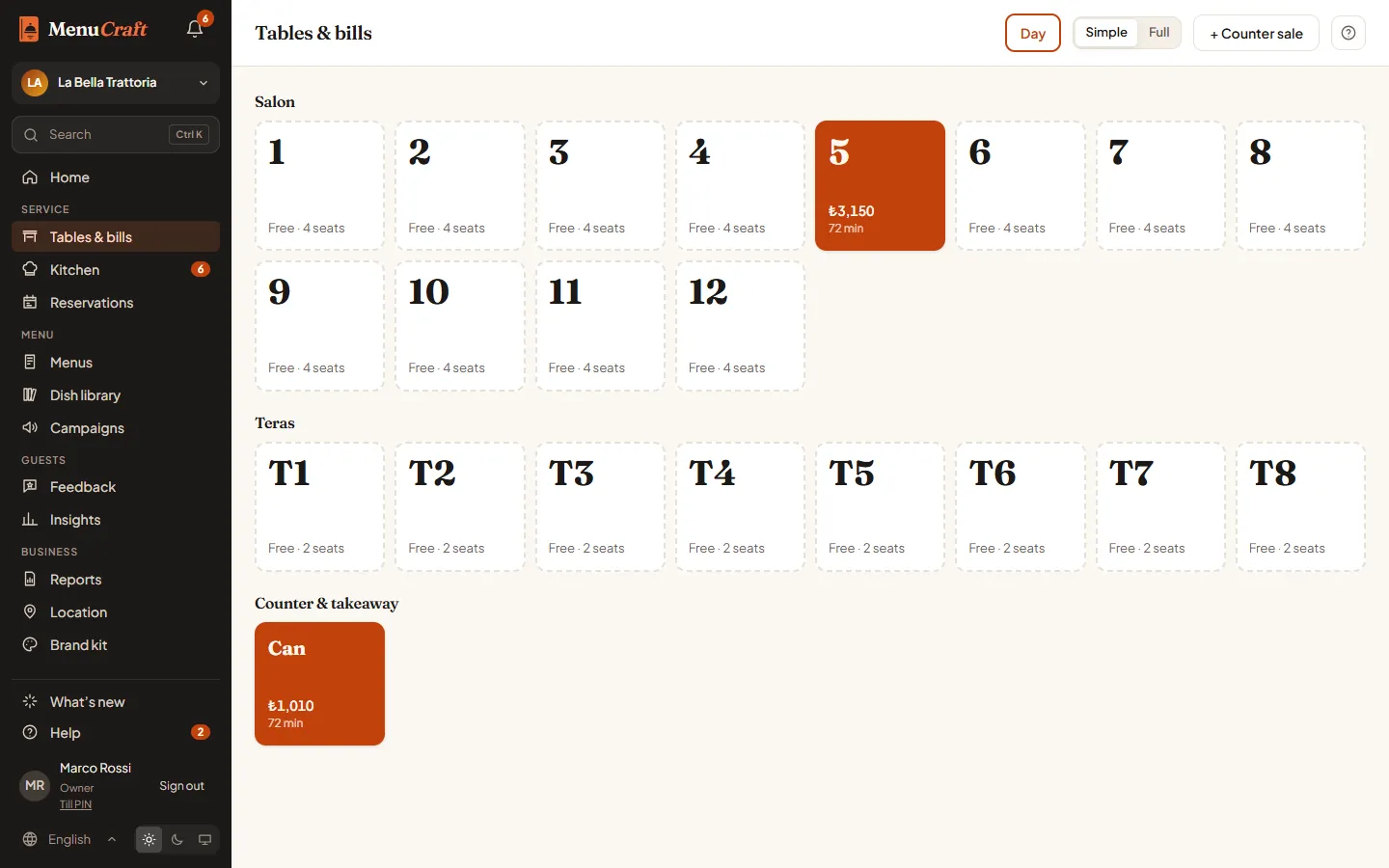
Open Tables & bills. Free tables show Free; tables with a bill show the amount and how long they have been open. Tap a free table to open its bill. For a sale without a table, such as a takeaway at the till, tap Counter sale, give it a name if you like, and tap Start. Bills without a table are listed under Counter & takeaway.
A table that asked for the bill from the menu turns yellow and shows Bill requested.
Add dishes and send them to the kitchen
On the bill, tap Add dishes, choose the dishes with their size and add-ons, then tap the send button at the bottom. The round goes to the kitchen screen as one ticket and onto the bill at the same moment. Sending twice by accident, for example on a bad connection, adds it once.
Guests' orders join the bill
When a guest orders from the menu with the table's QR code, the order goes to the kitchen and onto that table's bill. If the table has no bill yet, one opens by itself. On the bill, those dishes are marked as the guest's. Pickup orders don't go on a bill.
Take off a dish or give ikram
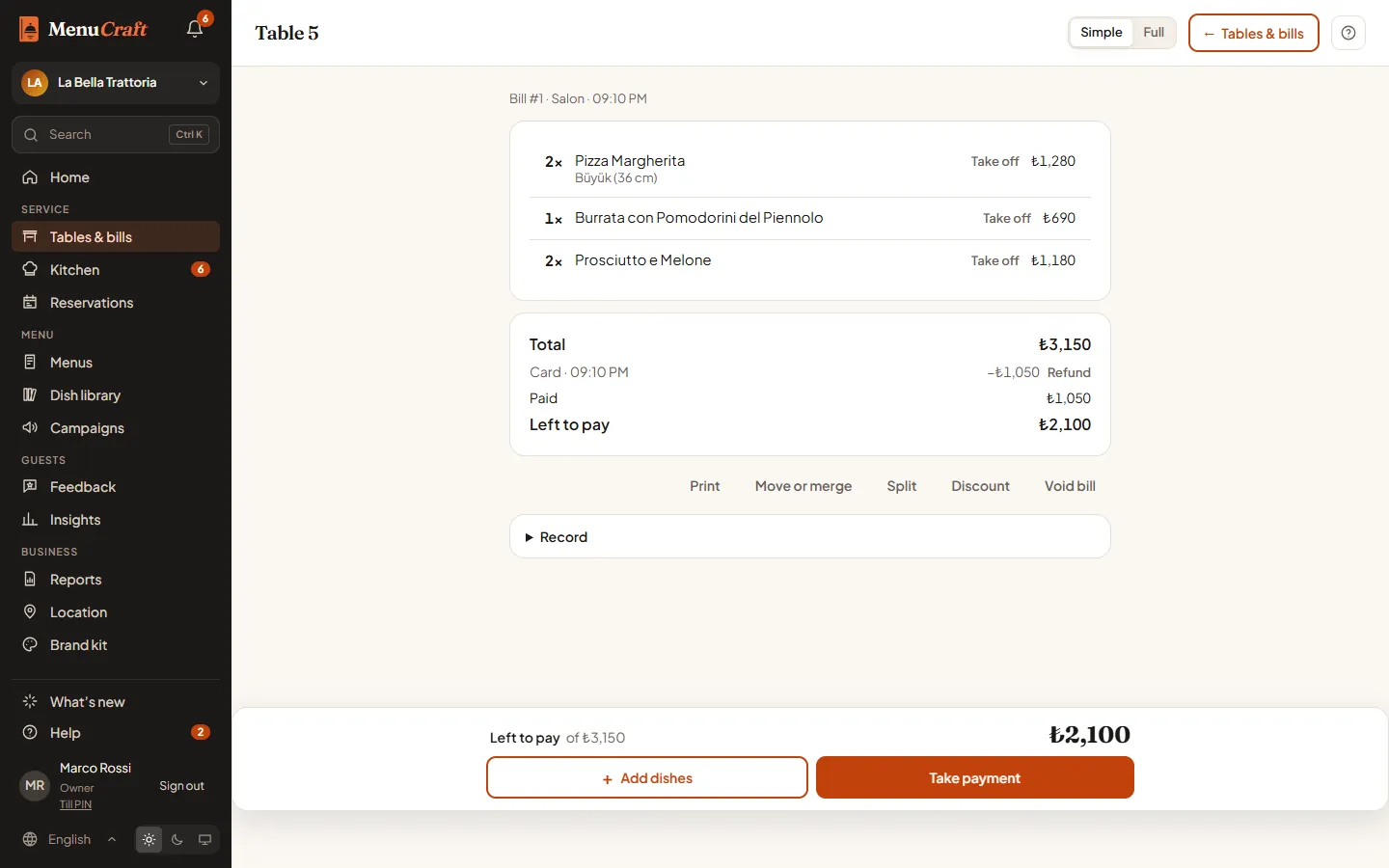
Tap a dish on the bill, then Take off, and choose:
- Cancel: a mistake, or it never came. It is not charged, and if the kitchen hasn't started the dish, it comes off the ticket too.
- Ikram: served, on the house. It is not charged, and the kitchen still makes it.
Choose a reason or type your own. Once the kitchen has started a dish, only a manager or the owner can take it off. If the kitchen cancels a ticket, its dishes come off the bill by themselves.
Move, merge or split
- Move or merge: tap a free table to move the whole bill there, or a table with a bill to put both bills together.
- Split: choose dishes, and how many of each, and move them to another table's bill or to a bill of their own, so that part can be paid apart.
Take payment and close
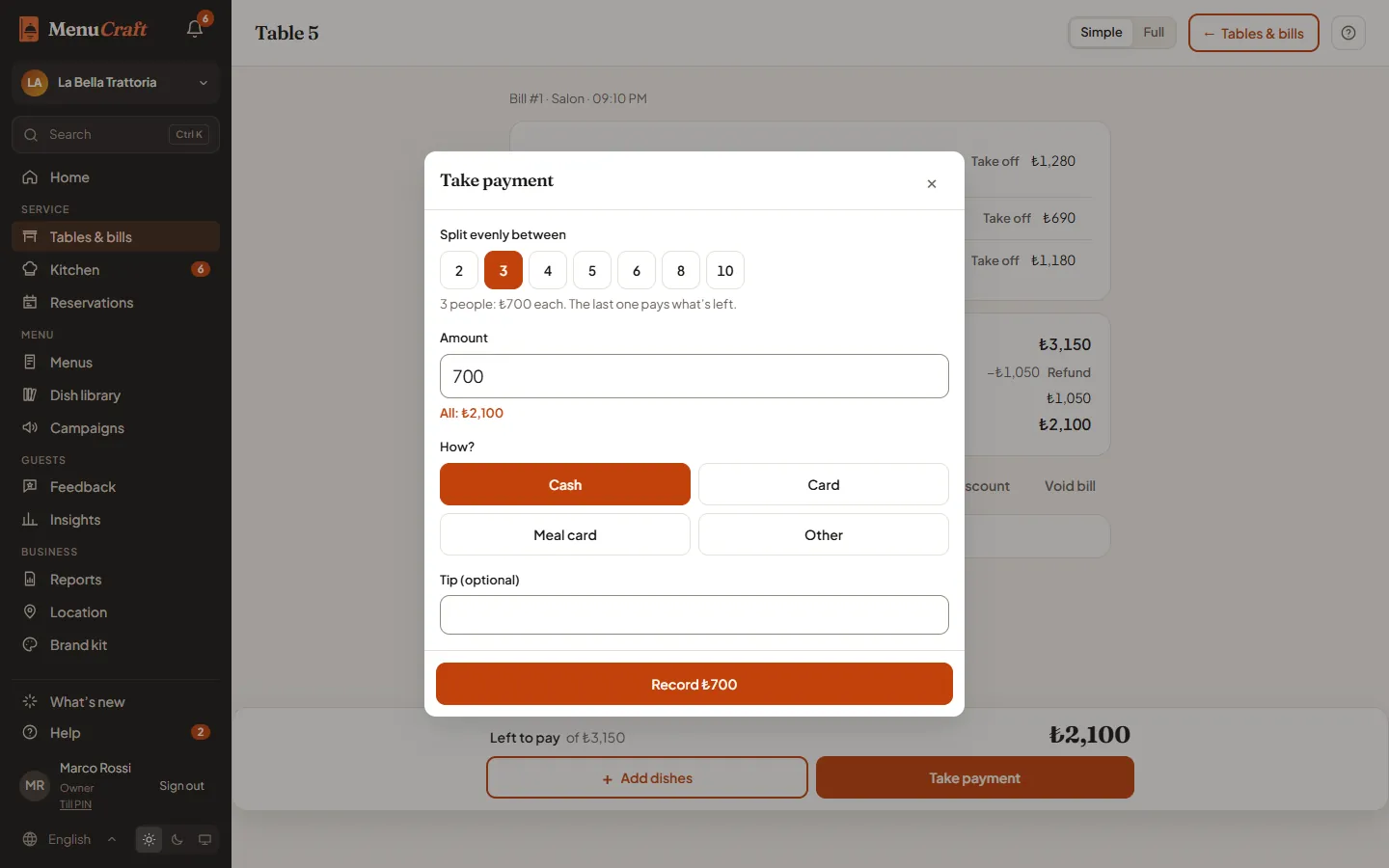
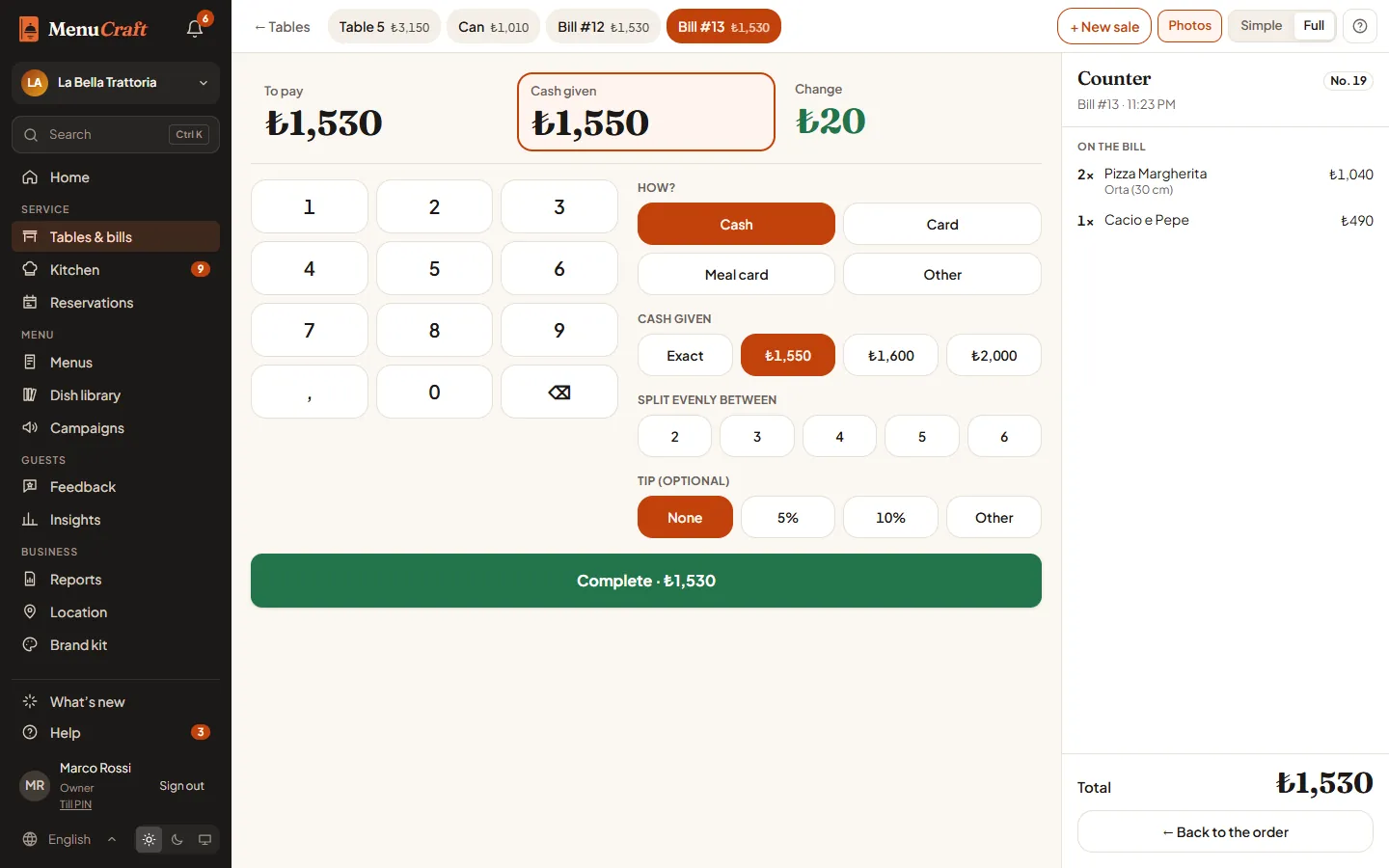
Tap Take payment, choose cash, card or another method, type the amount (or tap the full amount) and an optional tip, and record it. A table can pay in several parts. When nothing is left to pay, tap Close bill: the table is free again.
When everyone pays their own share, for example a group of students, choose how many people under Split evenly between. Each payment then fills in one share, rounded down, and the last person pays what is left. The screen remembers the split until the bill is paid.
A counter sale's printed bill shows its order number large, the one the order board calls.
Tap Print for a printed bill. It is made for an 80 mm receipt printer and is not a fiscal receipt.
Use the Full screen at a till or counter
On a tablet in landscape or a computer, bills open in the Full screen: the menu's categories on the left, the dishes as tiles in the middle and the bill on the right, so nothing opens over it. Phones keep the Simple screen described above. Switch between Simple and Full at the top of a bill or of Tables & bills; the choice is kept on that device.
- Tap a tile to add the dish; a dish with sizes or add-ons asks first. New dishes sit under Not sent yet, with − and + and Note, apart from what is already On the bill.
- Send to kitchen (3) sends them as one round. The pay button (for example Pay ₺755) sends anything not sent yet and opens payment on the same screen.
- Open bills are tabs across the top. New sale starts a counter sale at once; the name is optional, and nothing is saved until its first dishes go.
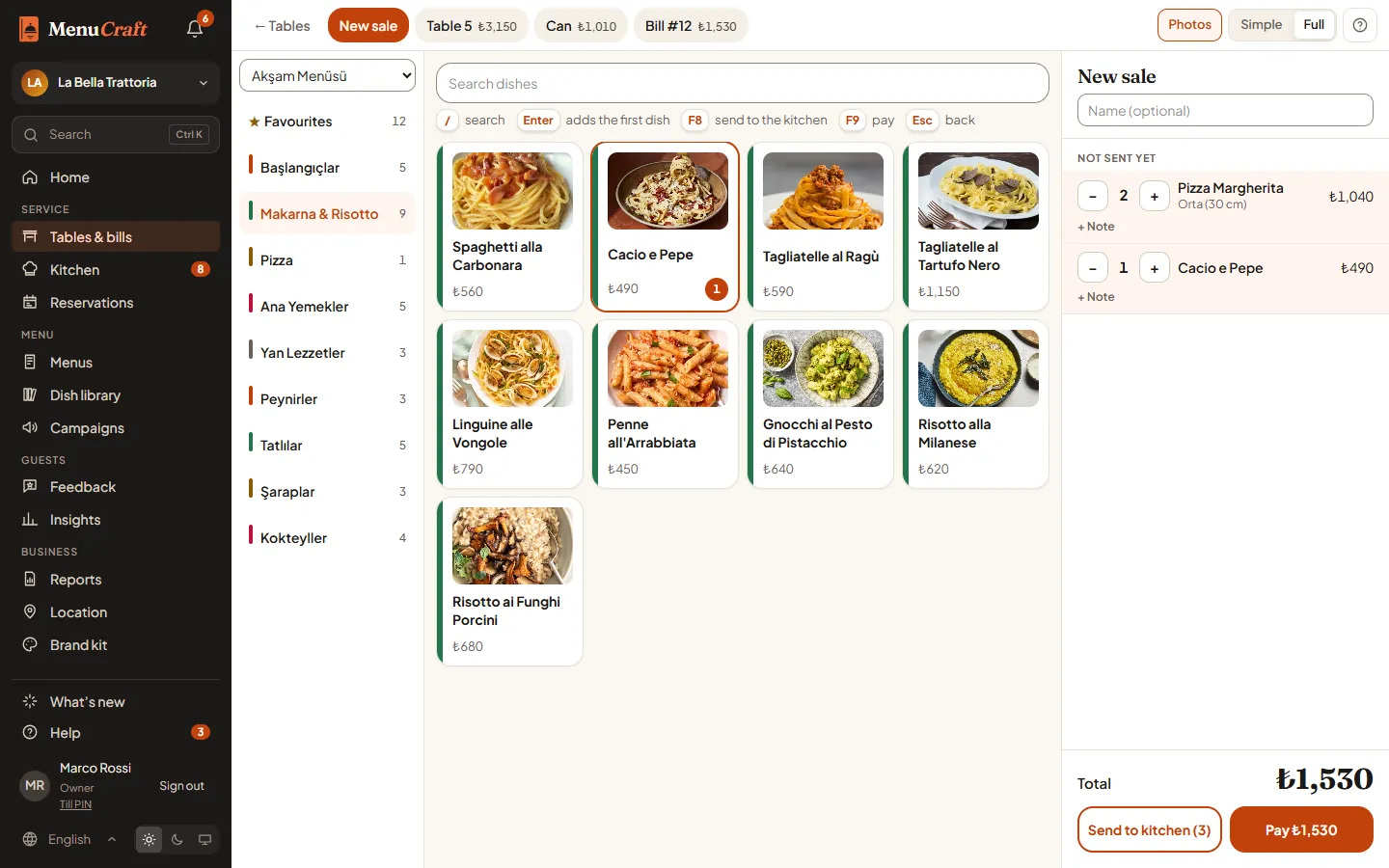
Favourites comes first among the categories once there are a few: the dishes this location sold most in the last 30 days. Photos puts the dishes' photos on the tiles, on that device only; leave it off on a slow tablet. At a computer, press / to search, type a few letters and press Enter to add the first dish found; F8 sends to the kitchen, F9 pays and Esc goes back.
To take the money, choose the method. For cash, tap the note the guest handed over, or type it on the keypad, and the screen shows the Change. Split evenly and tip work as above; tap the amount to pay to type a part payment instead. Complete · ₺755 records the payment and closes the bill in one step. A counter sale then opens the next one, with Print receipt for the sale just closed. On a computer the keyboard works too: type the numbers and press Enter.
Discounts, refunds and reopening
These are for managers and the owner:
- Discount: a percent or an amount off the whole bill, with a reason.
- Refund: on a payment recorded by mistake. The payment stays on the record, marked refunded; give the money back yourself.
- Reopen bill: a closed bill opens again as it was. A bill from a day that is already closed can't be reopened.
- Void bill: takes every dish off, for a bill opened by mistake.
Every change is kept: tap Record on a bill to see who added, took off, paid or changed what, and when.
Close the day
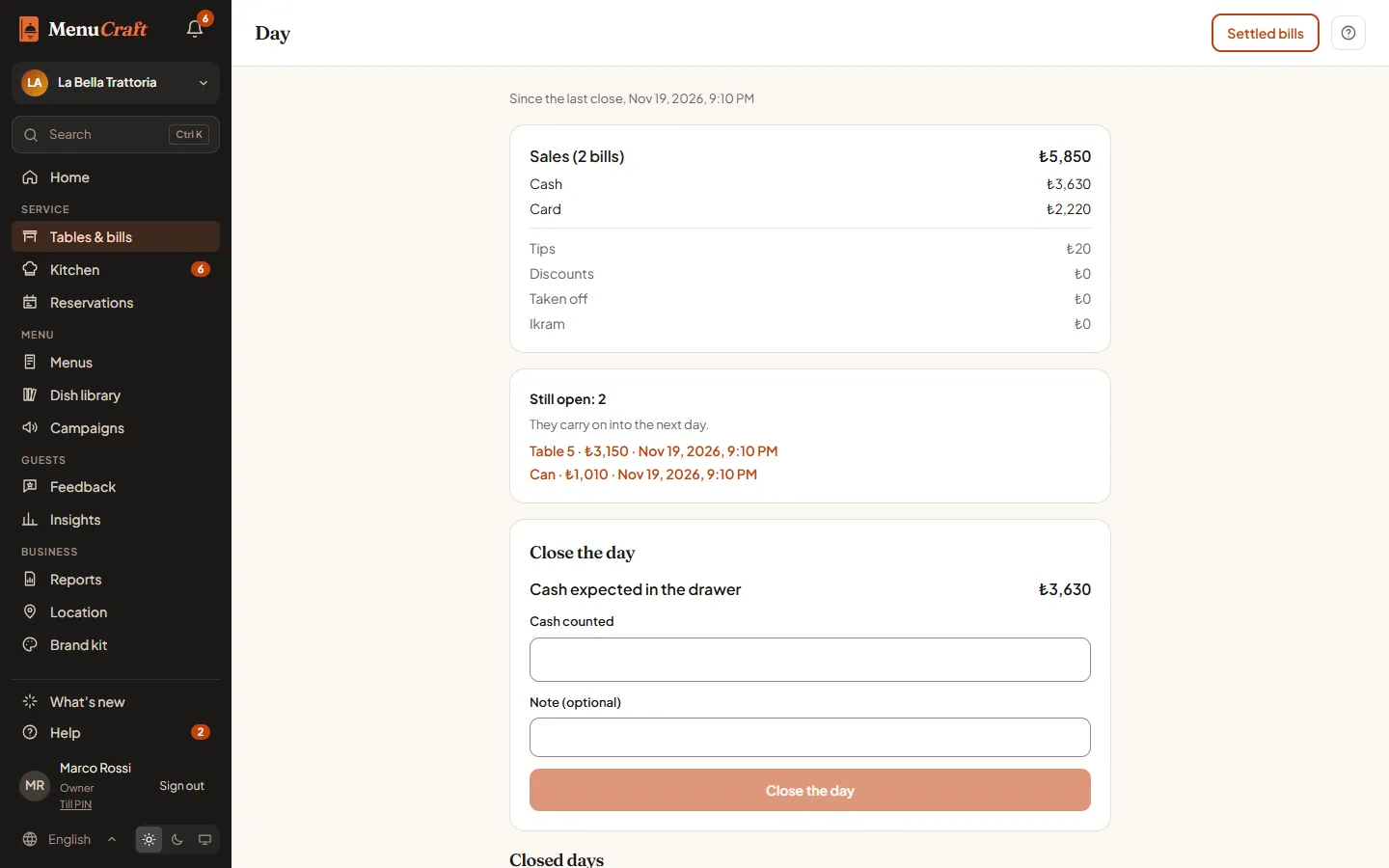
Managers and the owner open Day from the top of Tables & bills. It shows the sales since the last close, by payment method, with cancels, ikram, discounts and refunds. Bills left open for many hours have to be closed or voided first.
Count the cash in the drawer, type it in Cash counted, and tap Close the day. The difference from what the bills say is kept with the day. Export downloads a day as a spreadsheet (CSV) for your accountant, and Settled bills lists every bill of a day.
Who can do what
- Staff open tables, add dishes, cancel dishes the kitchen hasn't started, move, merge and split, and print. Whether they also take payment is chosen for each person in Team, under Bills: Orders only, Orders + payments (the default) or Cashier, who also sees the day.
- A Manager and the Owner can also give ikram, cancel started dishes, discount, refund, reopen and void bills, close the day and see past days.
On a shared till, staff without the right can still do these with a manager's PIN, and a waiter who takes orders only hands the till to someone who takes payment. See Shared tills and staff PINs.
Staff limited to some locations only see those locations' tables. See Team and roles.
When your plan ends
If your trial ends or the add-on is removed, bills turn off at the locations your plan no longer covers, starting with the one turned on last, and you get a notice. Nothing is deleted: bills that are still open keep taking rounds and payments until you close them, and past days stay. Only new bills can't be opened. Add the add-on on the Plan page to turn bills on again. A location with bills can't be deleted, because its bills are your sales records.