
A campaign is a slide at the top of a location's menus: a photo, a title, a few words and, if you like, a button. Use it for offers and news, such as an iftar menu, live music on Fridays or a happy hour. With more than one, guests swipe between them on a phone or drag them with the mouse on a computer, and they move on by themselves every few seconds.
Campaigns show as soon as you save them; there is nothing to publish. They are part of the Pro and Business plans.
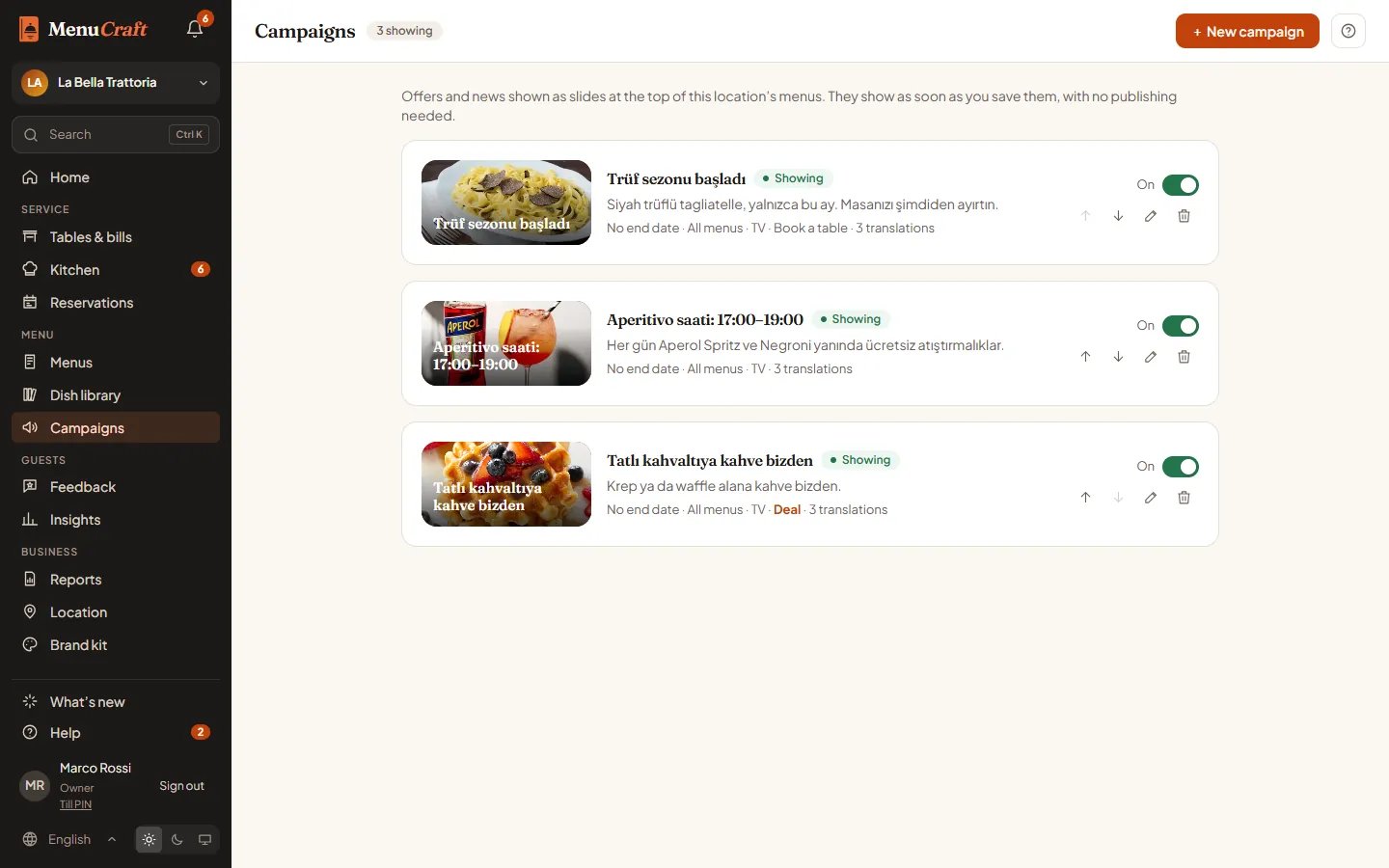
Add a campaign
- Open Campaigns in the menu on the left. Campaigns belong to the location you have chosen at the top.
- Select New campaign, or start from one of the ideas.
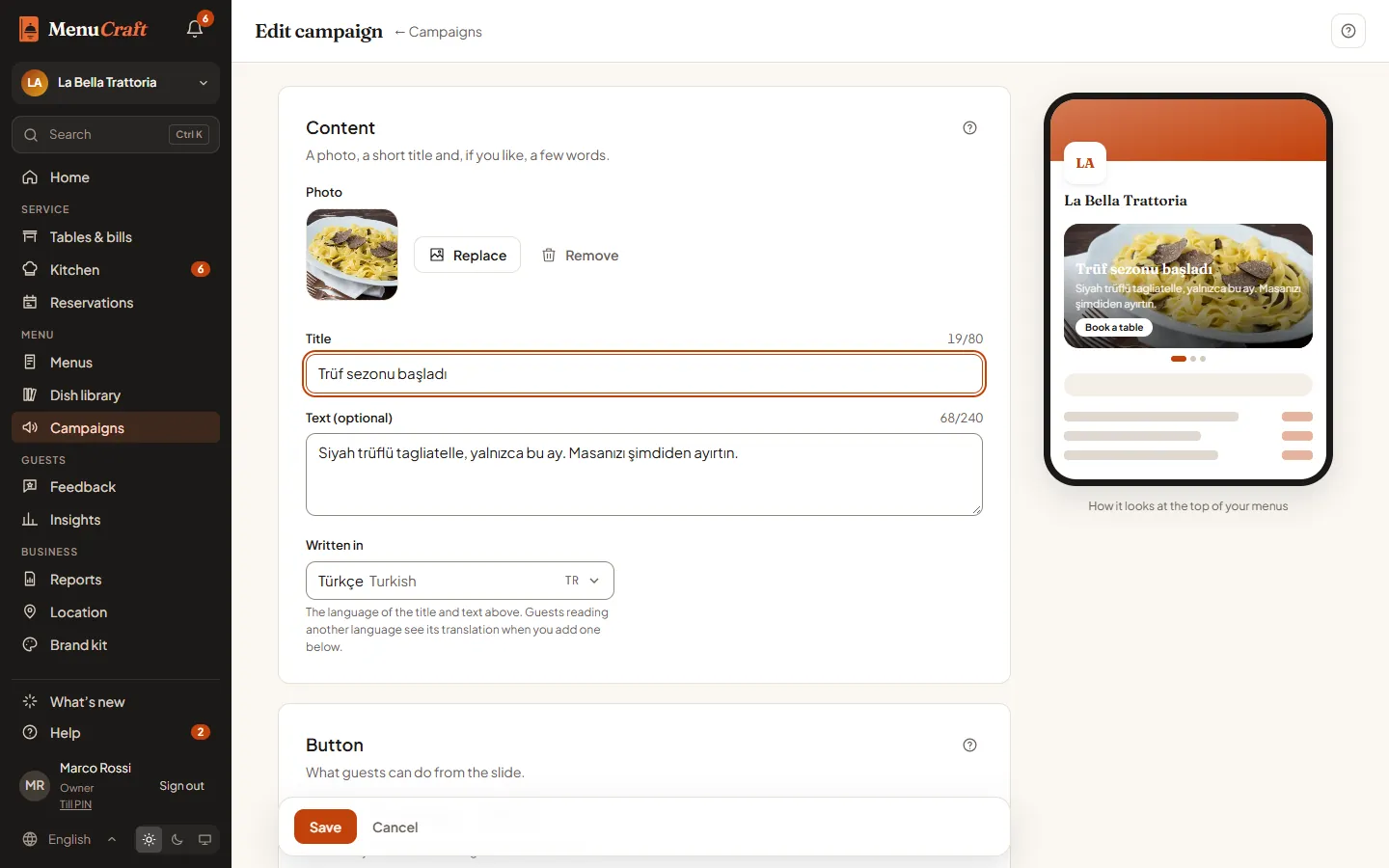
- Add a Photo, a Title and, if you want, a Text (optional). The phone beside the form shows how the slide will look on your menus as you type.
- Under Button, choose None, Book a table or Web link (then enter the address).
- Select Add campaign.
Tip: The Book a table button only shows while table booking is on for the location. See Table booking.
Choose when and where it shows
- Under When and where, set a First day and a Last day to have it turn itself on and off, for example for a holiday menu. Leave both empty to start now and keep it showing.
- Show on: with several menus, choose All menus of this location or Only these menus.
- Count down to the end: with a Last day set, the slide shows the time left, to the second, until that day ends.
- Dish on the slide: choose a dish and the slide gets an Add to order button for it. Where guests can't order, the button opens the dish on the menu instead.
- TV screens: on by default, so the campaign also fills the location's TV screens between their pages. Turn it off to show it on the menus only. See QR codes, printing and sharing.
Each campaign shows its state on the page: Showing, starting on a date, Paused or Ended.
Add a deal
A campaign can also change the basket while it shows: the deal is taken off orders guests send through your menu, and shows on the kitchen ticket and in the WhatsApp message. Without ordering, the campaign still tells guests about it.
- Edit the campaign and find Deal.
- Choose one:
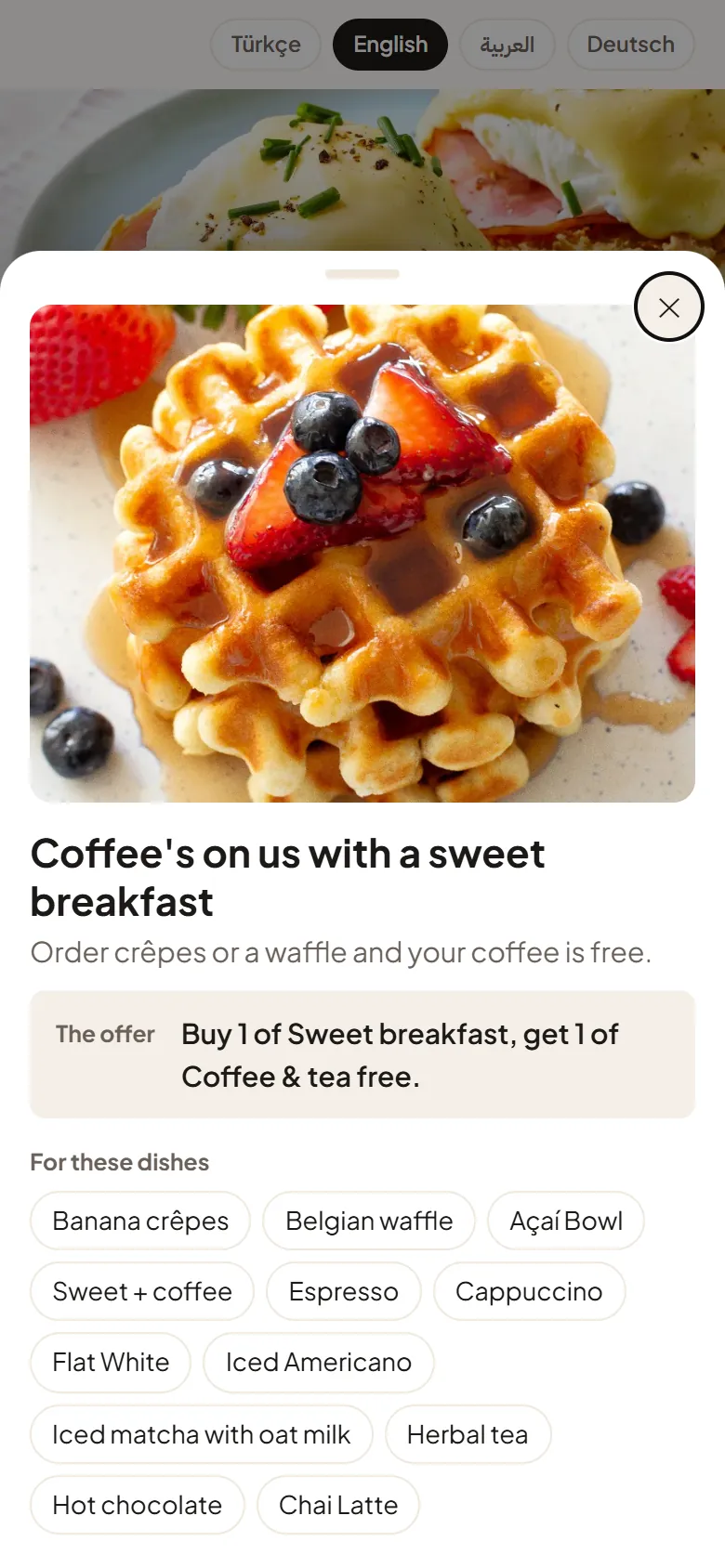
- Buy & get: guests buy a number of some dishes and get others Free, at Half price or another % off. For example: buy 1 from Desserts, get 1 from Coffee free; or 3 for 2 (buy 2, get 1 more of the same dishes free).
- Discount: a % or an amount off chosen dishes, for example 20% off cocktails.
- Order over: orders over an amount get a % off, Free delivery, or both.
- Choose the dishes. Ticking a whole section includes the dishes you add to it later.
- Under Days, keep every day or pick some. Turn on Only at certain hours for a happy hour or a lunch deal.
- Read the sentence under the card: it says what guests get. Then save.
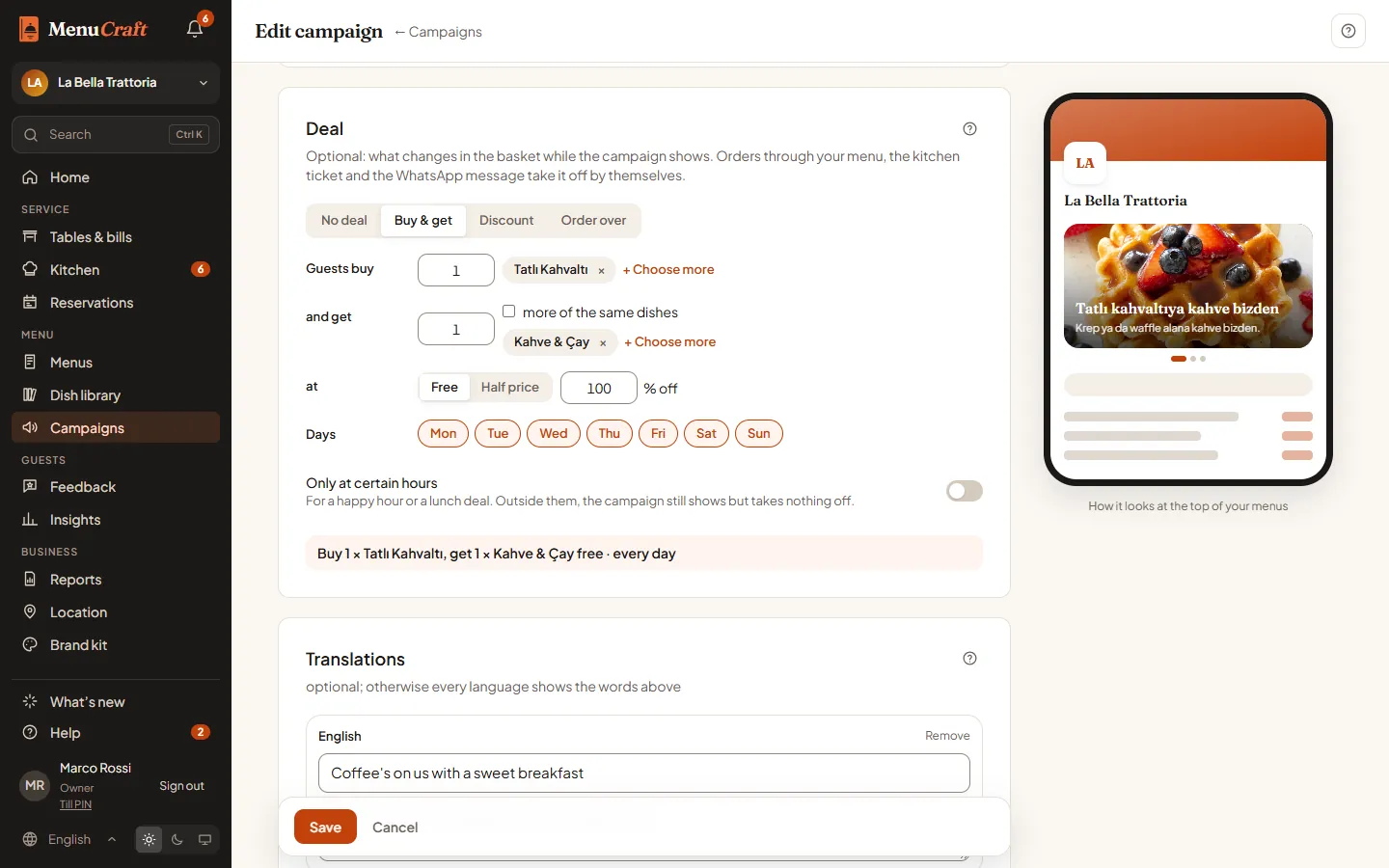
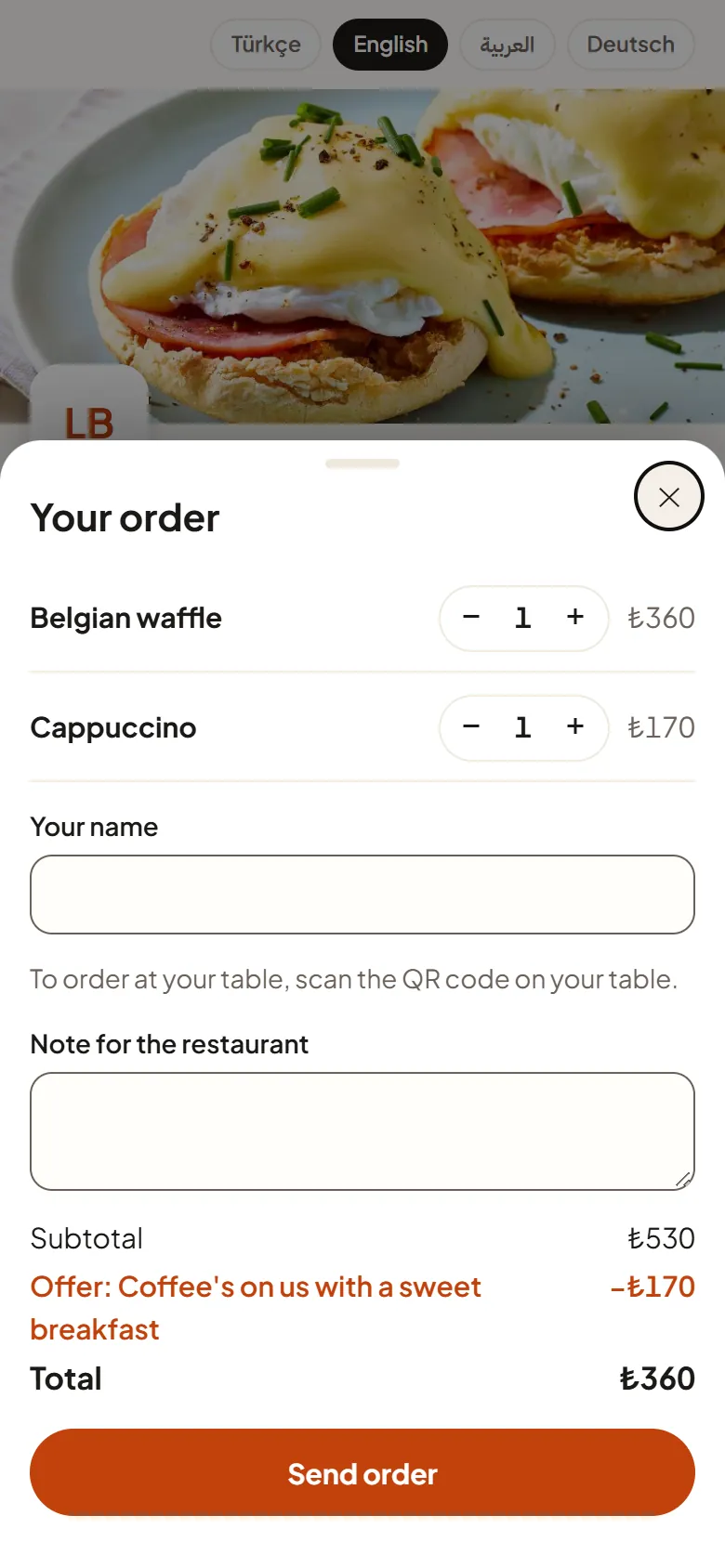
When each side of a deal is one dish (a waffle and a free latte, or 3 for 2 on one cake), its slide also gets an Add to order button that puts them in the basket in one tap. Dishes in a deal wear an Offer tag on the menu. In the basket guests see each deal on its own line, with what it takes off. Each dish counts towards one deal at most. In "3 for 2", the cheapest of each three is free; when the free dish comes from other dishes (a free coffee), it is the cheapest of them. Deals over the whole order count last.
Guests see the conditions under Details on the slide: the deal in words, its days and hours, its last day and the dishes it is for, in their own language.
Copy it to other branches
With more than one location, the campaign editor shows Other branches.
- Tick the branches that should show the campaign too.
- Select Add campaign (or Save when editing).
Each branch gets its own copy, on all its menus, which you can change or pause there later. A branch that already shows as many campaigns as your plan allows gets its copy paused, so you can choose which one to swap.
Translate a campaign
Guests see the campaign in the language they read the menu in, when you have translated it.
- Edit the campaign and open Translations.
- Choose Add a language, and write the title and text in it.
Languages without a translation show the words you wrote first.
The words at the top are in the language under Written in: your location's language unless you choose another. Choose the language you really wrote them in, so that the other languages can be added as translations.
Pause, reorder and delete
- Turn the On switch off to pause a campaign without losing it, and on again to bring it back.
- Use Move up and Move down to change the order of the slides.
- Delete removes a campaign from your menus straight away.
How many can show at once
Pro shows up to 5 campaigns at once per location; Business has no limit. Paused and ended campaigns don't count. See Plan and billing.