
Restaurants and cafés make offers in many ways. MenuCraft has a place for each: pick the line that matches yours.
| You want | Use |
|---|---|
| One dish cheaper for a while | A Sale price on the dish |
| A fixed bundle, such as burger + fries + drink | A set |
| Buy 1, get 1 free; 3 for 2; a free coffee with a dessert | A Buy & get deal |
| 20% off cocktails, or off everything at lunch | A Discount deal |
| Free delivery or a % off orders over an amount | An Order over deal |
| Any of these only at certain hours (happy hour) | A deal with Only at certain hours |
A discount on one dish
Open the dish and type the new price in Sale price. Guests see the normal price crossed out next to it. Clear the box when the offer ends, and publish. See Add and edit dishes.
A set menu
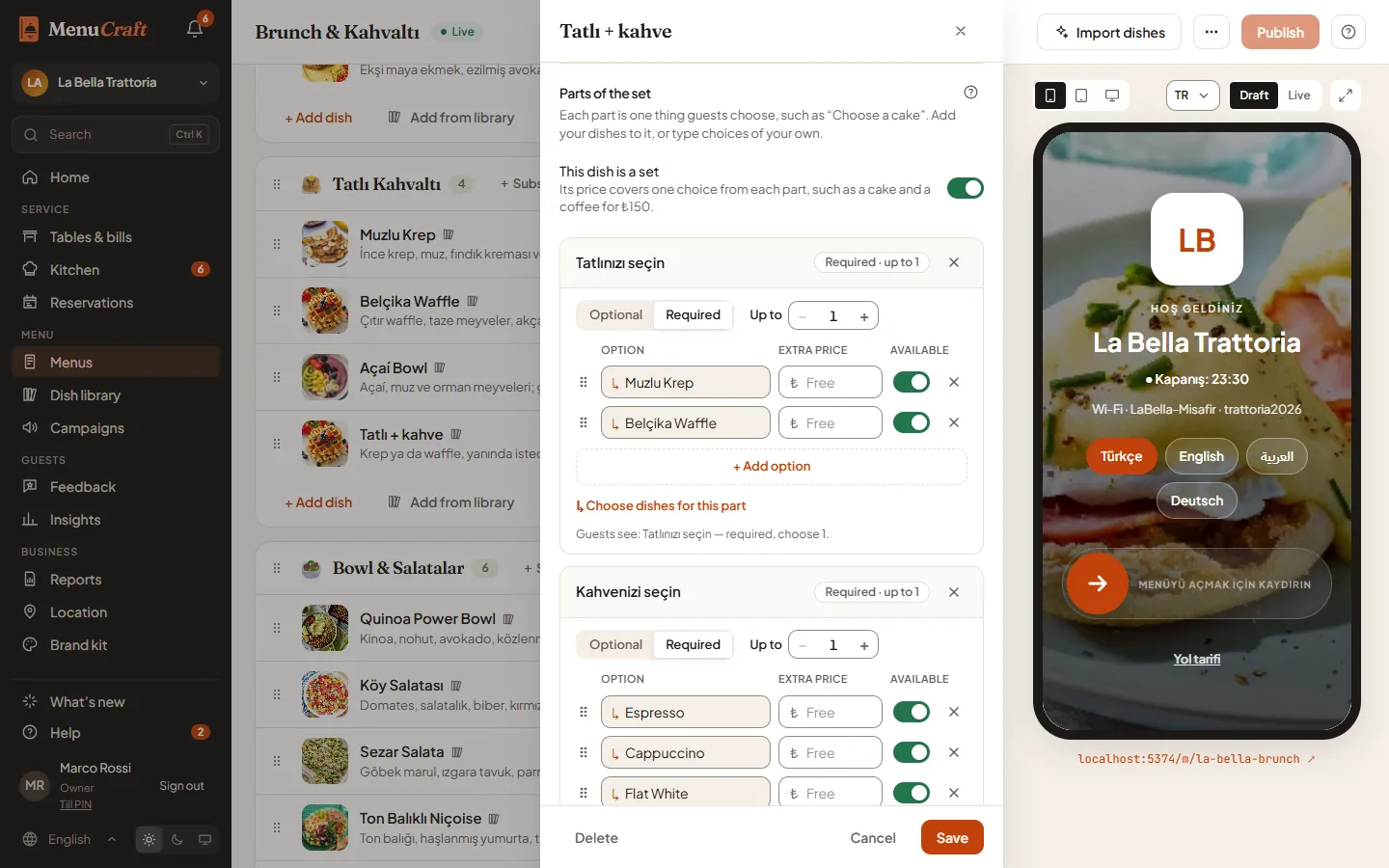
A set is a dish whose price covers one choice from each part, for example "Sweet + coffee": crêpes or a waffle, and an espresso or a cappuccino.
- Add the set as a dish with its name, photo and price.
- Open it, and under Add-ons turn on This dish is a set.
- Add a part for each choice and pick the dishes guests choose from.
The menu shows a Set badge, what it's made of and how much guests save. See Sizes and add-ons.
Buy one, get one; 3 for 2; a free coffee
These are deals, kept in a campaign so guests see them as a slide at the top of the menu.
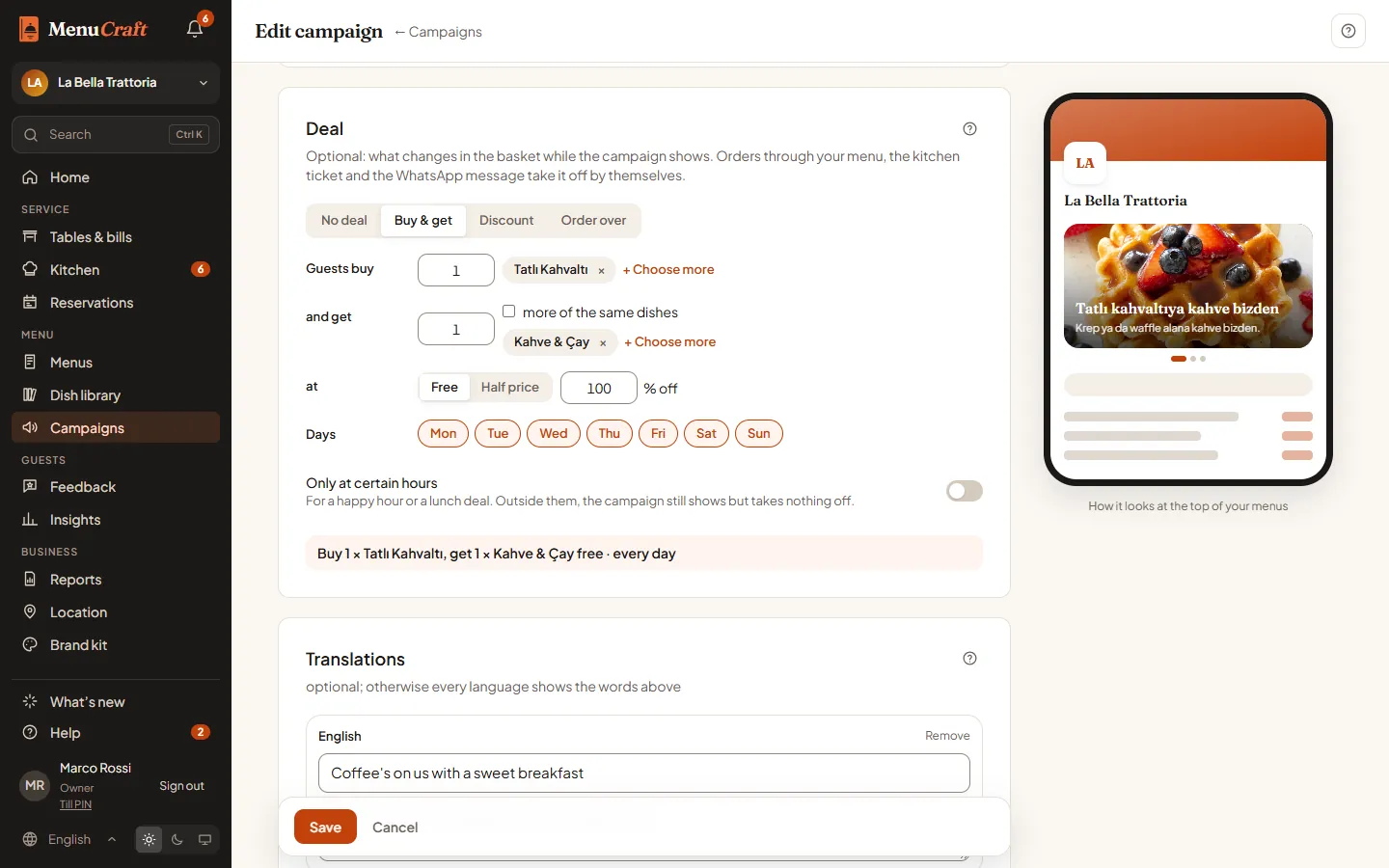
- Open Campaigns, select New campaign (or edit one), and add a photo and a title.
- Under Deal, choose Buy & get.
- Choose what guests buy and what they get, and how much off: Free, Half price or another %.
- Buy 1 from Desserts, get 1 from Coffee Free.
- 3 for 2: buy 2, get 1 more of the same dishes Free.
- Read the sentence under the card, then save.
When each side is one dish, the slide gets an Add to order button. See Campaigns.
Happy hour and lunch deals
In the deal, keep every day or pick some under Days, then turn on Only at certain hours and set the times. Outside those hours the deal doesn't apply and guests don't see its tag.
What guests and the kitchen see
- Dishes in a deal wear an Offer tag on the menu.
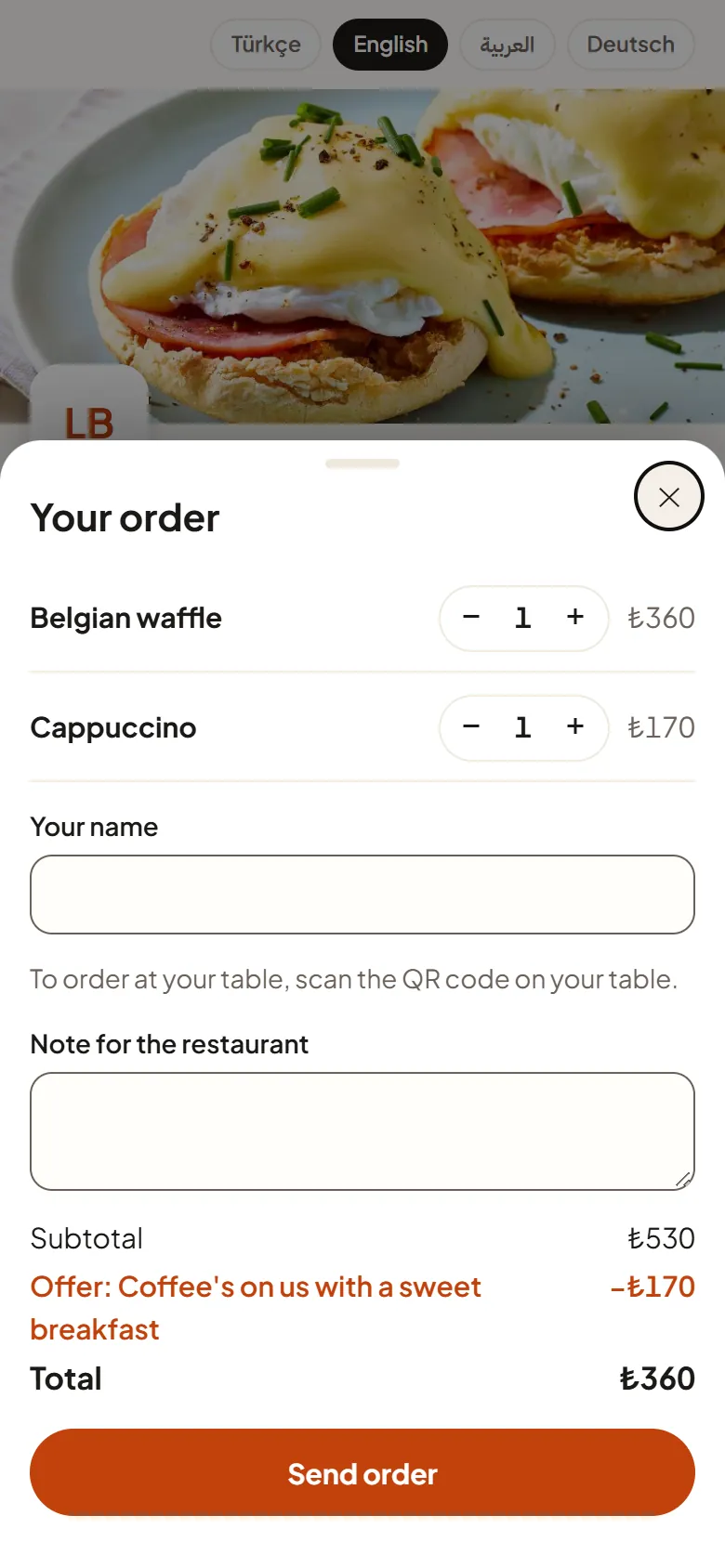
- In the basket each deal has its own line with what it takes off; the total is what the guest pays.
- The kitchen ticket and the WhatsApp message show the deal too, so staff charge the right amount.
Deals apply to orders guests send through the menu. Without ordering, the campaign slide still tells guests about the offer, and your staff apply it at the till.
Note: A whole cheaper menu at certain times (a lunch menu) isn't automatic yet: make it a separate menu and share it at lunch, or use a Discount deal with Only at certain hours on the dishes.