
With your own domain, guests open a location's menus at an address such as menu.yourrestaurant.com instead of menucraft.pro. You add one record at the company you bought the domain from. MenuCraft looks after the secure certificate (the padlock in the browser) and renews it for you.
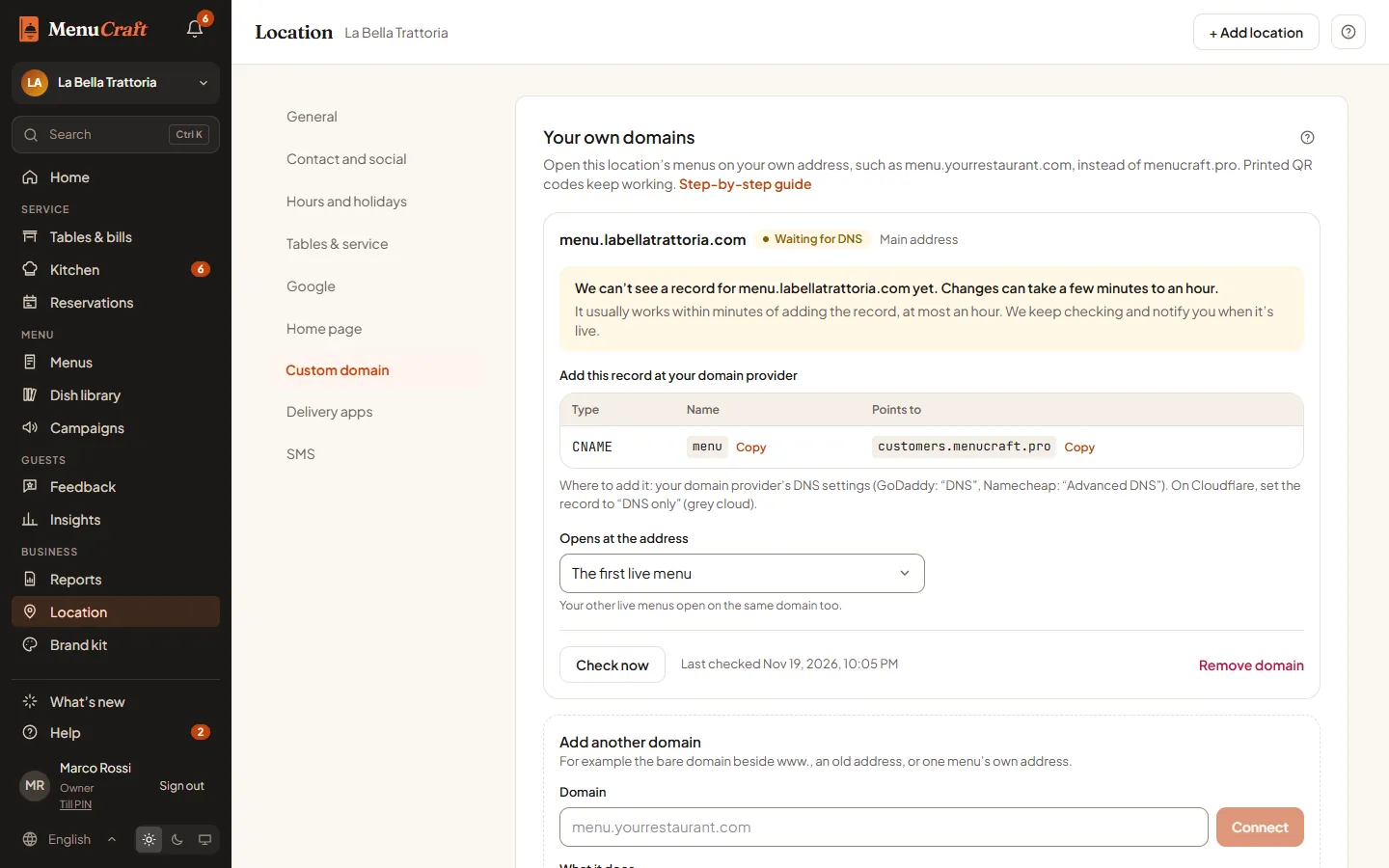
Your own domain comes with Pro and higher plans. Each location can have more than one (how many depends on your plan, see More than one domain). Only the business owner can connect, change or remove them.
Connect a domain
- Open Location in the sidebar and choose the location (if you have more than one).
- Select Custom domain.
- Type the address, for example
menu.yourrestaurant.com, and select Connect. - If the location has more than one live menu, choose which one opens at the address under Opens at the address. The other live menus open on the same domain too.
Tip: Use a subdomain such as
menu.orqr.. It works with every domain provider, and your website at yourrestaurant.com stays as it is.
Add the DNS record
MenuCraft shows the one record to add. Sign in at your domain provider, open its DNS settings and add:
| Type | Name | Points to |
|---|---|---|
| CNAME | the part before your domain, e.g. menu |
customers.menucraft.pro |
Use Copy next to each value so nothing is mistyped. Where to find the DNS settings:
- GoDaddy: My Products → your domain → “DNS”.
- Namecheap: Domain List → “Manage” → “Advanced DNS”.
- Cloudflare: your domain → “DNS” → “Records”. Set the record to “DNS only” (grey cloud), not proxied.
Leave the record in place for as long as you use the domain: removing it stops the domain working.
Going live
After you add the record, the status shows Waiting for DNS. It usually turns Live within a few minutes, at most an hour. MenuCraft keeps checking by itself and sends you a notification and an email when the domain is live. Select Check now to check at once.
While it waits, the card says what MenuCraft sees, for example that no record exists yet or that the record points somewhere else. Fix what it says and select Check now. If nothing works after 3 days the status becomes Not working; fixing the record and checking again starts a fresh wait.
More than one domain
A location's first domain is its main address. To add another, select Add another domain under the list, type the address, and choose under What it does:
- Main address: shows the location's menus. Share links and search engines use this address. A location has one; choosing it for another domain turns the old main address into a forward.
- Forwards to the main address: sends visitors on to the main address. Good for an old address, or the bare domain beside www.
- Opens one menu: shows one menu at its own address, for example brunch.yourrestaurant.com for your brunch menu. Choose the Menu it opens. That menu's address is then this domain, and the main address sends it there.
Each domain needs its own DNS record, shown in its box. You can change what a domain does at any time in its box.
Once it's live
- Your menus open at your address: the chosen menu at the address itself, the other live menus under it.
- Share links in MenuCraft and the address Google sees switch to your domain.
- Old menucraft.pro links still work and forward guests to your domain.
- Printed QR codes keep working. They point at a short MenuCraft link that forwards to your domain, so you never need to reprint them, even if you change or remove the domain later.
A bare domain (yourrestaurant.com)
Many providers can't point a bare domain (without menu. in front) with a CNAME record. If yours can, for example
Cloudflare, you can use it. Otherwise use a subdomain such as menu.yourrestaurant.com, and if you like, set your
bare domain to forward to it in your provider's settings.
Remove the domain or change plans
Select Remove domain in a domain's box to stop using it. If it was the main address, the oldest domain that forwards becomes the main address; with no domain left, your menus stay live on menucraft.pro. You can delete the DNS record afterwards.
If your plan no longer includes your own domain, the status becomes Switched off and the menus are shown on menucraft.pro only. When you upgrade again, the domain comes back by itself. See Plan and billing.