
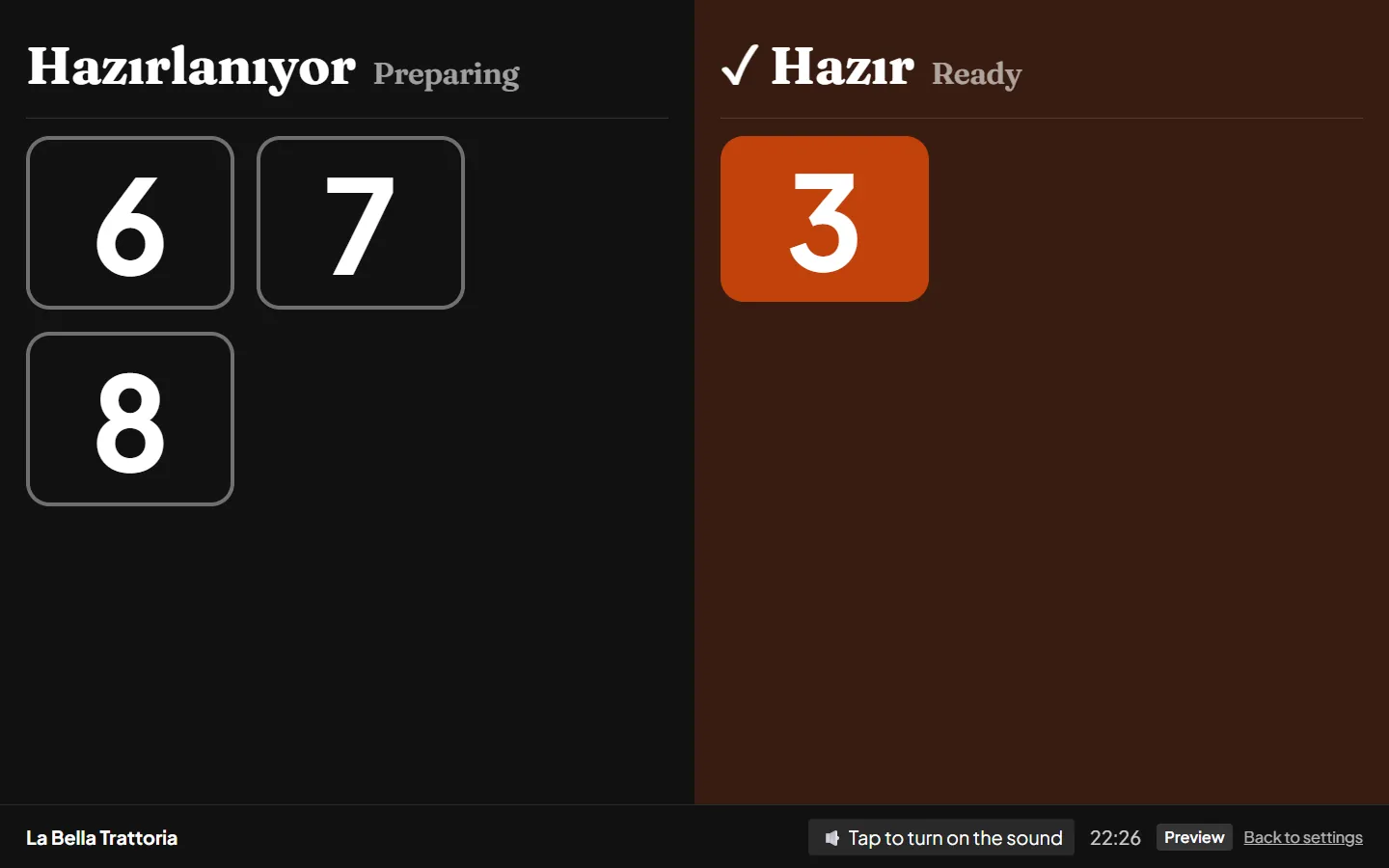
A TV or tablet at the counter shows two columns: the order numbers being prepared, and the ones ready to collect. When the kitchen marks an order ready on the kitchen screen, its number moves across at once with a chime. Guests see their number on the order they placed from the menu, or on the printed bill of a counter sale.
The board shows numbers only, never names or dishes. Every business can add one; it doesn't need bills.
Add the order board
- Open Team. Under Devices, select Add device.
- Give it a name (for example "Counter TV"), choose Order board and the location, and select Get the code.
- On the TV or tablet, open
menucraft.pro/app/devicein the browser, type the 6-digit code and select Set up.
From then on it opens straight to the board. Tap the screen once: browsers only play the chime after a tap, and the board says Tap to turn on the sound until then. To stop using it, select Stop using as a device at the bottom.
What the board shows
- Pickup orders from the menu, and counter sales rung up on a till. Table orders are left out, since a waiter carries them (you can add them, see below). Orders from delivery apps never show.
- A new order shows under preparing until the kitchen marks it ready. It leaves the board when staff mark it done on the kitchen screen, or by itself after a few minutes.
- The board updates the moment the kitchen changes something. If it loses its connection, it says so instead of showing numbers that may be out of date.
On a guest's phone, the order they placed shows its number large, and changes to ready at the same moment as the board. A counter sale's printed bill shows Your number.
Choose what it shows
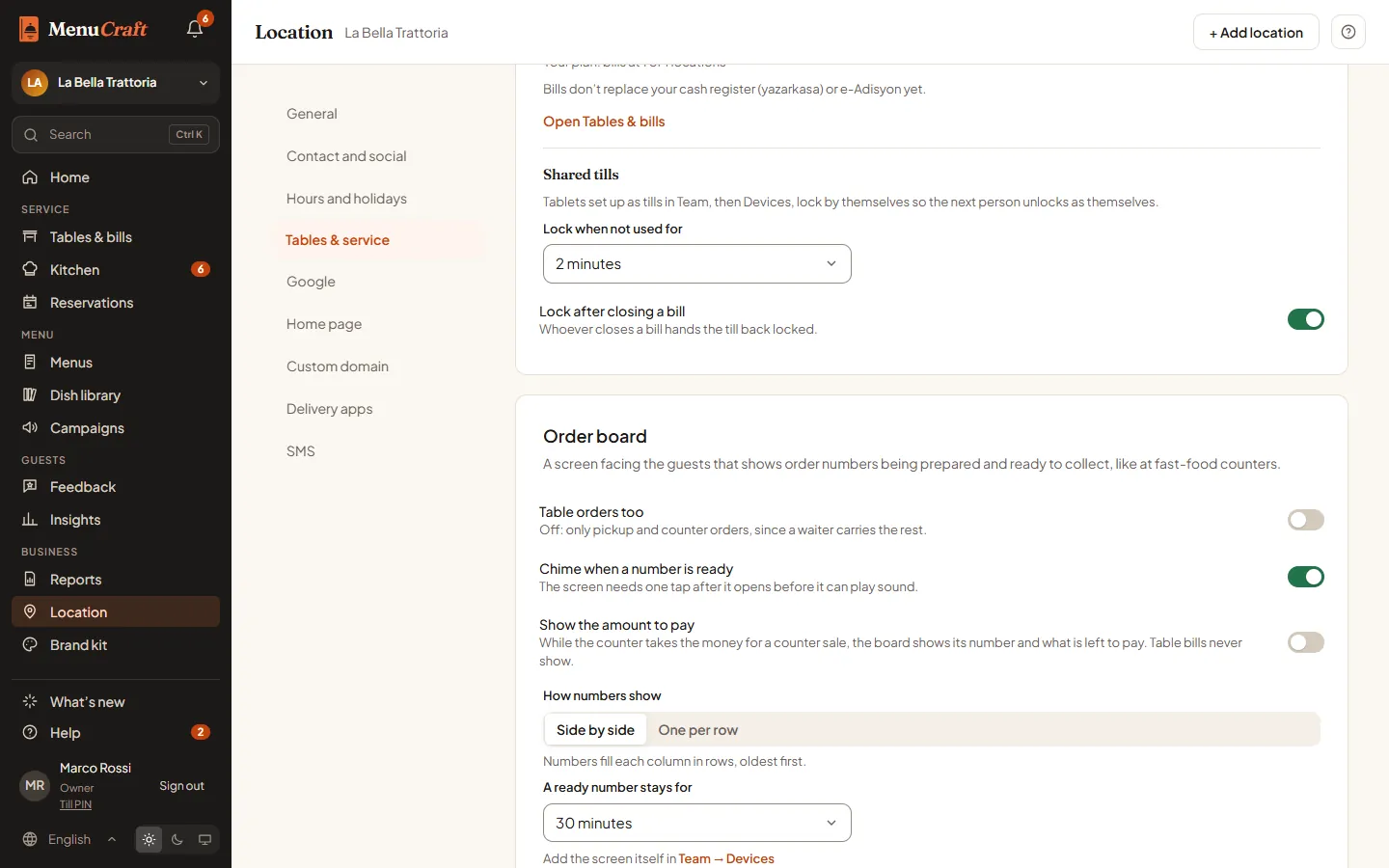
On the Location page, under Tables & service, the Order board card has:
- Table orders too: also show dine-in orders.
- Chime when a number is ready: on or off.
- Show the amount to pay: while the counter takes the money for a counter sale on the Full screen, the board shows its number and what is left to pay, as a customer display does. Off unless you turn it on; table bills never show.
- How numbers show: Side by side, or One per row with the newest at the bottom, the list moving up as numbers come.
- A ready number stays for: how long a ready number stays if nobody marks it done (3 to 30 minutes).
See it before you hang the TV
Select Preview the board on the same card. The board opens full screen in a new tab, live, from your own sign-in, exactly as the TV will show it.
Tips for the screen
- An Android TV stick plugged into the TV is the simplest setup. Many smart TVs' own browsers work too; try yours first.
- Set the TV not to sleep, and keep it on the restaurant's Wi-Fi.
- The board moves a few pixels every few minutes, so a TV left on all day doesn't burn the numbers in.