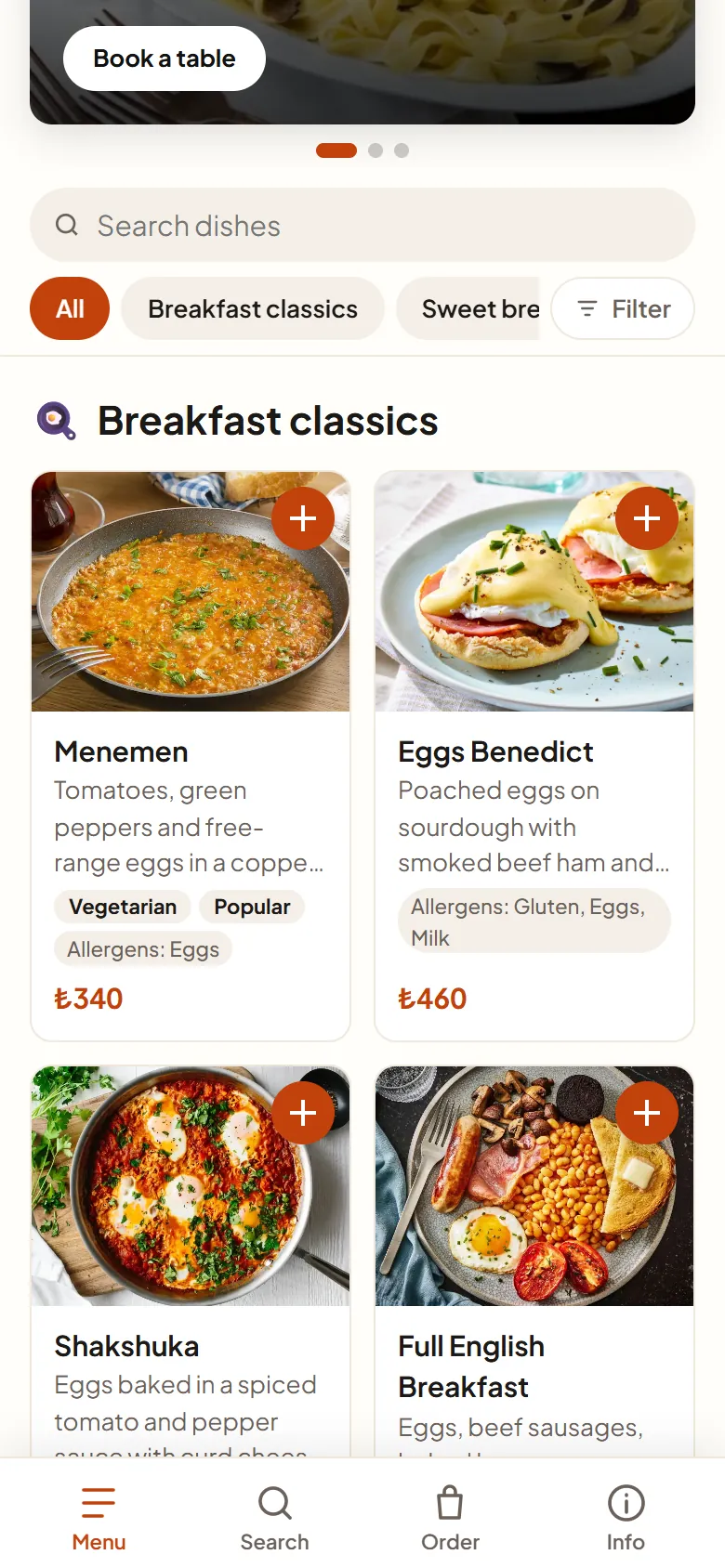
For a restaurant where guests order from their phone at the table. Do this after your menu is set up and published.
Add your areas and tables
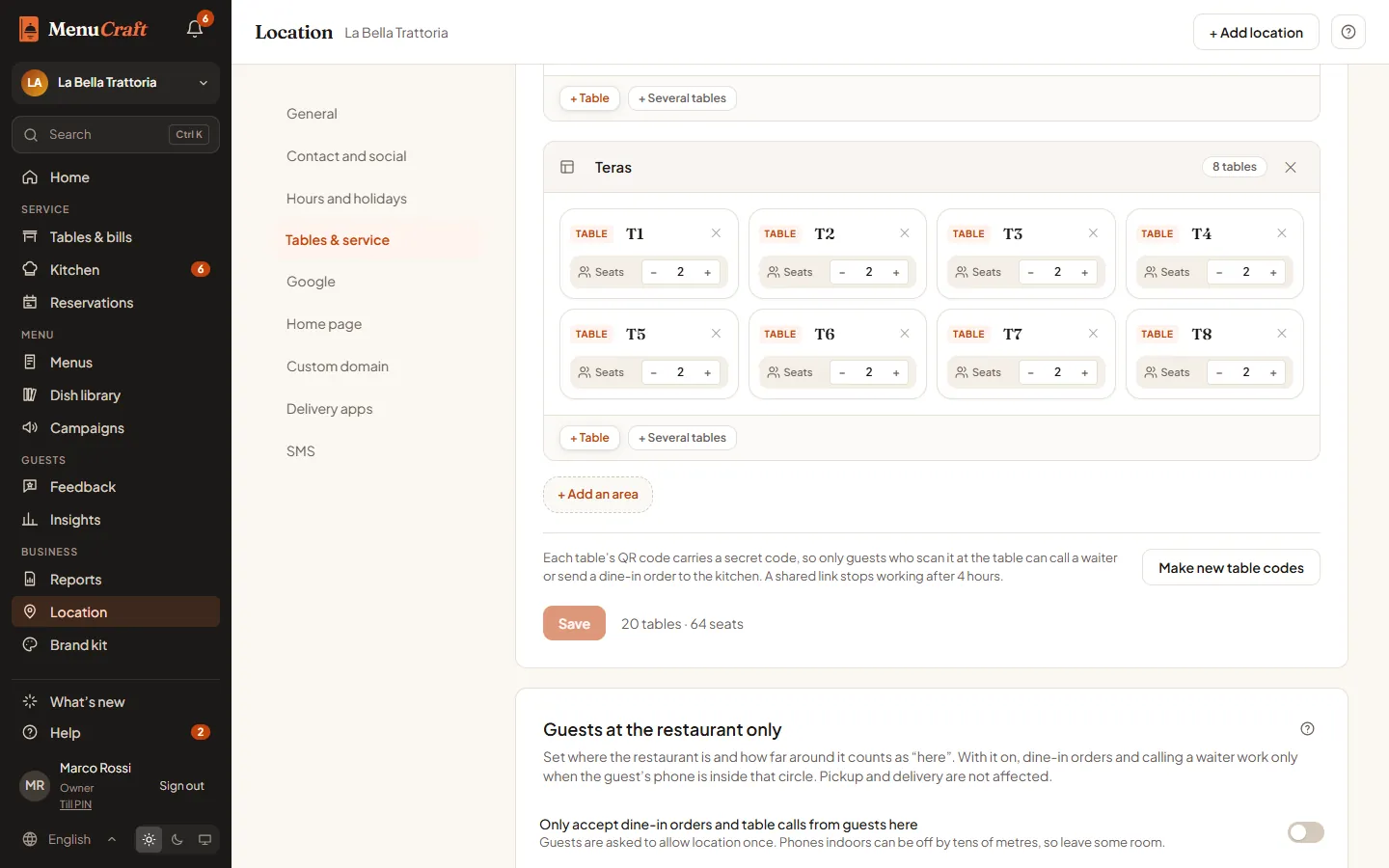
On Location, open Tables & service and add your areas (Terrace, Indoor) and tables, then select Save. Each table gets its own QR code, so you know where every order comes from.
Turn on ordering
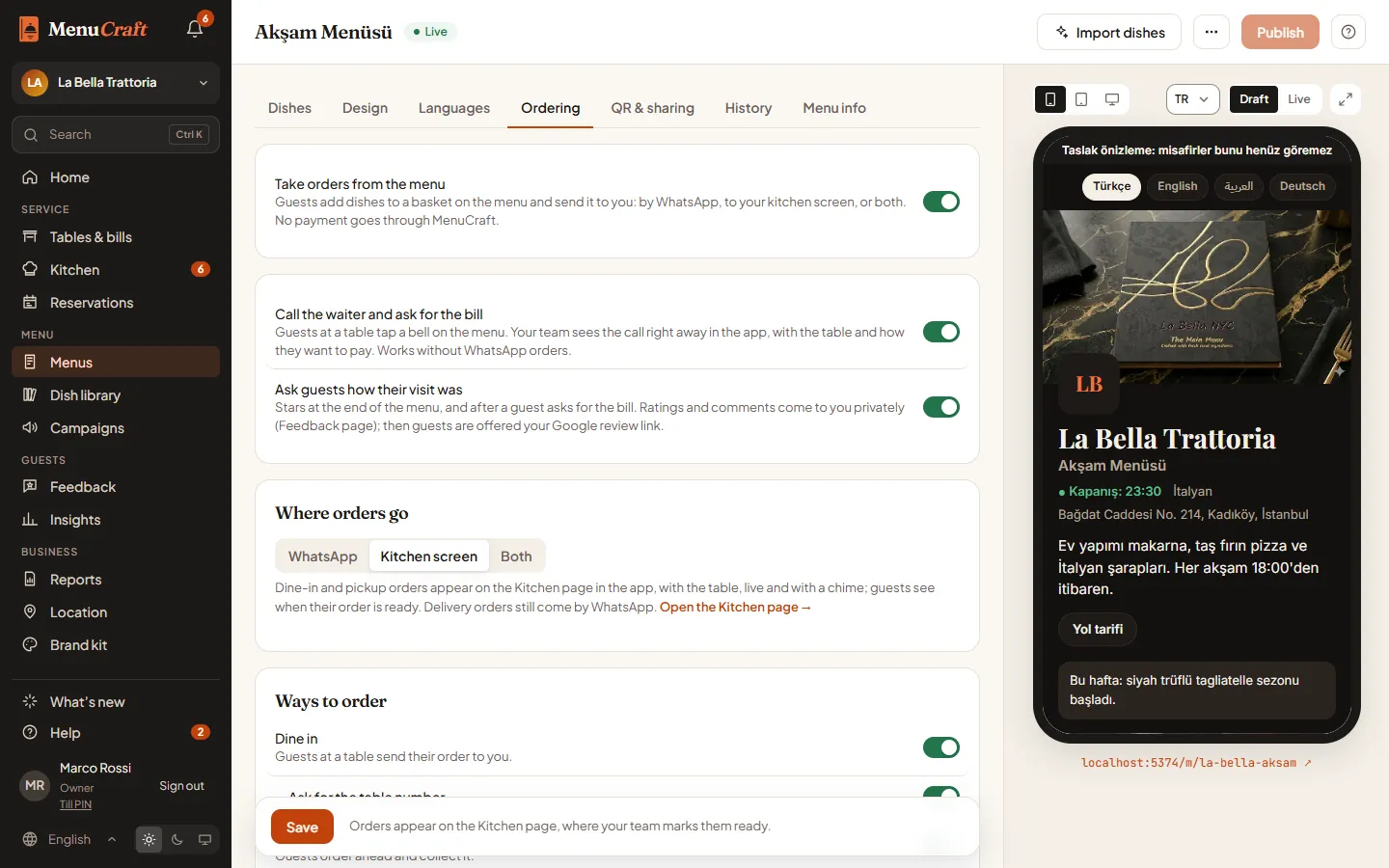
Open the menu's Ordering tab and switch on Take orders from the menu. Under Ways to order, switch on Dine in. See Ordering and waiter calls.
Send orders to the kitchen screen
Under Send orders to, choose Kitchen screen (or Both to get them on WhatsApp too). Select Save.
Let guests call a waiter
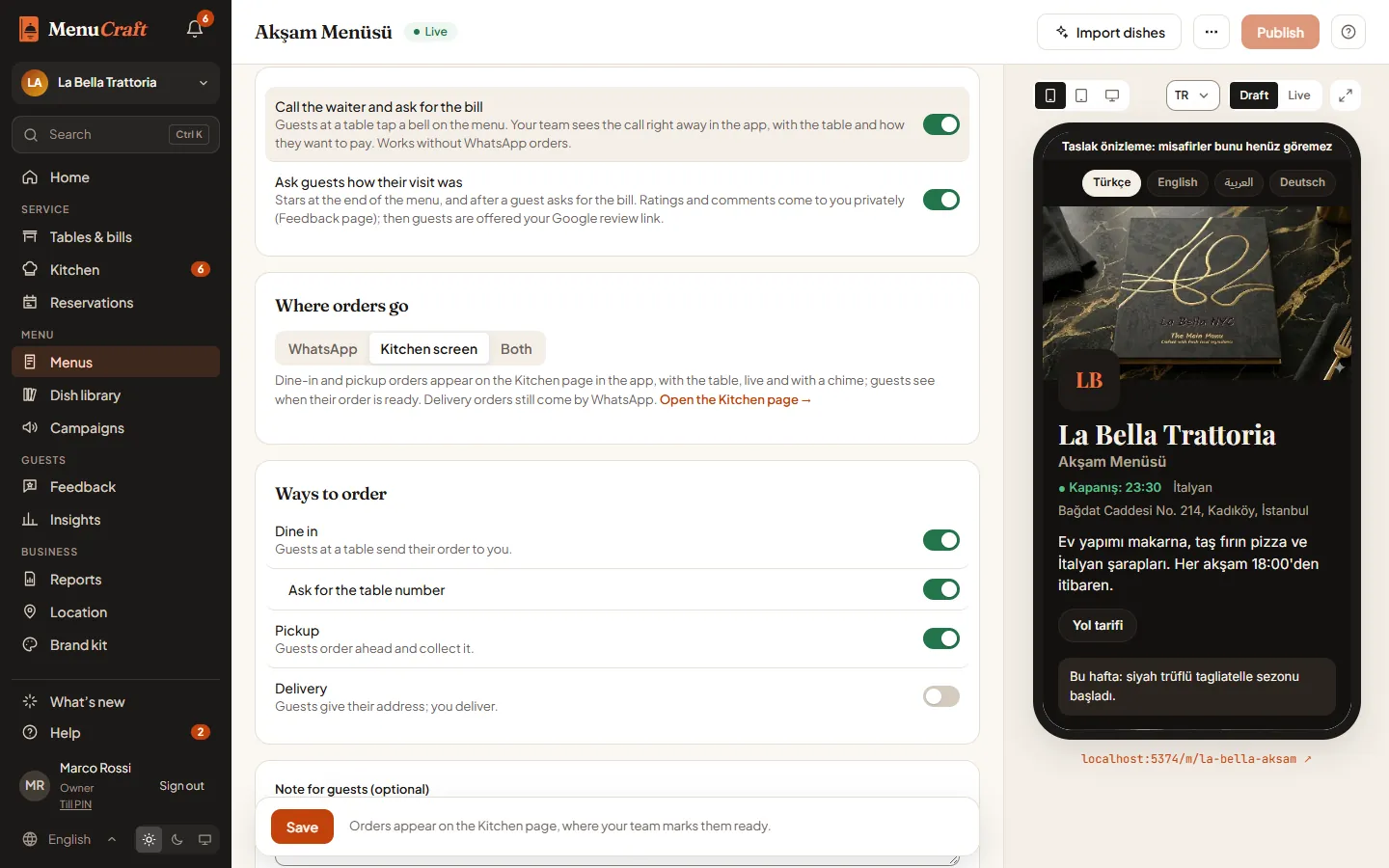
Switch on Call the waiter and ask for the bill, and Ask guests how their visit was if you want ratings. Select Save, then Publish the menu.
Give the kitchen a sign-in
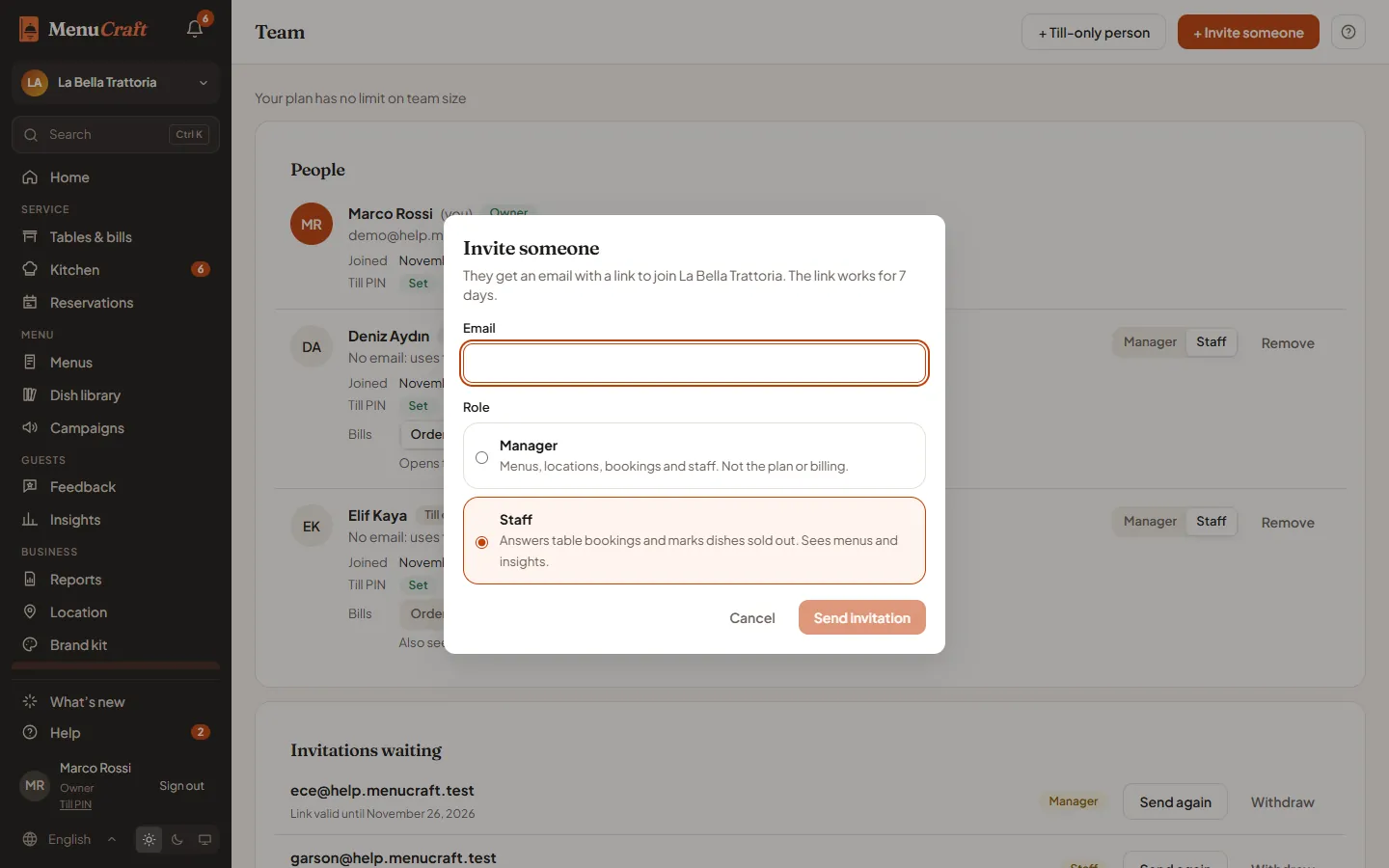
On Team, select Invite someone, enter an email for the kitchen and choose Staff: the tablet can then take orders but not change your menus. See Team and roles.
Set up the kitchen tablet
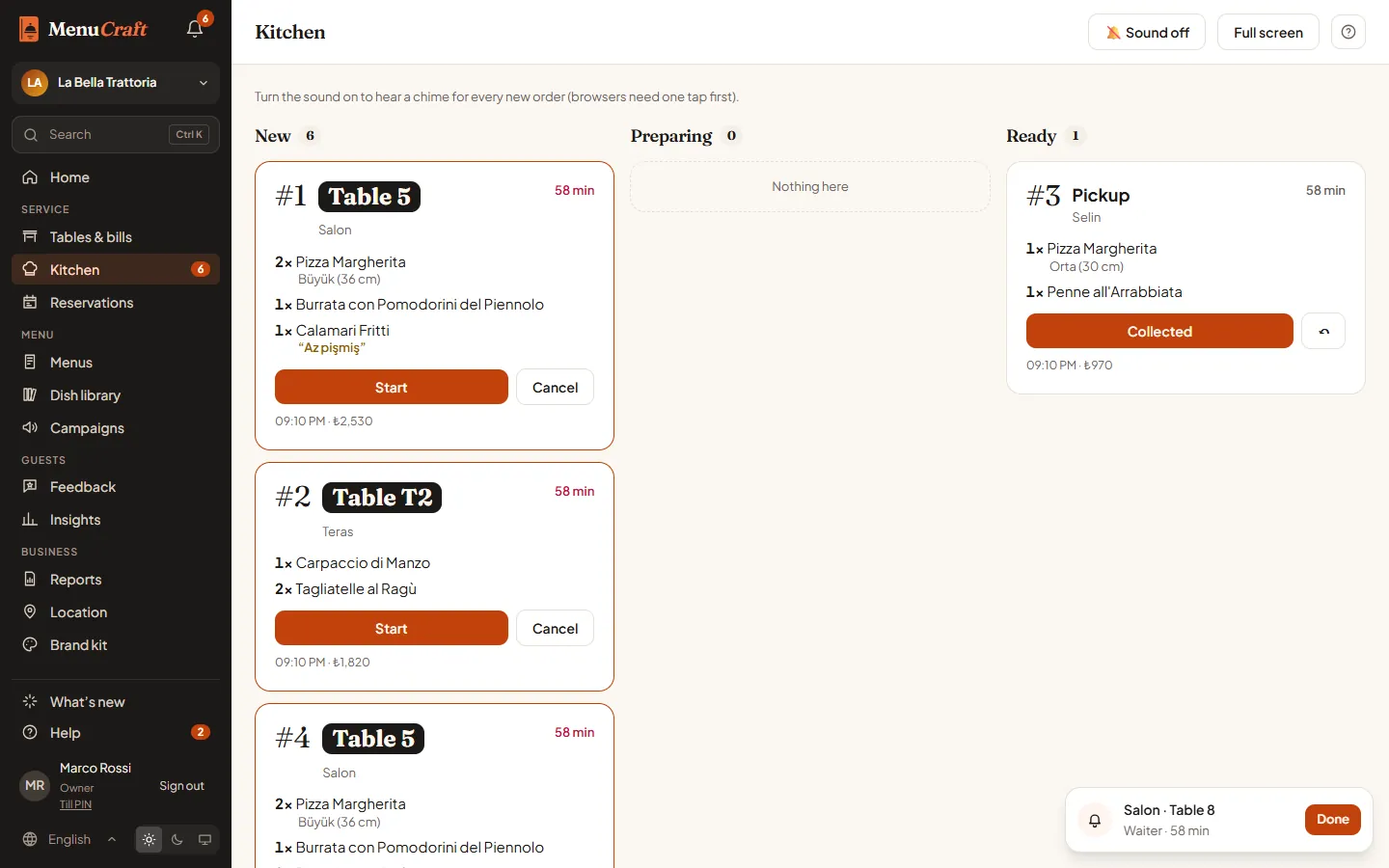
On the tablet, sign in and open Kitchen. Tap 🔕 Sound off so it shows 🔔 Sound on, then Full screen. Keep it charging with the screen on. See The kitchen screen.
Print a QR code for every table
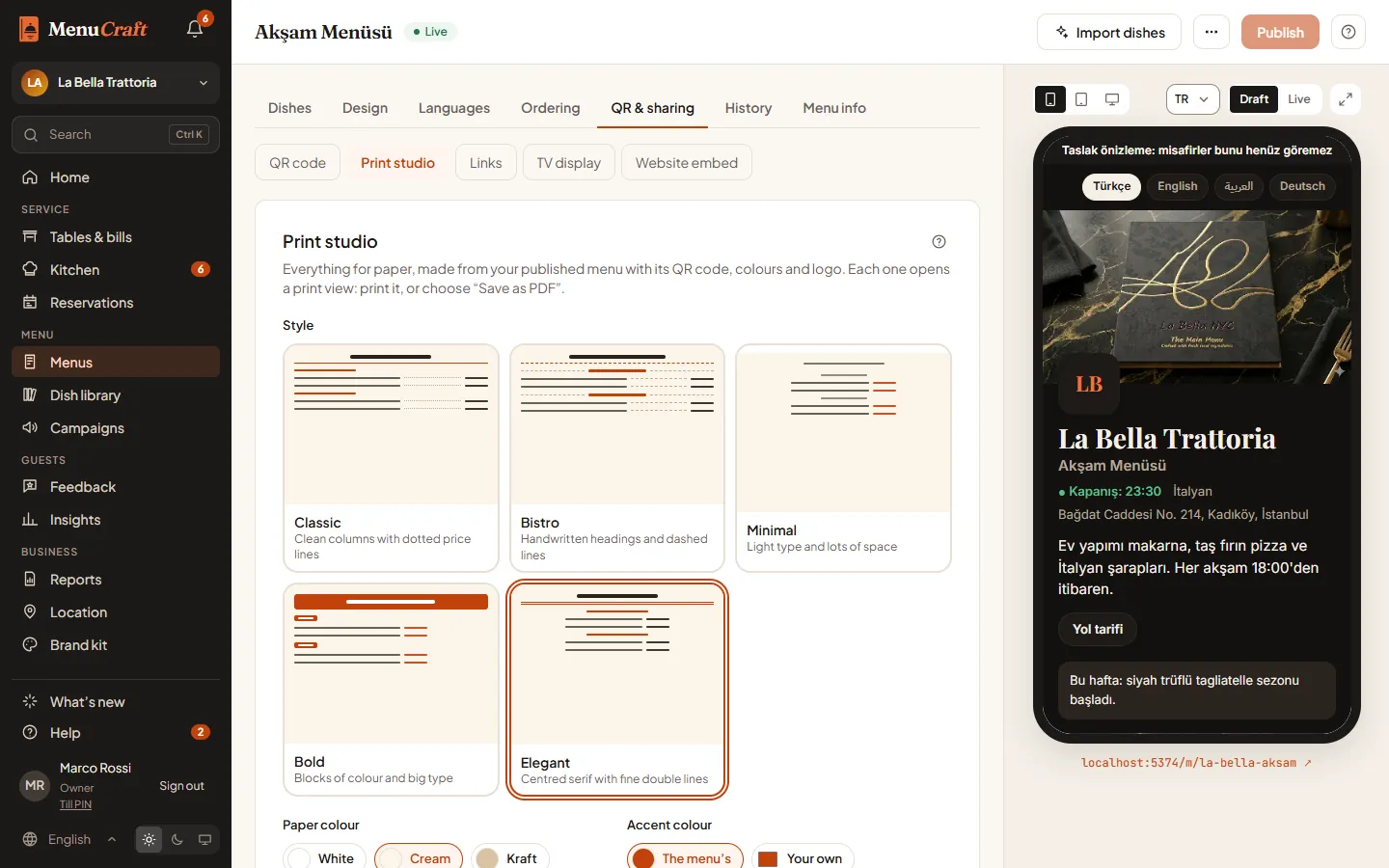
In QR & sharing, open Print studio from the app and choose Table tents or Stickers: each table's code lets guests order and call from that table. See Share, QR codes and printing.
Try it as a guest
Scan a table's code with your phone, add a dish and send it. Watch it arrive on the kitchen tablet, then tap Start and Ready and see your phone follow along.