
Each time you publish, MenuCraft keeps a copy of the menu. If a change went wrong, or you want last season's menu back, you can find it here.
See your published versions
- Open the menu and select the History tab.
- Under Published versions each publish has a line:
- its number, such as Version 3, with Live now on the one guests see;
- when it was published and by whom;
- how many dishes it had and what changed since the version before: dishes added, removed or changed, and new prices.
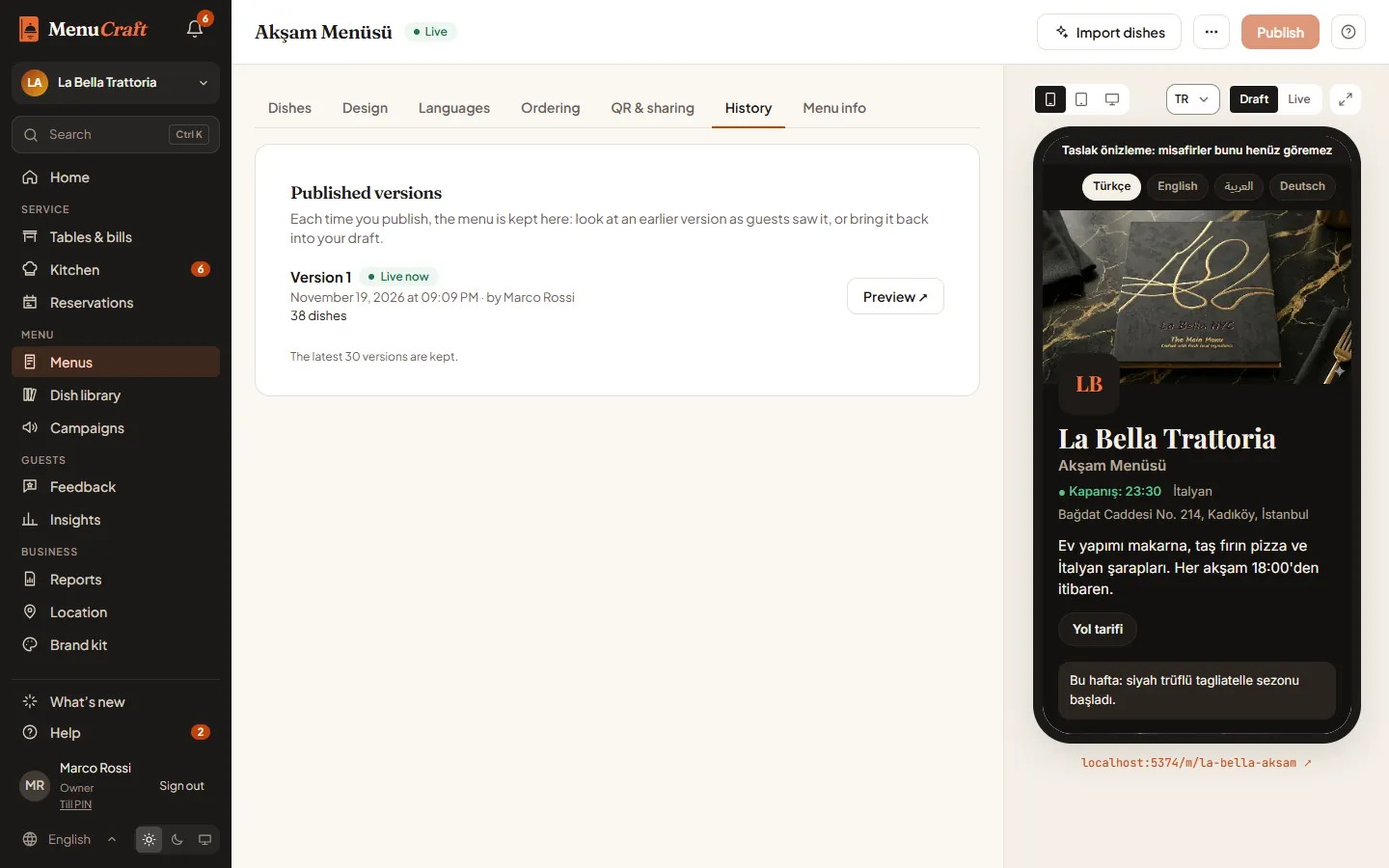
The latest 30 versions are kept. A new menu has no versions until you publish it for the first time.
Look at an earlier version
Select Preview ↗ next to a version. It opens in a new tab exactly as guests saw it, design and all.
Restore an earlier version
- Select Restore next to the version.
- Confirm with Restore.
The version's sections, dishes, texts and design replace your current draft. Dishes marked sold out stay as they are now.
Restoring only changes the draft: guests still see the live menu. Check the draft in the preview, then publish it.
Tip: Changed your mind after restoring? The version that was live is still in the list: restore it the same way.