
The Menu info tab holds the settings for the menu as a whole. Open the menu and select Menu info; the list on the left switches between its parts.
Changes are saved by themselves (All changes saved to the draft.) and guests see them after you publish. Only the private-menu PIN applies at once.
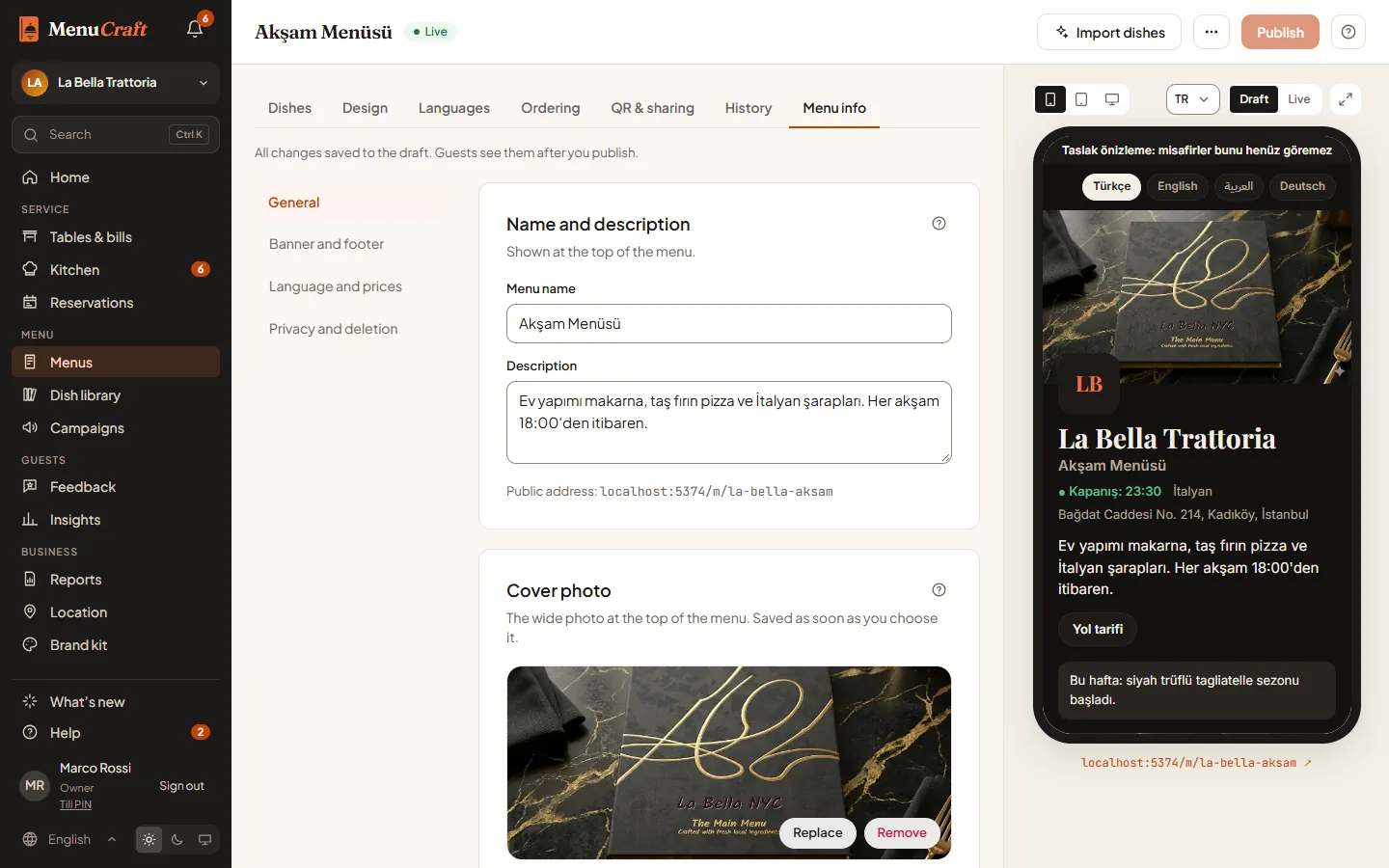
Change the name and description
Under General:
- Menu name: the name shown under your restaurant's name, such as "Dinner menu". A menu always needs a name.
- Description: a line or two shown at the top of the menu, for example when you serve it.
Public address shows the menu's web address (/m/…). It stays the same when you rename the menu, so printed QR codes keep working.
Add a cover photo
Under Cover photo, select Add image or drop a JPG, PNG or WebP photo. It is the wide picture at the top of the menu and is saved as soon as you choose it. Use Replace to change it or Remove to take it away.
Tip: A wide, bright photo of your dining room or a signature dish works best.
Add a banner and a footer note
Under Banner and footer:
- Announcement banner: a short notice above the dishes, such as "Kitchen closes at 22:30" or this week's special.
- Footer note: a note at the very bottom, such as "All prices include VAT · Allergen info on request".
Leave a box empty to show nothing.
Set the menu's language and currency
Under Language and prices:
- Menu language: the language your texts are written in. Changing it does not translate them. To offer the menu in more languages, see Menu languages.
- Currency: the currency your prices are shown in. The numbers stay as they are; only the currency sign changes.
To get the menu in another currency with converted prices, make a copy (below) and convert the prices there.
Make the menu private
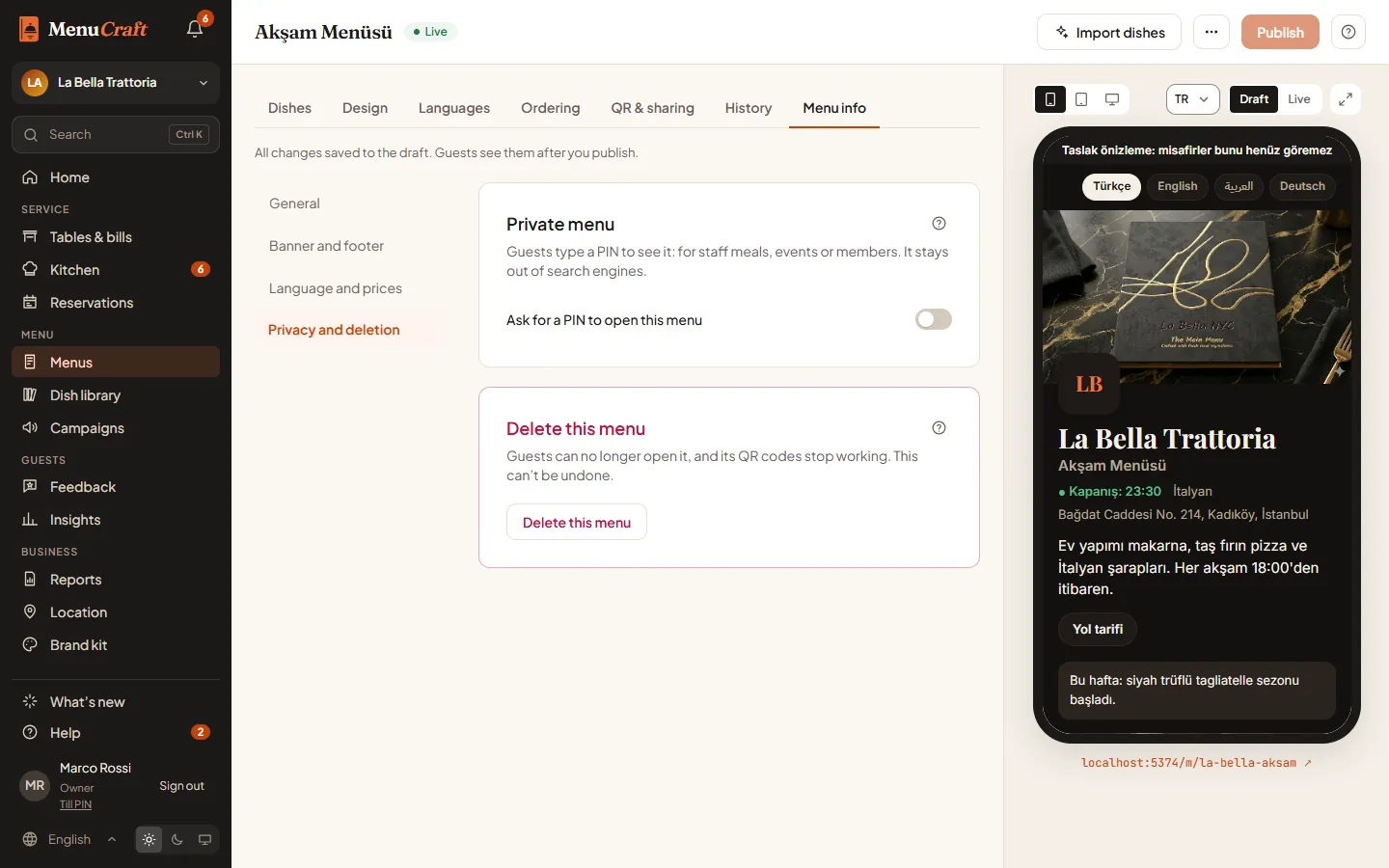
Under Privacy and deletion, in Private menu:
- Turn on Ask for a PIN to open this menu.
- Type a PIN of 4 to 8 digits and select Save PIN.
Guests type the PIN once on each phone to see the menu; it never appears in search engines. Use it for staff meals, events or members. This applies straight away, without publishing. Changing the PIN asks everyone for the new one; turning the switch off makes the menu public again.
Copy the menu
Select the More actions button (⋯) at the top, then Duplicate. The copy gets the sections, dishes, photos, sizes, add-ons and design, and starts as a draft with its own address and QR code. You can translate the texts into another language and convert the prices to another currency on the way. Select Create the copy.
Delete the menu
Under Privacy and deletion, select Delete this menu and confirm. Guests can no longer open it and its QR codes stop working. This can't be undone.
Note: Just want to take the menu off for a while? Make it private instead: the address and QR codes stay.