For places that sell to take away or deliver. Guests order from your menu link, for example from Instagram or Google.
Turn on pickup and delivery
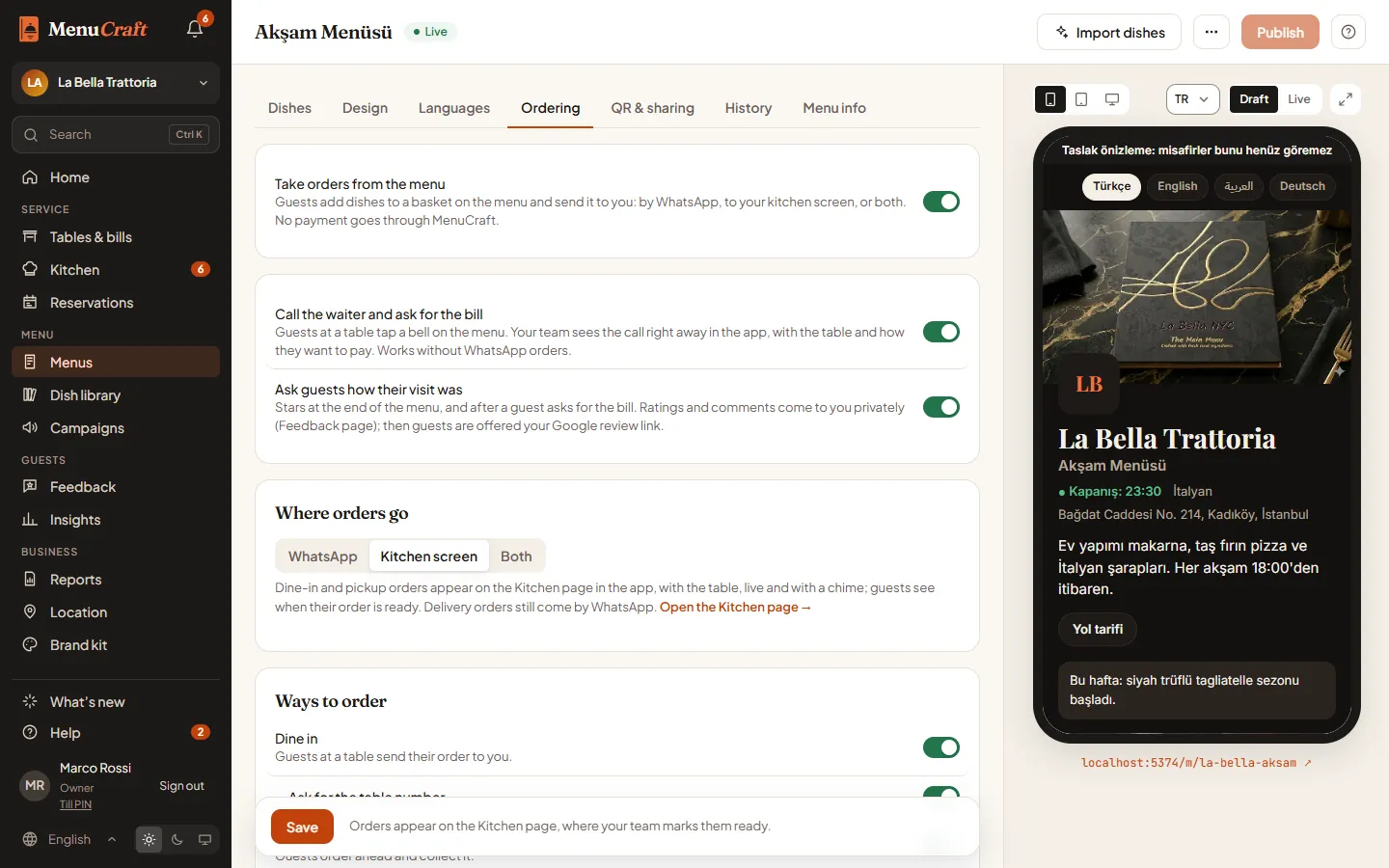
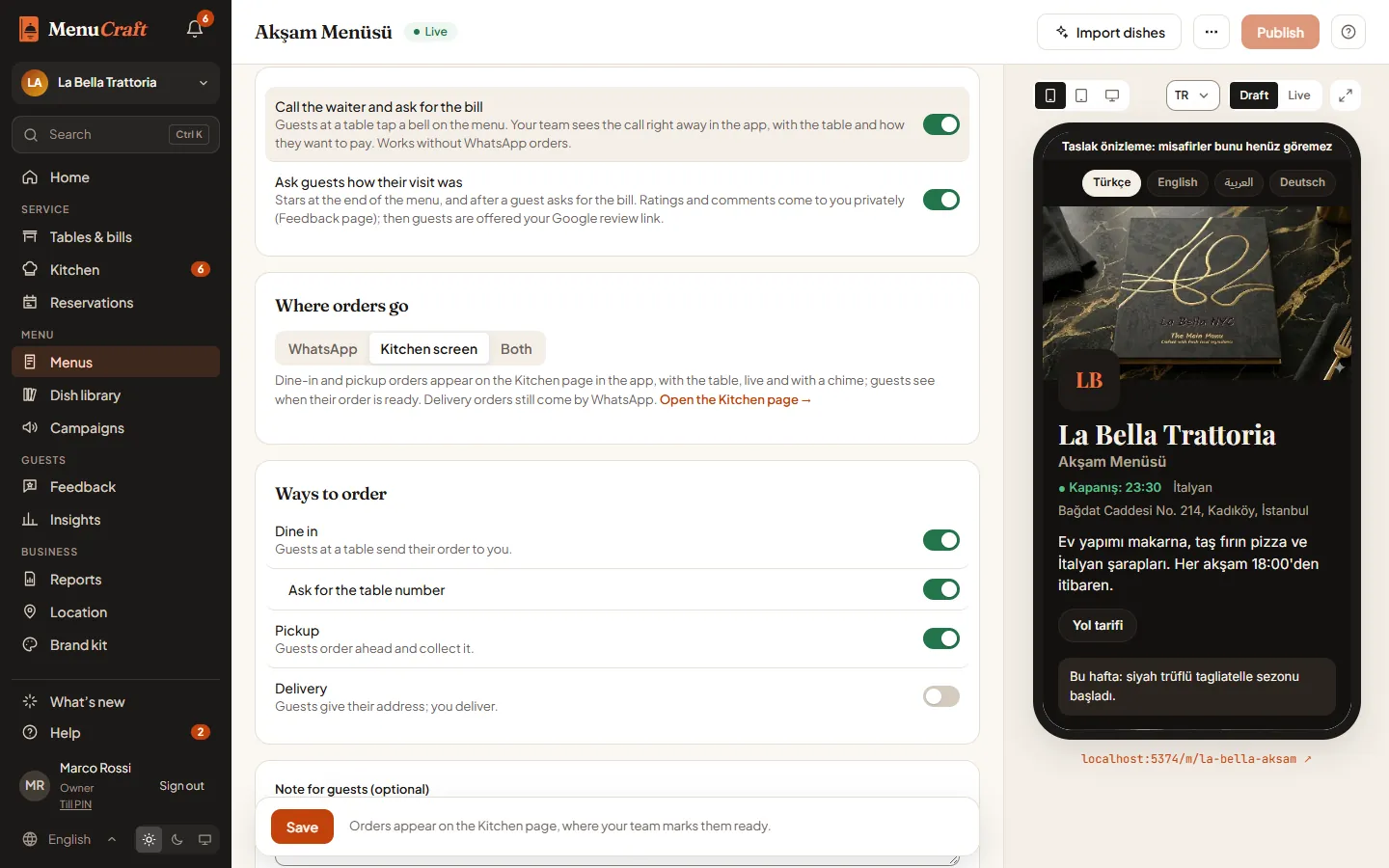
In the menu's Ordering tab, switch on Take orders from the menu, then under Ways to order switch on Pickup and Delivery. See Ordering and waiter calls.
Set the delivery fee and minimum
With Delivery on, fill in the delivery fee and the minimum order. Add a Note for guests (optional), such as the area you deliver to and how guests pay. Select Save and publish.
Choose where orders come
Pickup orders can go to the Kitchen page or WhatsApp. Delivery orders always come by WhatsApp, with the address, so check WhatsApp number for orders.
Connect your delivery apps
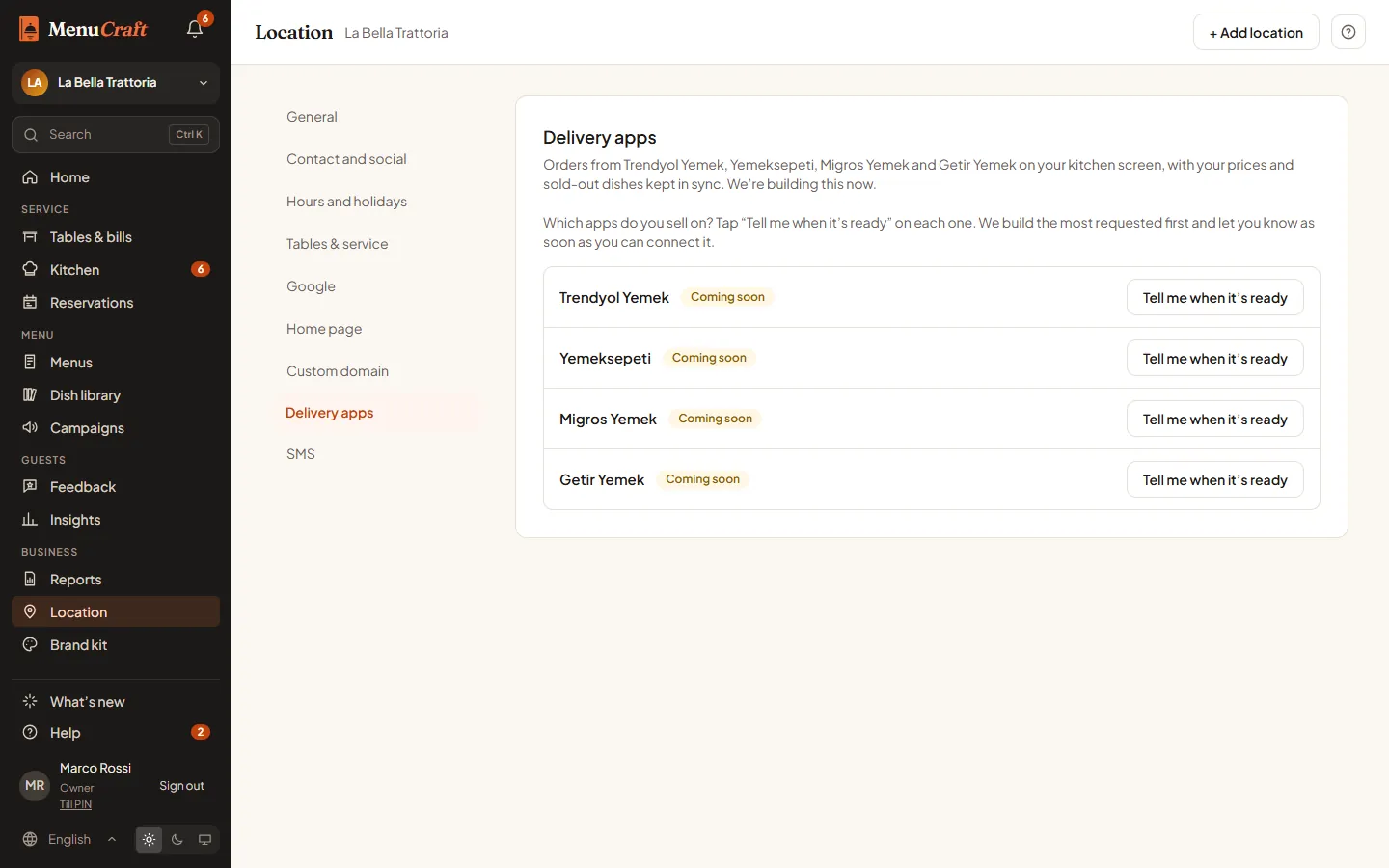
If you sell on Trendyol Go, Yemeksepeti or Migros Yemek, open Location → Delivery apps to get their orders on the kitchen screen too. See Delivery apps.
Keep your hours right
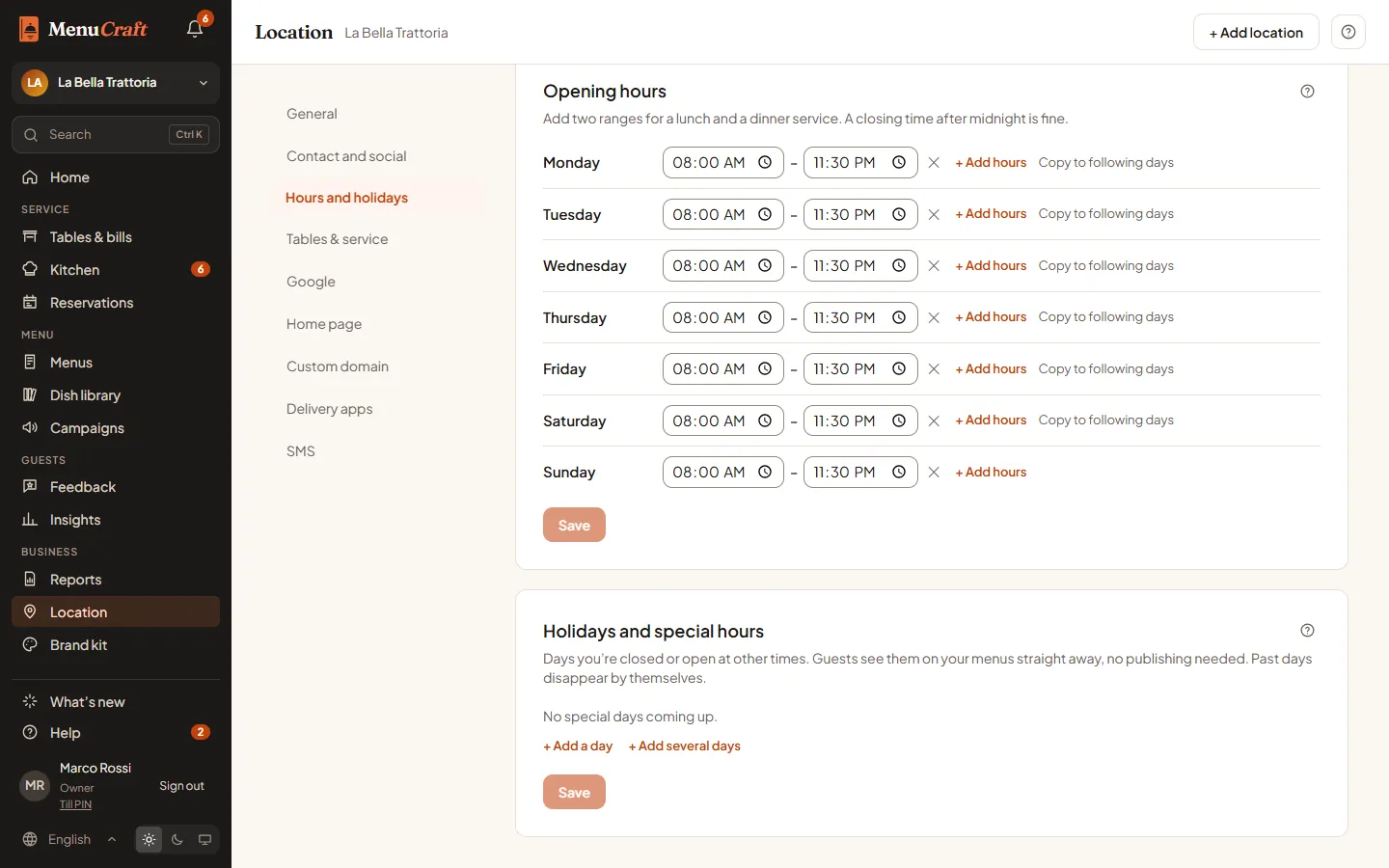
Guests order when you are open. Keep Hours and holidays on the Location page up to date, and add holidays as special days.
Share your menu link
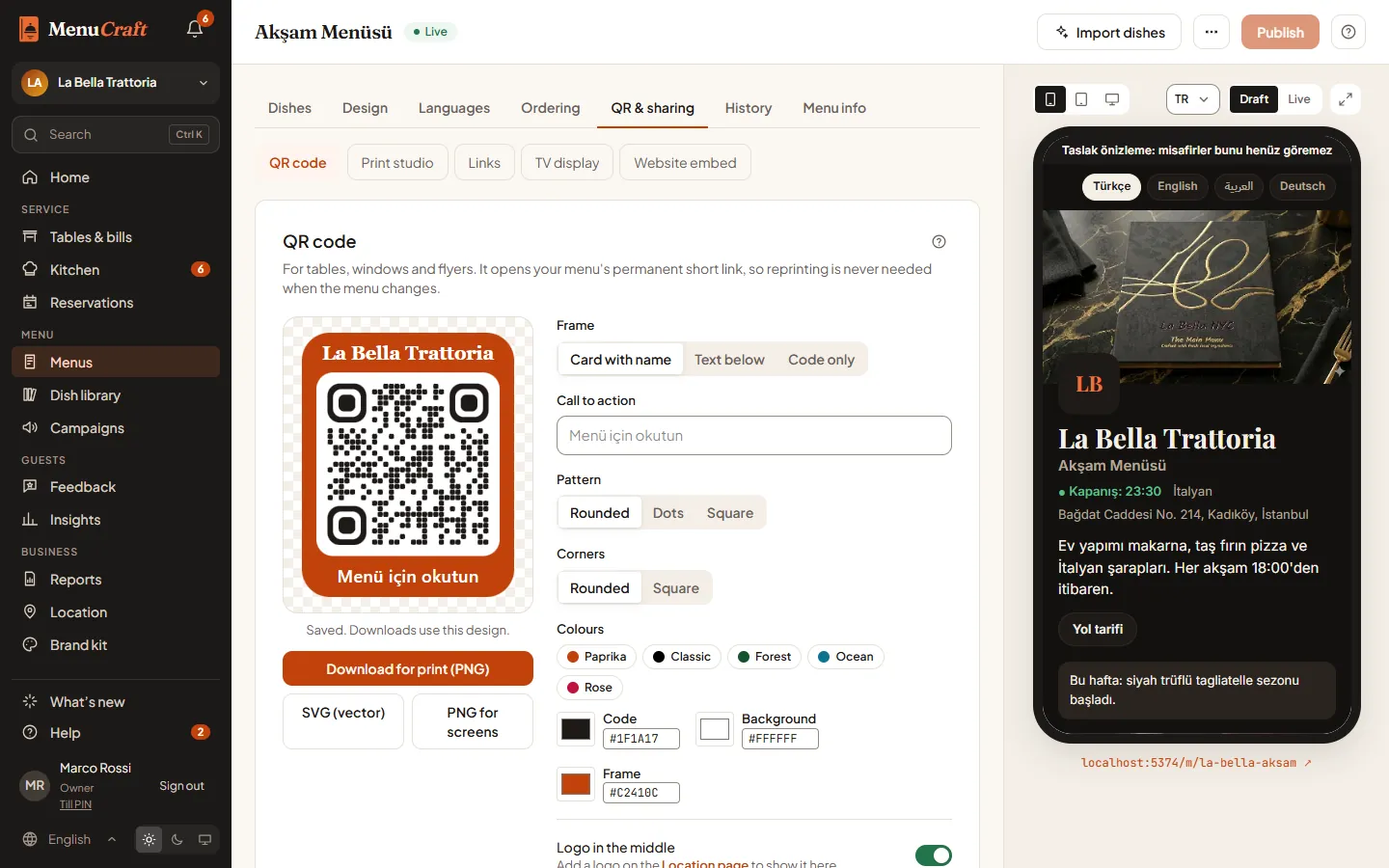
In QR & sharing, open Links and copy the Short link (used by the QR code). Put it in your Instagram bio, Google profile and WhatsApp status.
Run the orders
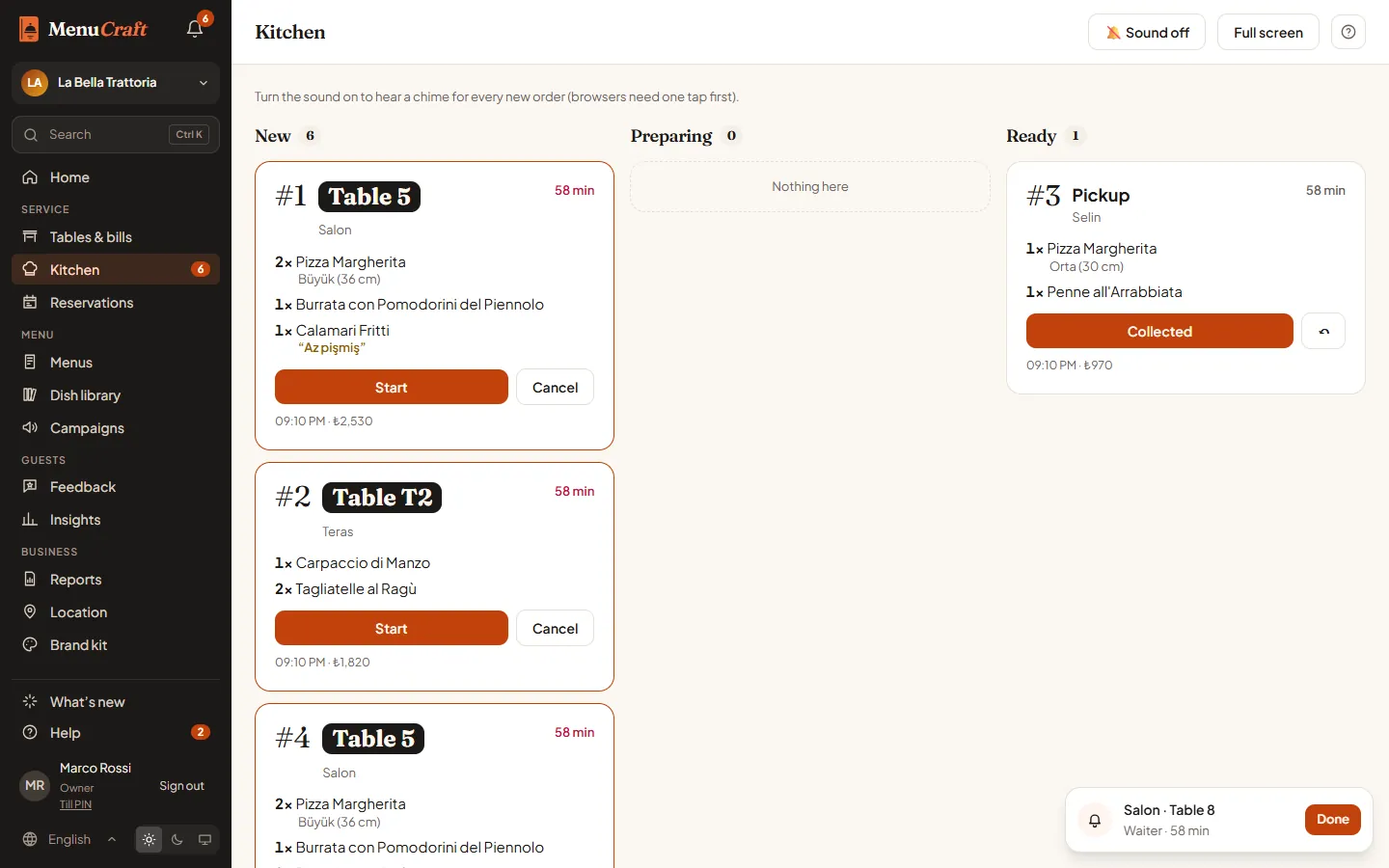
Orders arrive on the Kitchen page with Pickup and the guest's name, or from the delivery app with its own buttons. See The kitchen screen.