
This guide is for the people who work a shift with MenuCraft: waiters, the door and the kitchen. Owners can send them its link. Staff see Home, Menus, Kitchen, Reservations, Insights and Help.
Join the team
- Open the invitation email from MenuCraft and select its link (it works for 7 days).
- Enter Your name and choose a password, then select Join the team.
You then sign in at menucraft.pro with your email and that password. See Team and roles.
At the tables: waiter calls and the bill
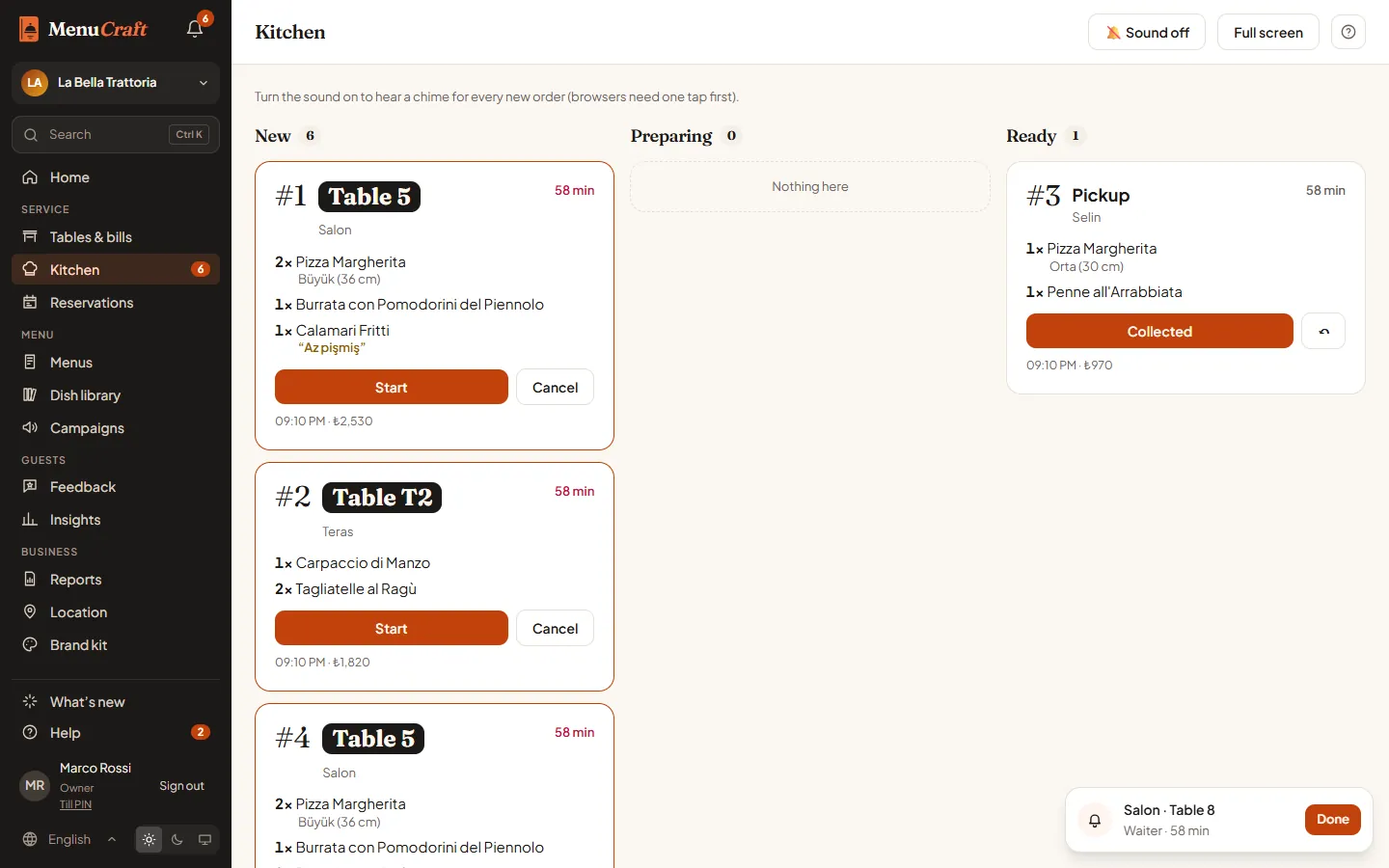
When a guest calls the waiter or asks for the bill, a card shows the table in the bottom corner of every page, with Waiter or Bill and card or cash. Go to the table, then tap Done: the card disappears for the whole team.
Mark a dish sold out
When the kitchen runs out of something, open the menu and tap the Available button on the dish's row: it switches to Sold out and guests see it at once. Tap again when it's back. See Add and edit dishes.
At the door: bookings
On Reservations, new requests show Waiting for you: select Confirm or Decline. For a booking by phone, select Add booking. When a booked table doesn't come, select No-show. See Table reservations.
In the kitchen: the orders
Keep Kitchen open on the tablet, with 🔔 Sound on:
- Start when you begin cooking, Ready when it's done, Served or Collected when it has left.
- The time turns red after 15 minutes.
- Tapped too soon? Back a step moves it back.
See The kitchen screen. Orders from delivery apps have the app's own buttons: see Delivery apps.
Tip: Something on the menu is wrong (a price, a dish)? Staff can't change menus: tell the owner or a manager.