
Every menu has its own Ordering tab. There you choose whether guests can order from the menu, where the orders go, and whether guests at a table can call a waiter or ask for the bill. No payment goes through MenuCraft: guests pay you as they always do.
Changes are saved to the draft. Guests get them after you select Publish.
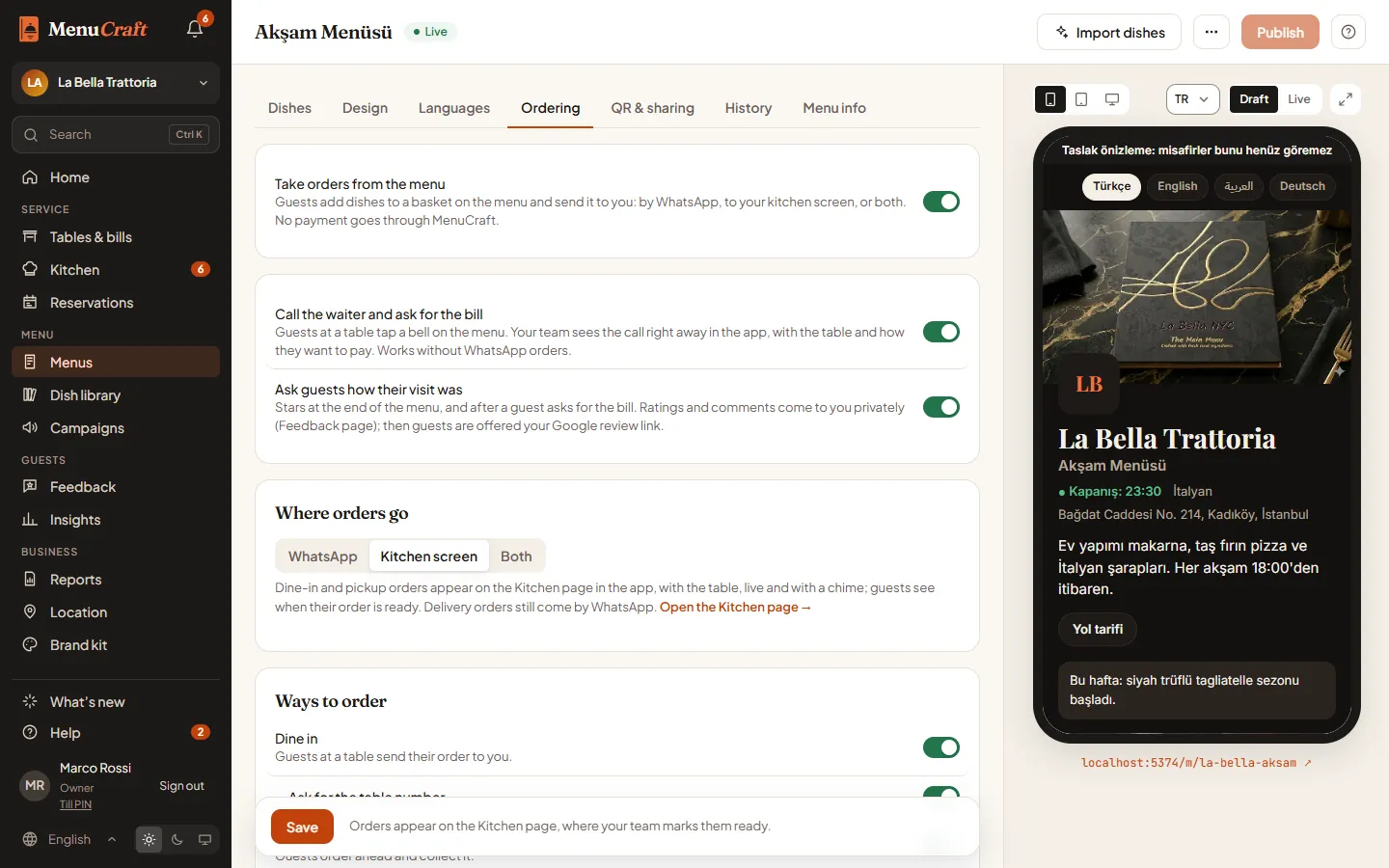
Turn on ordering
- Open Menus, open the menu and go to the Ordering tab.
- Switch on Take orders from the menu. Guests now see a + on each dish, build a basket and send it to you.
- Under Where orders go, choose how orders reach you (see the next section).
- Under Ways to order, switch on at least one way (see below).
- Select Save, then Publish the menu.
Choose where orders go
Under Send orders to, pick one:
- WhatsApp: each order opens WhatsApp on the guest's phone with the order written out. The guest presses send, and you confirm in the chat.
- Kitchen screen: dine-in and pickup orders appear live on the Kitchen page in the app, with the table number and a chime. The guest's phone shows when the order is being prepared and when it is ready. See The kitchen screen.
- Both: dine-in and pickup orders appear on the kitchen screen and also come to you by WhatsApp.
Delivery orders always come by WhatsApp, whatever you choose.
WhatsApp number for orders: the number that receives the orders. Leave it empty to use the WhatsApp number of the location (set on the Location page under contact details). Enter it with the country code, for example +90 532 000 00 00.
Choose the ways to order
Under Ways to order:
- Dine in: guests at a table send their order. With Ask for the table number on, the guest types the table number.
- Pickup: guests order ahead and come to collect it.
- Delivery: guests give their address and you deliver. Two more fields appear: the delivery fee, added to the order, and the minimum order for delivery. Delivery orders under the minimum can't be sent; 0 means no minimum.
Note for guests (optional): a short line shown with the order, for example "We deliver within 3 km, 11:00-22:00. Pay on delivery."
Tip: Before you publish, try it in the preview on the right. Orders sent from the preview are not counted.
Dine-in orders to the kitchen need table QR codes
When dine-in orders go to the kitchen screen, the guest must scan the QR code on their table. Each table's code carries a secret, so nobody can send an order to your kitchen from home. A guest who opens the menu another way is asked to scan the code on the table.
- On the Location page, open Tables & service and add your areas and tables. See Location and opening hours.
- In the menu, open QR & sharing and print the Table tents or stickers. See Share and print your QR codes.
If a printed code gets into the wrong hands, use Make new table codes under Tables & service, then reprint. The menu itself keeps working with the old codes; only ordering and calls stop.
Tip: Under Tables & service you can also switch on Guests at the restaurant only. Then dine-in orders and waiter calls work only when the guest's phone is inside the restaurant. Pickup and delivery are not affected.
Let guests call the waiter and ask for the bill
- In the Ordering tab, switch on Call the waiter and ask for the bill. It works even if ordering is off.
- Select Save and Publish.
On the menu, guests at a table tap Call waiter, then Call the waiter or Ask for the bill (with card or cash). Like dine-in orders, calls need the table QR code.
Your whole team sees each call at once, in the bottom corner of every page of the app and in the notifications, with the table and how the guest wants to pay. Tap Done when it is handled; it disappears for everyone.
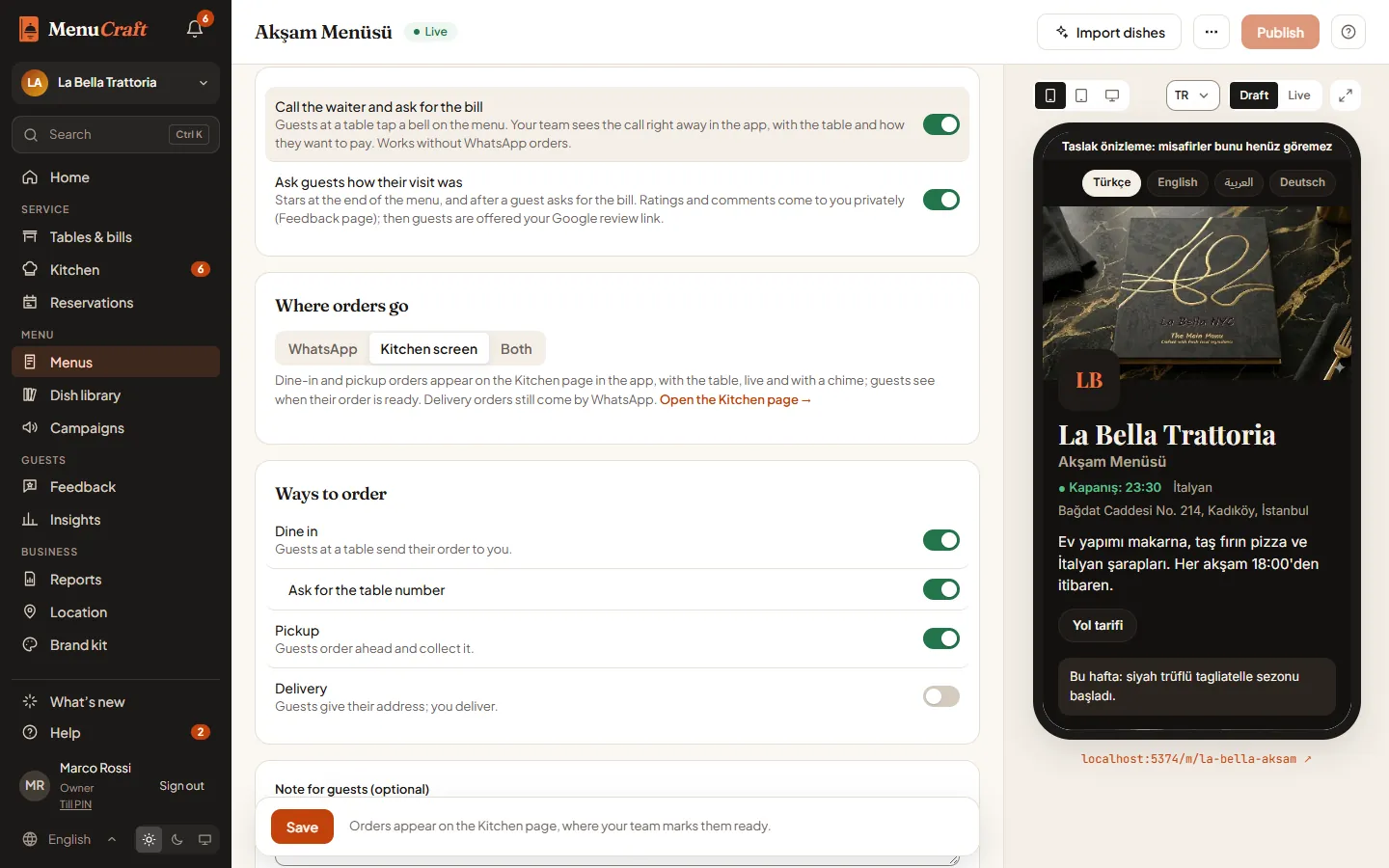
Ask guests how their visit was
Switch on Ask guests how their visit was and publish. Guests see stars at the end of the menu, and again after they ask for the bill. Ratings and comments come only to you, on the Feedback page; afterwards guests are offered your Google review link. See Guest feedback.
What next
- Set up the kitchen tablet: The kitchen screen.
- Print table QR codes: Share and print your QR codes.