
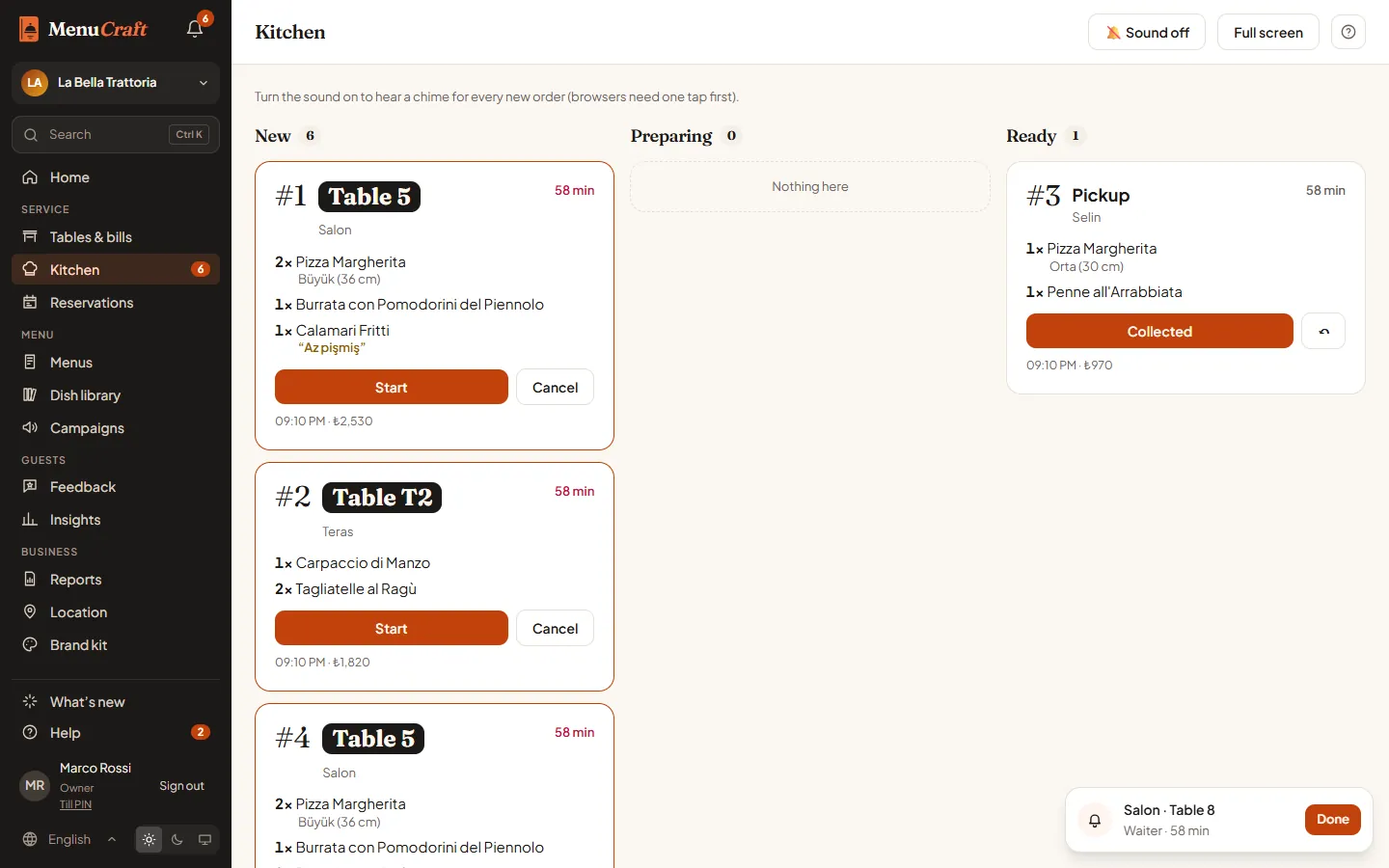
The Kitchen page shows the orders guests send from your menus, live, in three columns: New, Preparing and Ready. Keep it open on a tablet at the pass. Every screen that has the page open updates at once, and your staff can use it too.
Before you start: in the menu's Ordering tab, choose Kitchen screen or Both under Send orders to, then publish the menu. See Orders, waiter calls and the bill.
Set up the kitchen tablet
- On the tablet, sign in to MenuCraft and open Kitchen in the sidebar. The number next to it counts the new orders.
- Tap 🔕 Sound off so it changes to 🔔 Sound on. You now hear a chime for every new order. Browsers only play sound after one tap, and the tablet remembers your choice.
- Tap Full screen to hide the browser bars.
Tip: Give the kitchen its own sign-in with the Staff role, so the tablet can't change your menus. See Team and roles.
Read an order
Each card shows:
- The order number (it starts again from #1 every day) and where it goes: the area and table, or Pickup with the guest's name.
- How long ago it came in. After 15 minutes the time turns red.
- The dishes with quantity, size and add-ons, and any note from the guest in quotes, for example "no onions".
- A note for the whole order, if the guest wrote one, and at the bottom the time and the total.
Move an order along
- In New, tap Start when you begin cooking. The order moves to Preparing.
- In Preparing, tap Ready when it is done. The guest's phone shows that the order is ready.
- In Ready, tap Served once it is at the table, or Collected for a pickup order. The order leaves the board.
The guest follows each step on their phone: Received, Being prepared, Ready.
Tapped too soon? The ↶ button (Back a step) moves the order back one column.
Cancel an order
In New or Preparing, tap Cancel and confirm. The guest sees that the order was cancelled and is asked to talk to your staff. Orders in Ready can't be cancelled; move them back a step first.
Bring back a finished order
Under the columns, open the line that counts the orders finished in the last hours. Served and cancelled orders are listed there; tap Reopen to put one back in Ready.
Orders from delivery apps
With a delivery app connected, its orders come to this board too, marked with the app's name, Paid online or paid at the door, and the courier. Tap Accept · 20 min or Reject, then Ready, then Handed to the courier (or Delivered when you deliver yourself). They move only with the app, so they have no step back. See Delivery apps.
Waiter calls and the bill
When guests call the waiter or ask for the bill, a card appears in the bottom corner of every page, also on the kitchen screen: the table, Waiter or Bill, and card or cash. Tap Done when it is handled; it disappears for the whole team. Calls also appear in the bell at the top of the sidebar (Notifications), with low ratings and new bookings.
What next
- Print table QR codes so dine-in orders know their table: Share and print your QR codes.
- See what sells best: Insights.