
Both live in the dish editor: open the menu, select a dish, and scroll down to Sizes or variants and Add-ons. Sizes are a choice of one (a small or a large pizza); add-ons are extras on top (extra cheese, a side of fries).
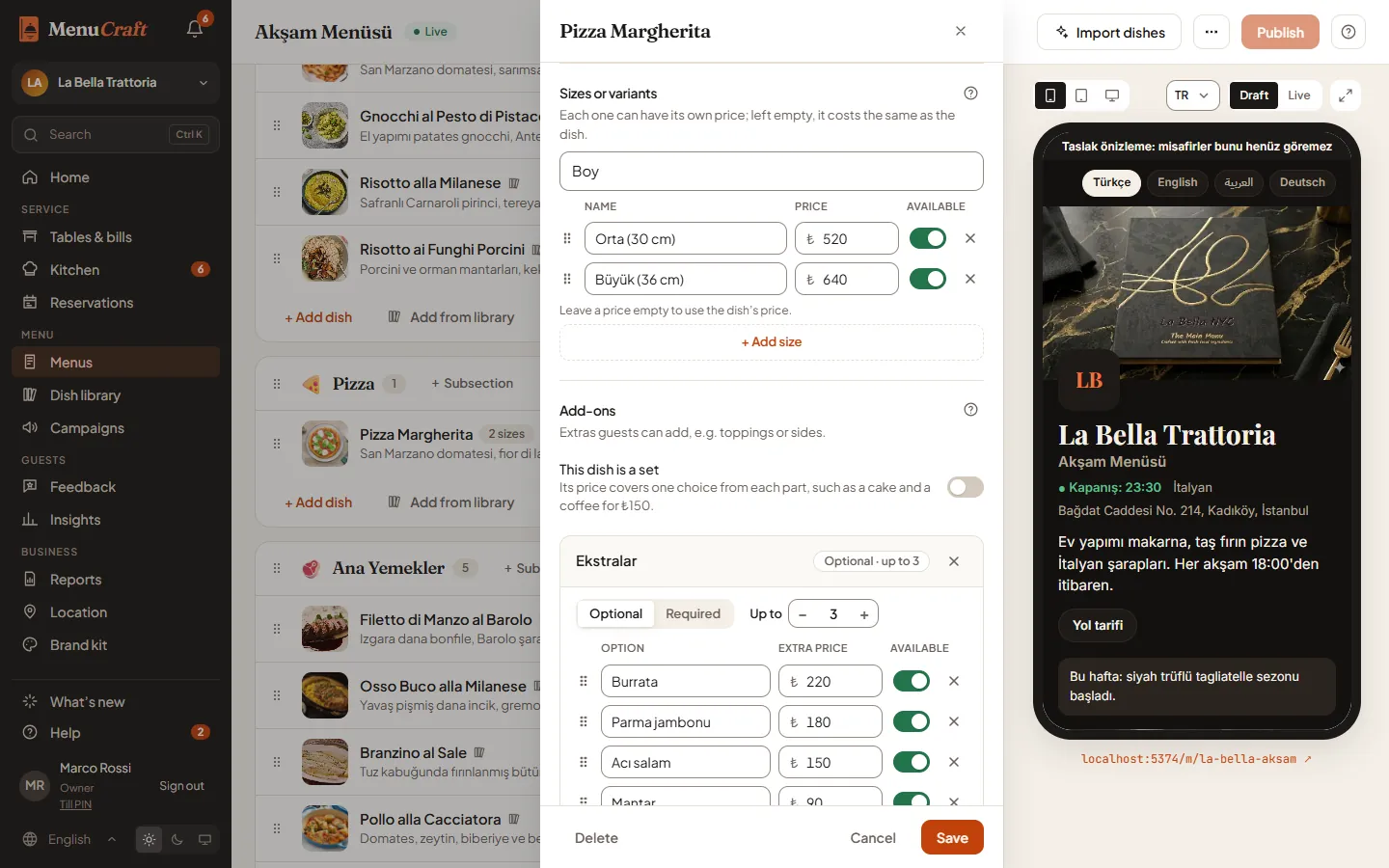
Add sizes
- Under Sizes or variants, select Add size.
- Type the size's Name, for example "Medium (30 cm)", and its Price.
- Add the other sizes the same way.
- In What are they called?, type the word guests see above the list, for example "Size" or "Portion". Left empty, guests see Options.
- Select Save.
On the menu the dish shows "from" its lowest price, and guests see every size with its price in the dish details.
A size with no price
Leave a size's Price empty and it costs the same as the dish: the dish's Price, or its Sale price when it has one. The empty box shows that price in grey so you can see what guests will pay.
This is handy for a choice that doesn't change the price, such as "rare / medium / well done".
Change, reorder or remove sizes and options
- Reorder: drag the ⋮⋮ handle at the start of a row. Guests see them in this order.
- Remove: select ✕ at the end of the row.
- Out for today: switch off Available. Guests still see the size or option, marked Unavailable, and can't choose it.
Add an add-on group
Add-ons come in groups, each with its own rule, for example "Extra toppings" (optional, up to 3) or "Choose your sauce" (required, choose 1).
- Under Add-ons, select Add add-on group.
- Type the Group name.
- Under Do guests have to choose?, pick Optional or Required.
- Set Up to: how many options a guest may pick. It can't be more than the number of options in the group.
- Add the options with Add option: a name and an Extra price. Leave the price empty for a free option; guests see Free.
- Check the line under the group: it says in plain words what guests will see, for example "Extra toppings — optional, choose up to 3".
- Select Save.
To delete a whole group, select ✕ in the group's header.
Tip: If something is missing, the editor lists it above the buttons under Fix these before saving:, for example a size or option without a name, or a group with no options.
Make a set
A set is a dish whose price covers one choice from each of its parts, for example "Sweet + coffee ₺450": crêpes or a waffle, and an espresso, cappuccino or flat white.
- Add the set as a dish, with its own name, photo and price, then open it.
- Under Add-ons, turn on This dish is a set. The groups become the set's parts.
- Type the part's name, for example "Choose your sweet".
- Select Choose dishes for this part and tick the dishes guests can choose from. Add all takes a whole section.
- Select Add a part for the next one, such as "Choose your coffee", and do the same.
- Select Save.
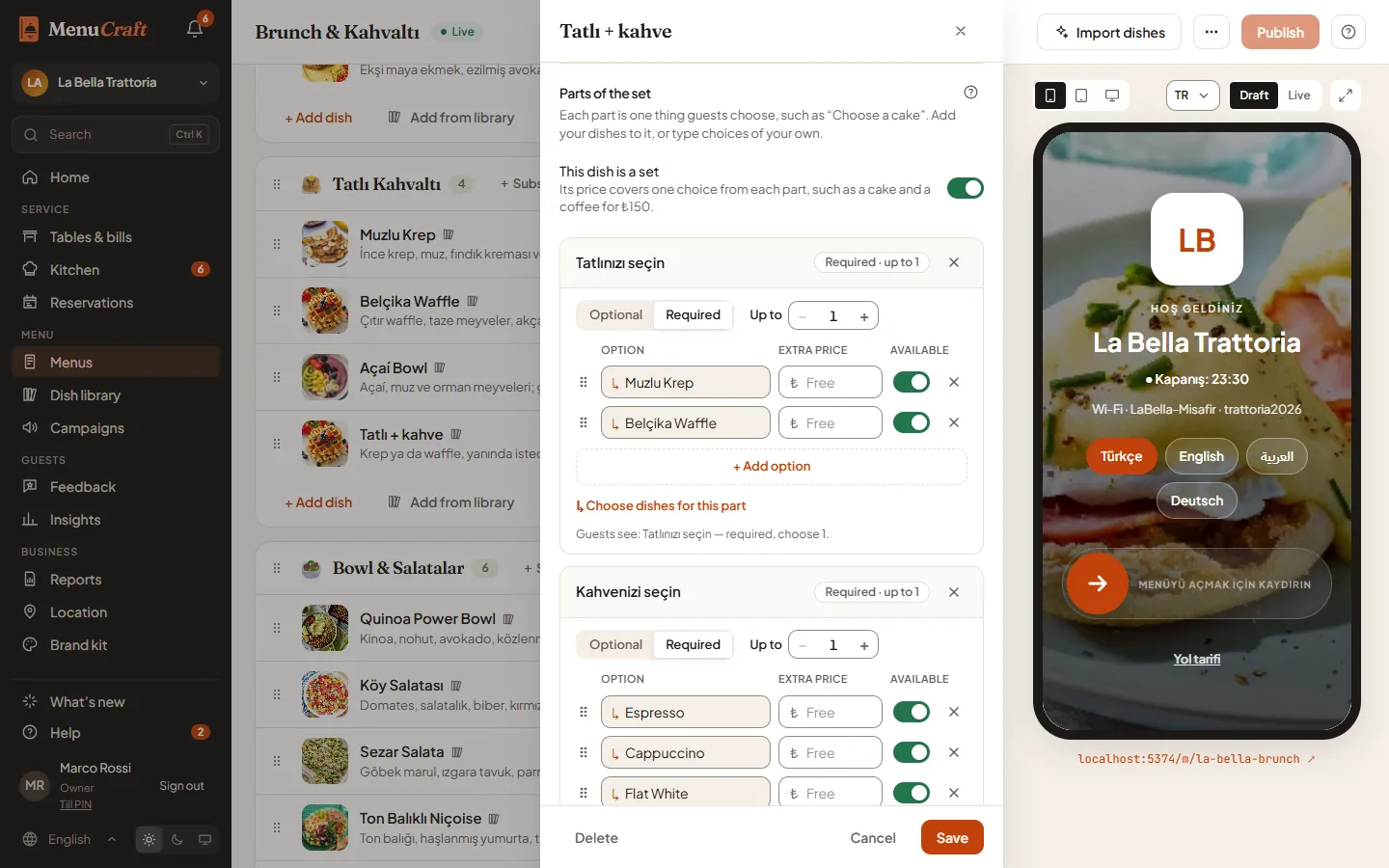
Parts that are your dishes follow them: guests see each dish's name in their language, and a dish you mark sold out can't be chosen in the set either. Give a choice an extra price if it costs more, for example +₺20 for a flat white.
On the menu the set has a Set badge, shows what it is made of, and how much guests save against buying the parts on their own. The editor shows the same under the parts.
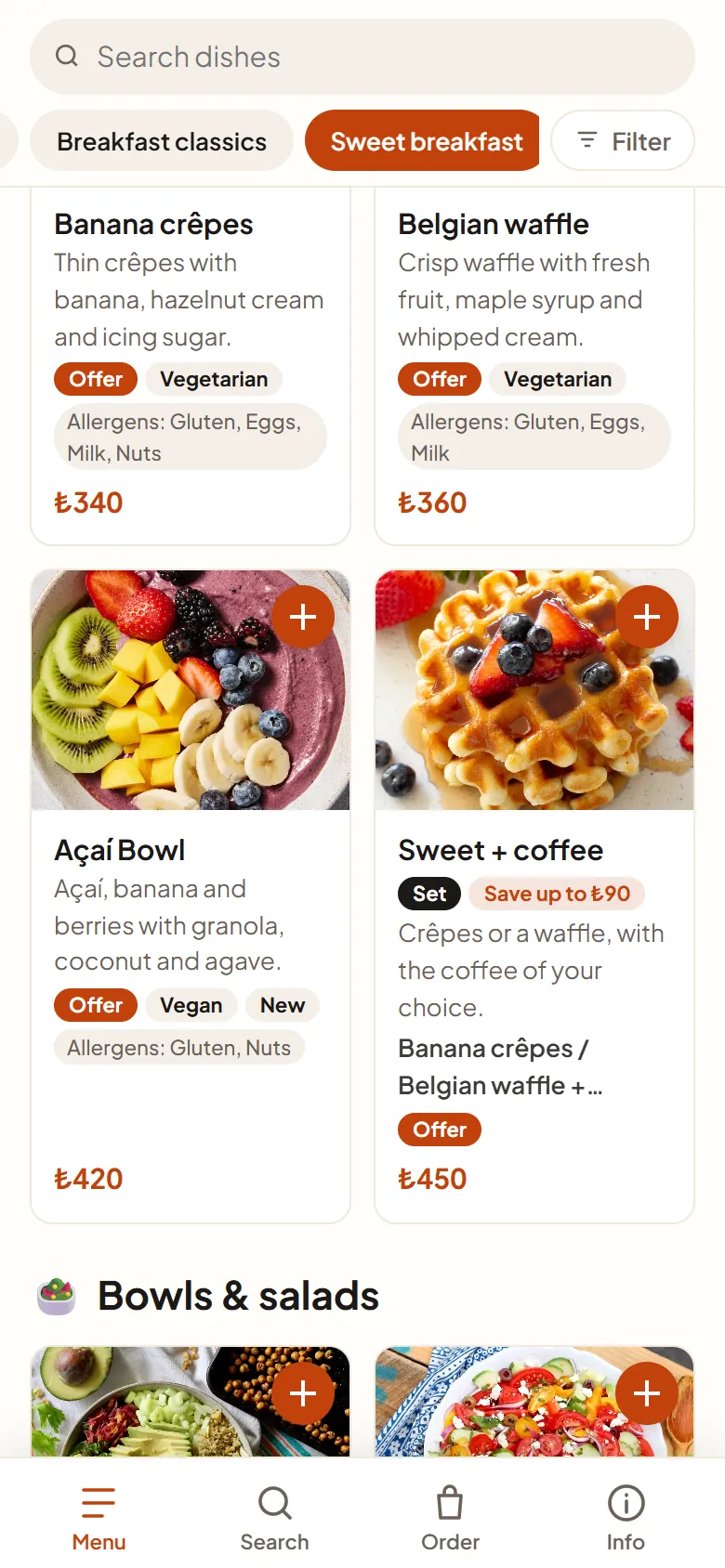
How guests choose
- In the dish details, guests see the sizes and each add-on group with its prices and its rule, such as "Choose 1–2" for a required group or "Up to 3" for an optional one.
- When ordering is on, the dish's Add button opens the choices: guests pick a size and their add-ons, see the price update, and select Add to order. They can't add the dish until every required group has a choice. See Ordering and waiter calls.
Tip: To raise prices across the menu, including sizes and add-ons, use Change prices in the table view with Sizes and add-ons too switched on.