
Guests can read your menu in other languages. You write the menu once in its main language; the Languages tab adds more languages, translates them for you and lets you correct any text. The page's own words, such as "Contains", the filters and the opening hours, change with the language too.
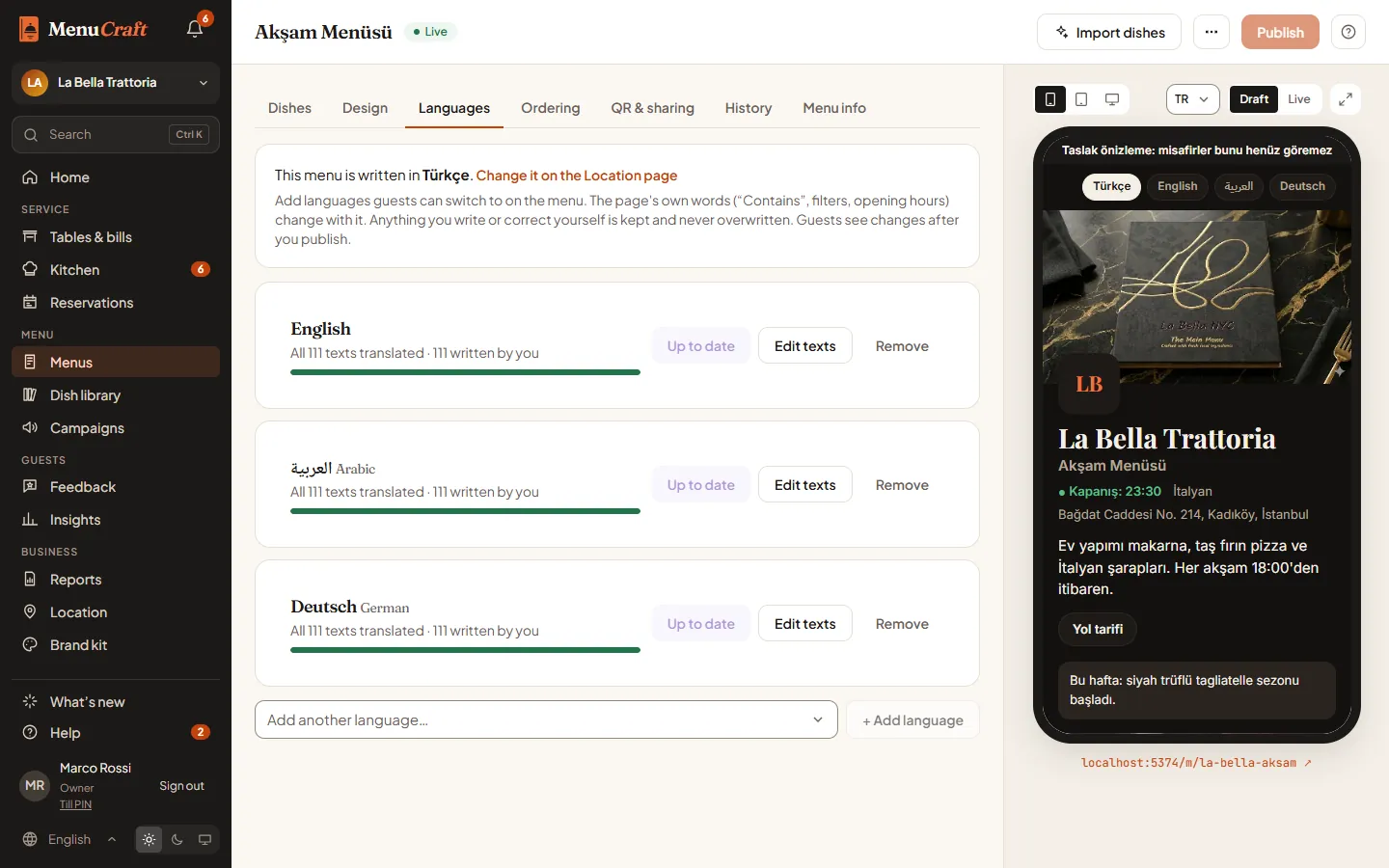
Check the main language
At the top of the Languages tab you see the language the menu is written in. It comes from your location.
- To change it, select Change it on the Location page. See Location and hours.
- Write your dishes, descriptions and sections in this language. The other languages are translated from it.
Add a language
- Open the menu and select the Languages tab.
- Open the list Add a language (or Add another language if you already have one) and pick a language. You can type to search.
- Select Add language.
The language appears as a card. Its texts are not translated yet: translate them next, or write them yourself.
Note: How many languages each menu can have depends on your plan. See Plan and billing.
Translate automatically
- On the language's card, select the translate button, for example Translate 109 texts.
- Wait while it works: the card shows Translating with the progress, for example Translating… 40 of 109. You can keep working in other tabs.
- When it is done, the button says Up to date and the bar is full.
Only texts that are missing or out of date are translated. Anything you wrote or corrected yourself is kept and never overwritten. Automatic translation uses credits from your plan.
Note: If the tab says automatic translation isn't set up, you can still write each language's texts yourself under Edit texts.
Read the progress bar
Under each language name you see where it stands:
- All 109 texts translated or 96 of 109 translated: how much is done. The green bar shows the same.
- 3 need updating: you changed these texts in the main language after they were translated. Select the translate button again to update them.
- 12 written by you: texts you wrote or corrected yourself.
Correct a translation
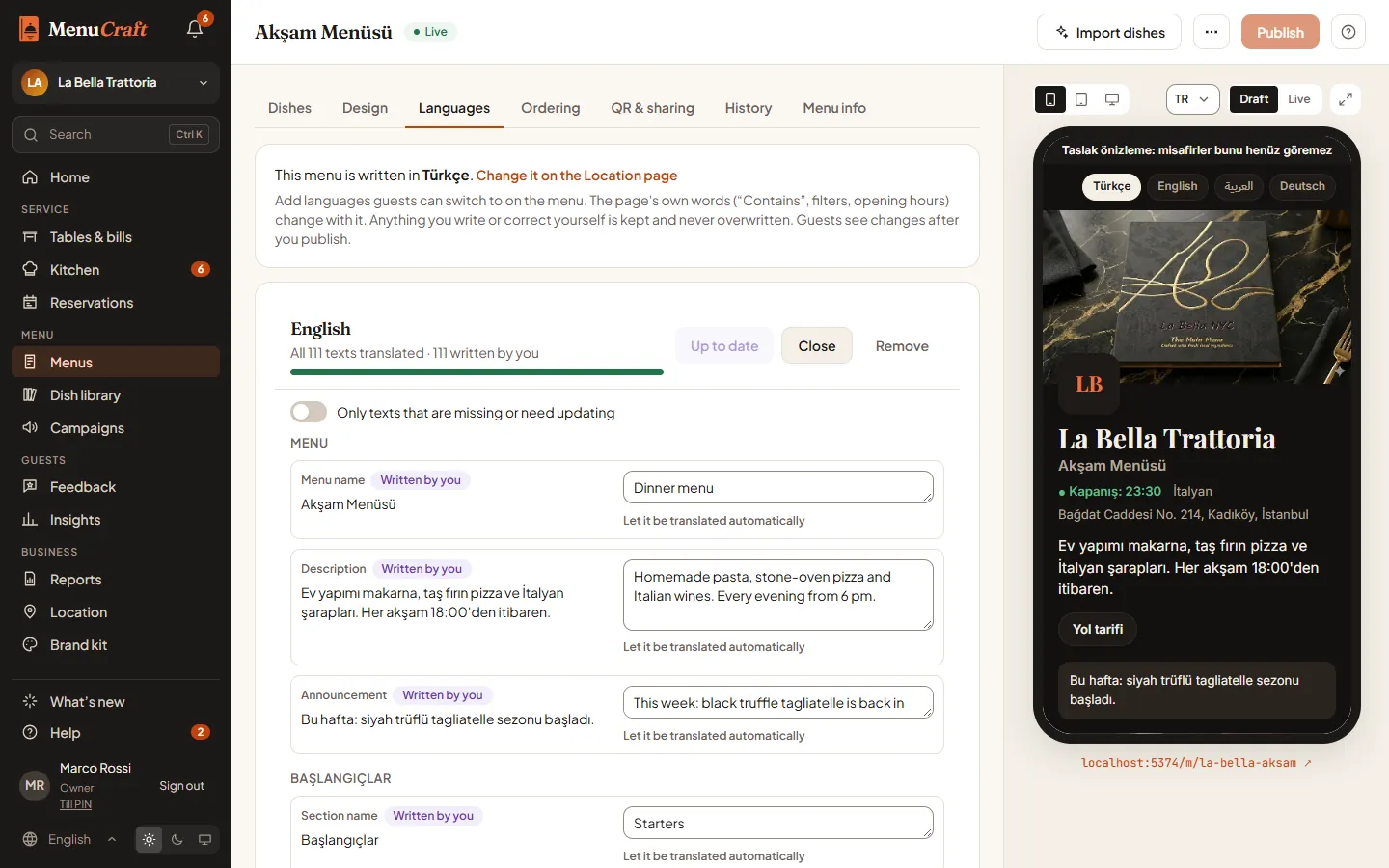
- On the language's card, select Edit texts. Every text of the menu is listed in groups: the original on the left, the translation on the right.
- Click in a box and change the text. It is saved when you leave the box, and it is marked Written by you.
- Select Close when you are done.
Useful while editing:
- Turn on Only texts that are missing or need updating to see just what is left to do.
- Not translated: this text has no translation yet. Guests see it in the main language until it is translated.
- Needs updating: the original changed. Fix the translation, or select Keep this translation if it is still right.
- Let it be translated automatically: gives a text you wrote back to automatic translation. The next translation fills it in again.
Tip: Names of dishes that stay the same in every language (like "Tiramisu") can simply be copied as they are.
Remove a language
- On the language's card, select Remove.
- Confirm. Its translations are deleted too.
Guests no longer see that language after you publish.
How guests switch language
- The language buttons sit at the top of the menu. Guests tap one to switch; the whole page changes, including filters and labels.
- The menu opens in the language of the guest's phone when the menu has it, and in the main language otherwise.
- New languages and corrected texts reach guests when you select Publish. See Publish your menu.
Tip: To check a language before publishing, pick it in the language list above the preview beside the editor.