
The Dishes tab has two views. List shows dishes as cards you drag to reorder. Table shows every dish of the menu on one screen, grouped by section, so you can update many of them quickly. Switch with the List / Table buttons above the dishes; the editor remembers your choice on this device.
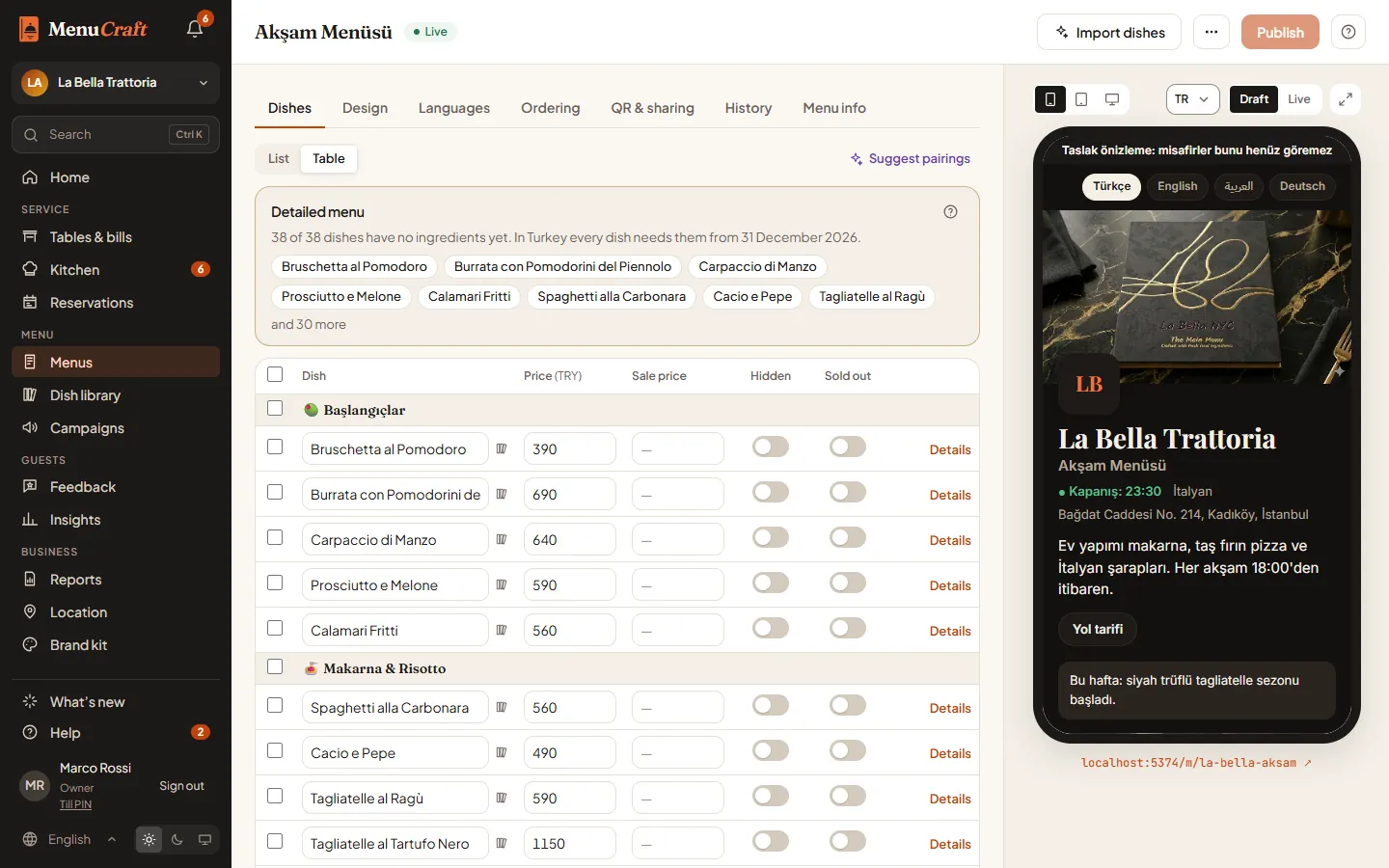
Edit names and prices in the table
- Select Table.
- Click in a cell and type. You can change the Dish name, Price and Sale price, and switch Hidden and Sold out on or off.
- Press Enter to jump to the same column on the next dish, like in a spreadsheet (Shift+Enter goes up).
- When you're done, select Save changes in the bar at the bottom. Discard throws your edits away.
Cells with a problem turn red, for example an empty name, or a sale price that isn't lower than the price. Fix them before saving.
- A dish with sizes shows its size prices instead of a price box. Select them to edit the sizes in the dish editor.
- For photos, description, allergens and everything else, select Details at the end of the row. Save or discard your table edits first.
Select several dishes
- Tick the box at the start of a dish's row.
- Tick the box on a section's row to select all its dishes.
- Tick the box in the table header to select every dish.
A bar appears above the table with the number selected and the actions below. Clear selection unticks them all.
Change prices for many dishes
- Select the dishes and choose Change prices.
- Pick Increase or Decrease, type the amount in By, and choose the Unit: % or an amount in your currency.
- In Round to, choose how new prices are rounded, or No rounding.
- Keep Sizes and add-ons too on to change those prices as well.
- Check the Preview, which shows the old and new price of the first dishes, then select Change prices.
Note: For dishes from your dish library, the new price also goes to the library and to the other menus that follow its prices. The window tells you when this applies.
Other actions on a selection
- Add tag… / Remove tag…: add or remove Vegan, Vegetarian, Gluten free, Halal or Spicy.
- Move to…: move the dishes to another section.
- Hide / Show: hide the dishes from guests, or show them again.
- Sold out / Available: mark the dishes sold out, or back on. Guests see this at once, without publishing.
- Delete: delete the dishes. This can't be undone.
Except for sold out, these changes go to the draft: guests see them after you publish.