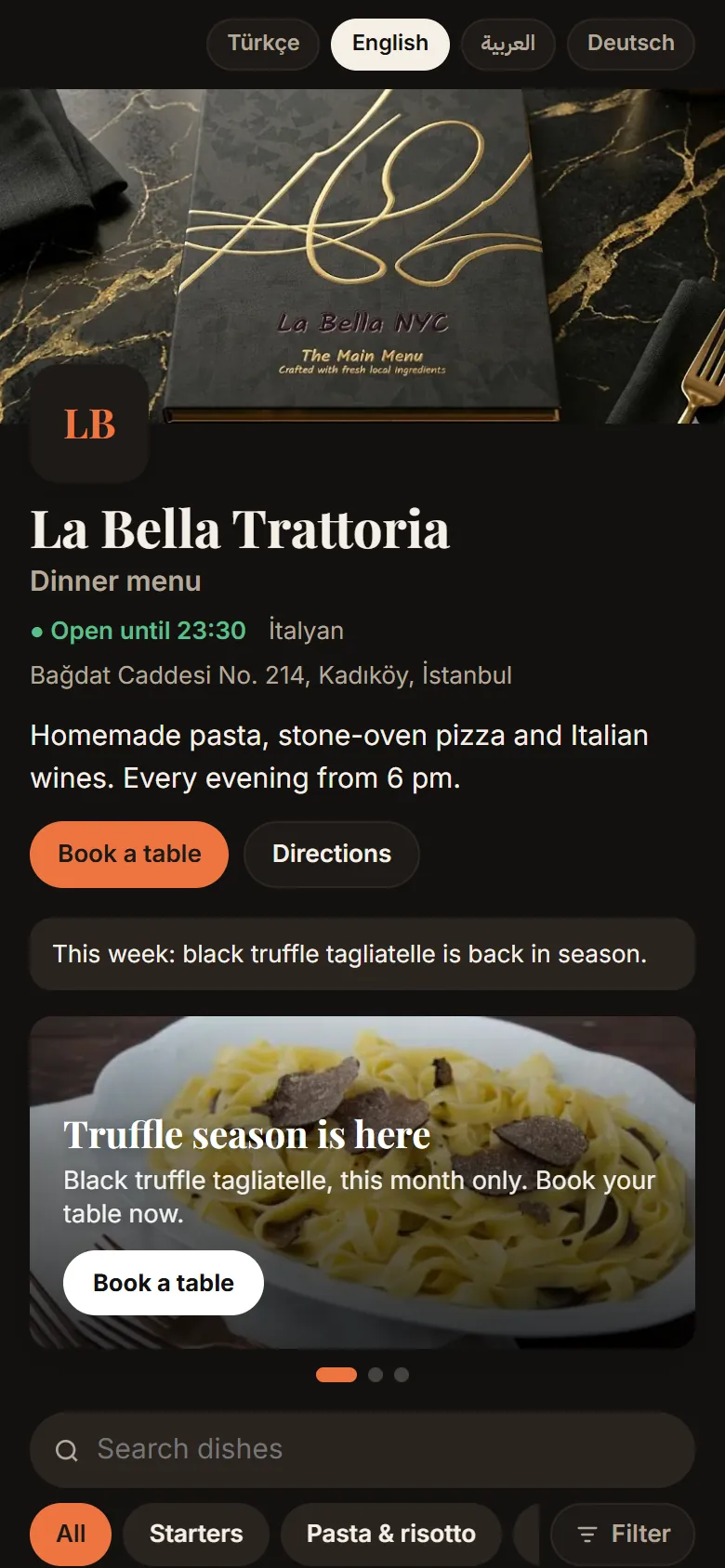
For a café or a bakery where guests read the menu and order at the counter. No ordering on the phone is needed; you can add it later with Orders at the table.
Fill in your café's details
Open Location and fill in the Business card: the name guests know you by, the type and a line about you. Add your phone and address under Contact and social. Select Save on each card.
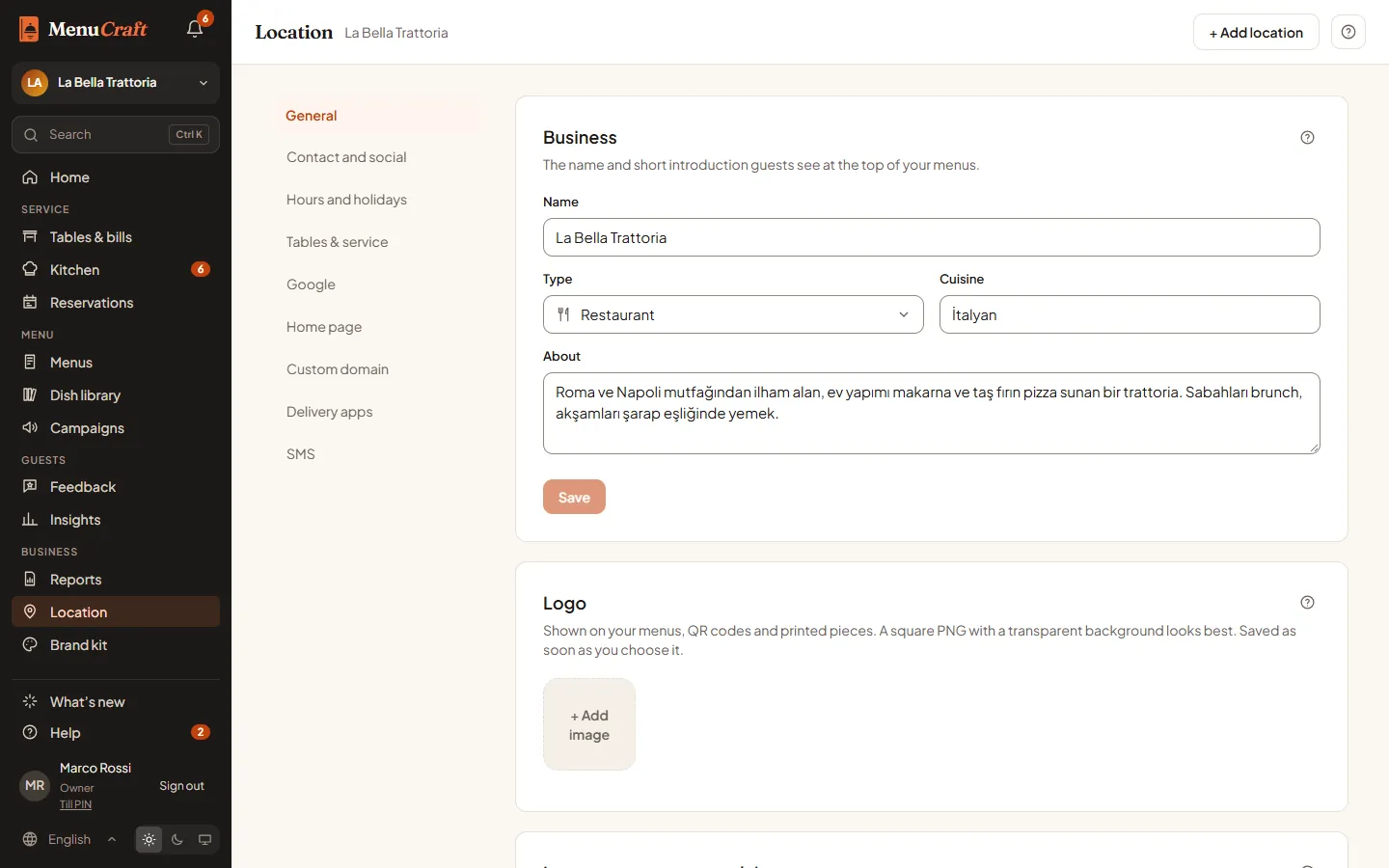
Add your opening hours
Under Hours and holidays, add the hours for each day and select Save. Guests then see whether you are open now. See Location and hours.
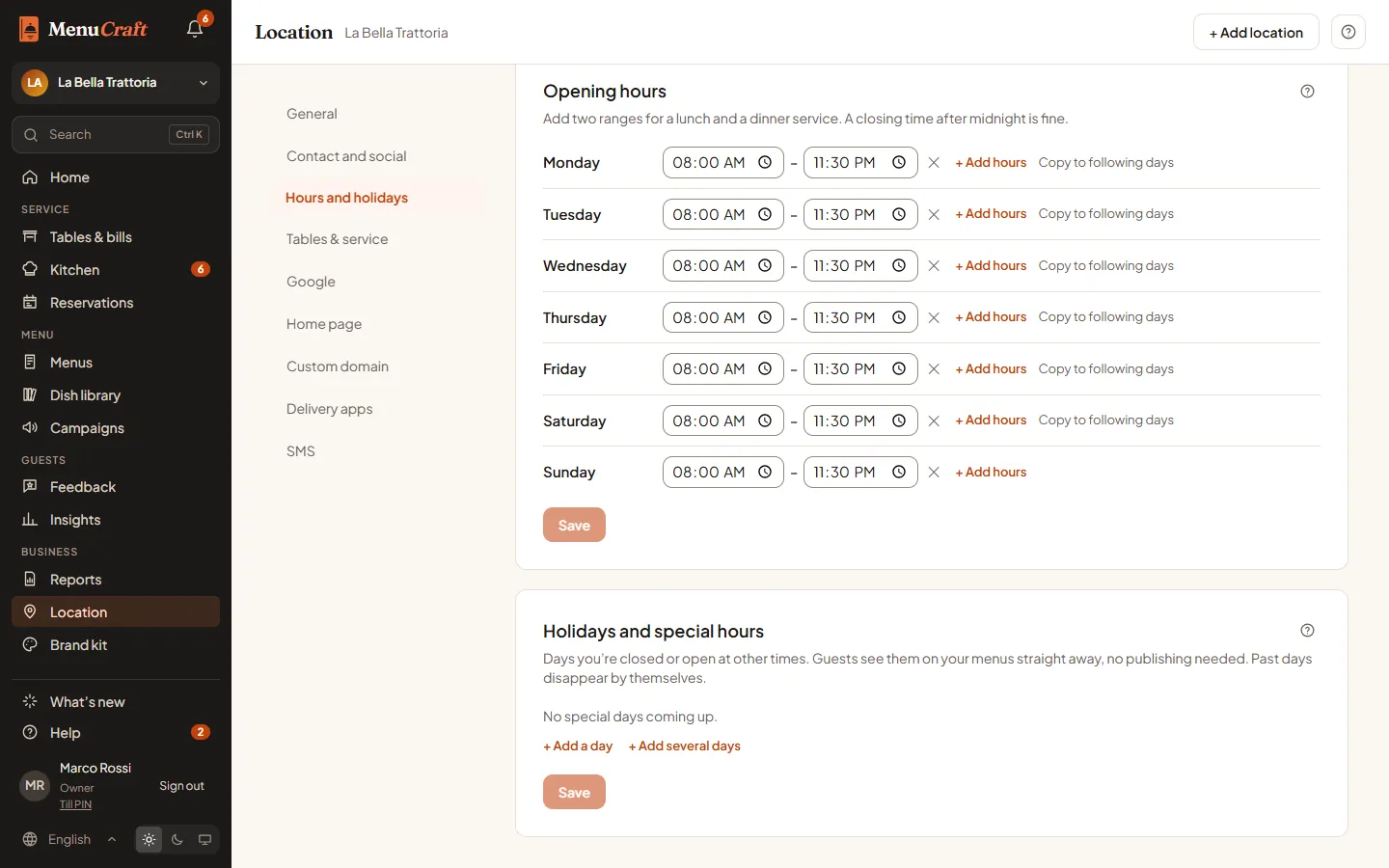
Show your Wi-Fi
Under Contact and social, fill in Wi-Fi for guests and save. Guests find the network and password, with a QR code to join, on your menu and table cards.
Bring in your menu
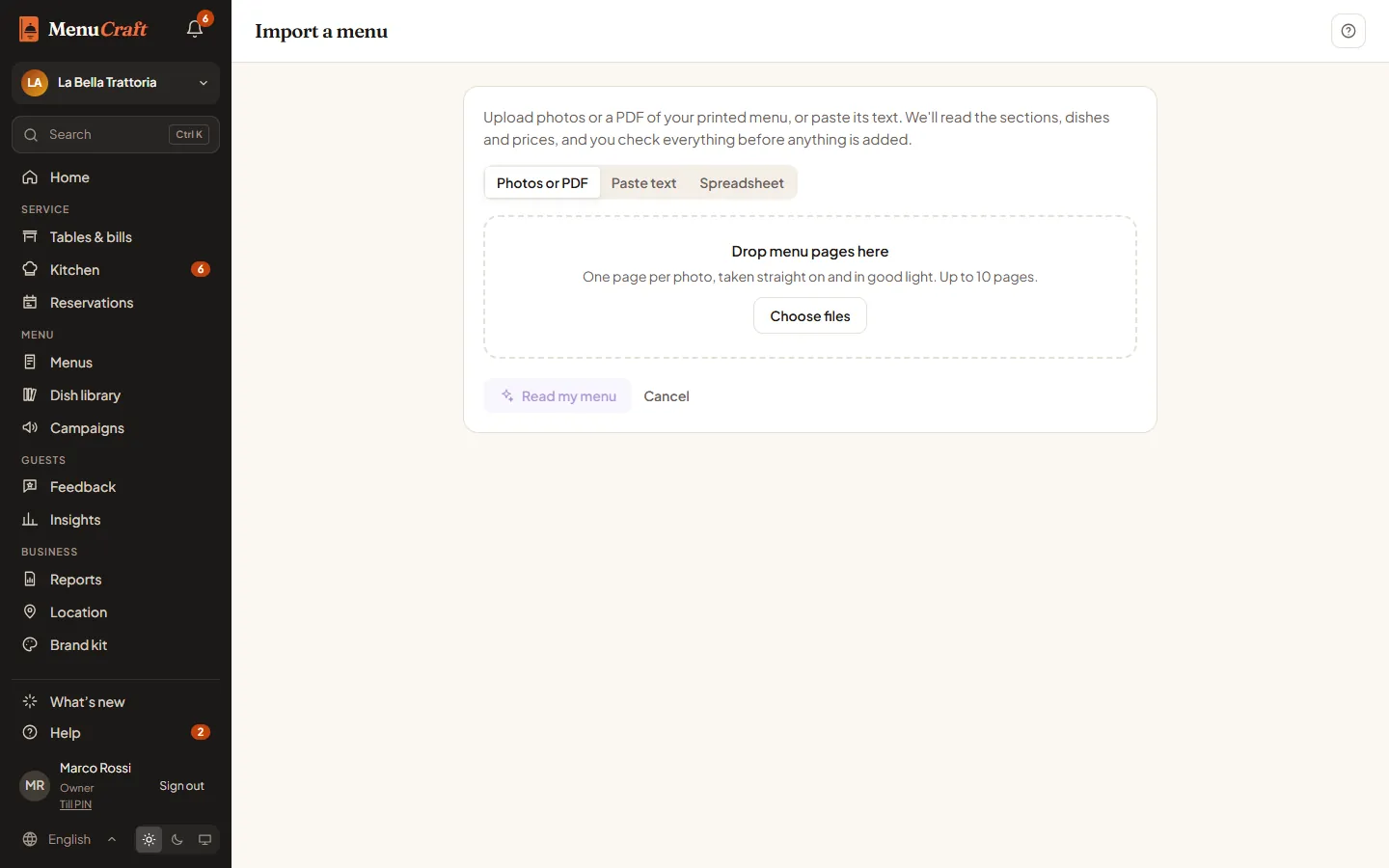
Open Menus and select Import a menu. Upload photos of your printed menu (one page per photo, straight on) or paste its text, then select Read my menu. See Import a printed menu.
Check the dishes and prices
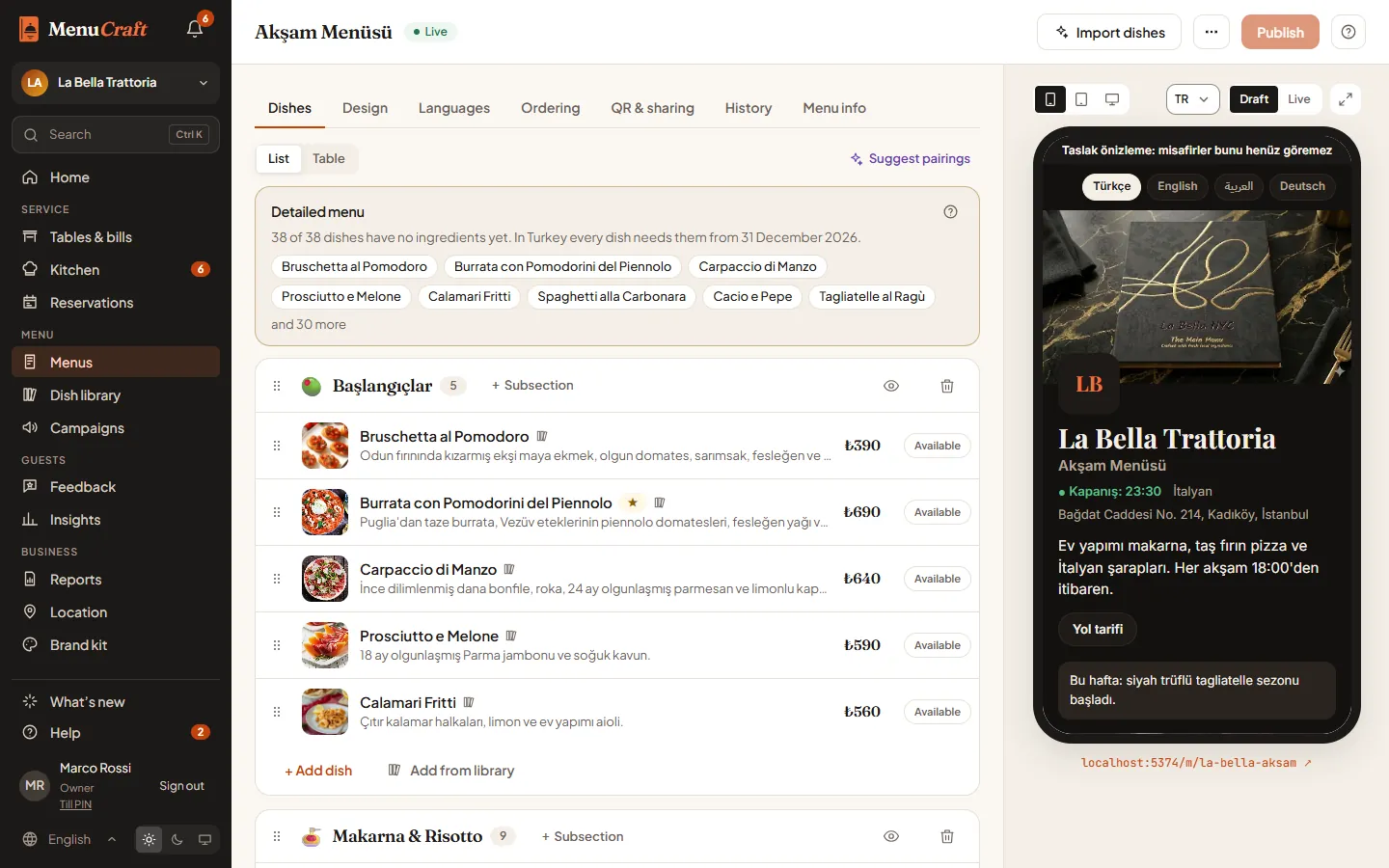
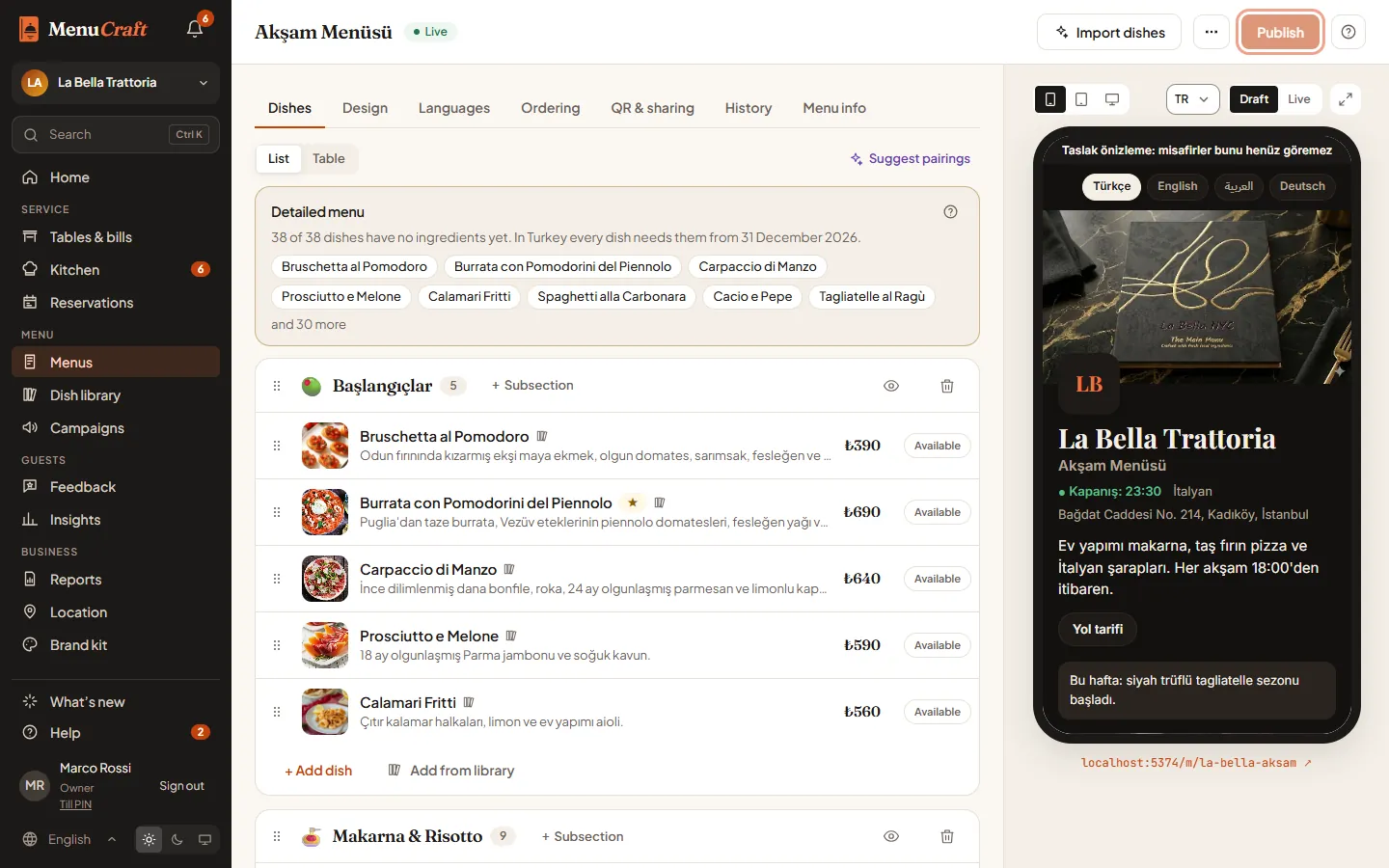
Look through the dishes: fix names and prices, and add photos to your best sellers. A dish without a price stays hidden until you set one. See Add and edit dishes.
Pick a look
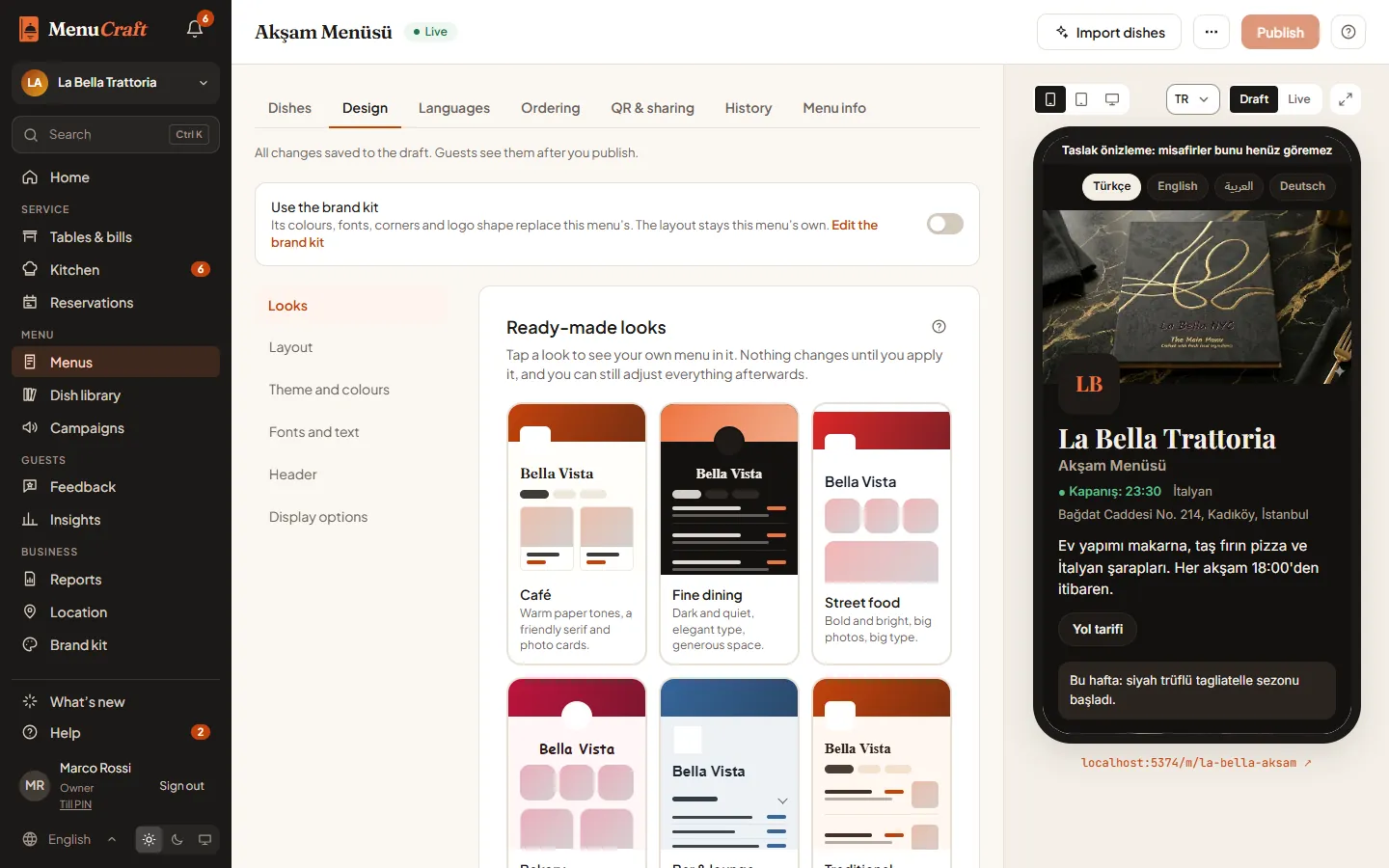
In the Design tab, open Looks and try Café or Bakery. The preview shows your own menu; select Apply look to keep it.
Add a language for visitors
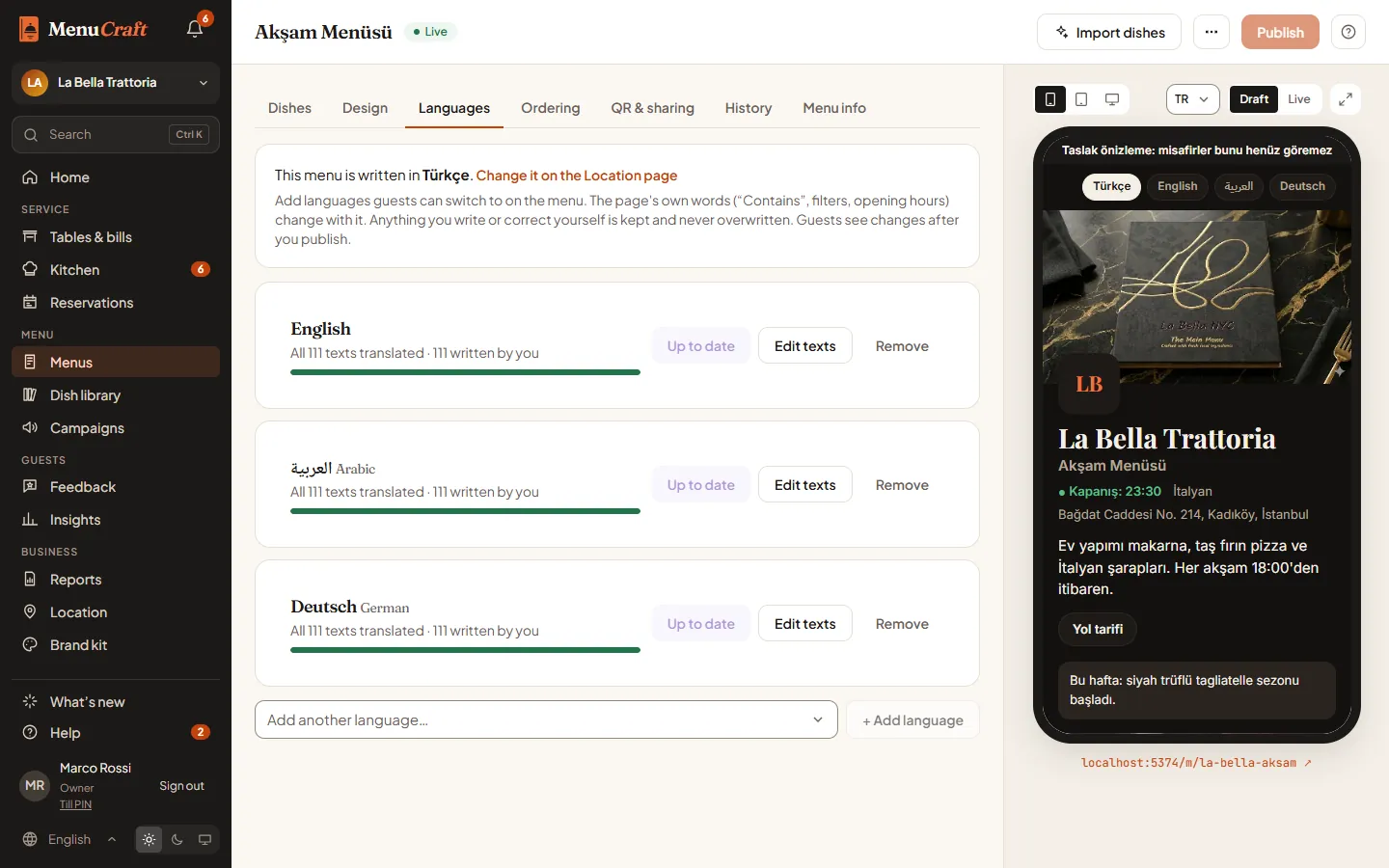
In the Languages tab, add English (or any language your guests read) and select the translate button. See Menu languages.
Publish
Select Publish at the top right. Your menu is now live at its link and QR code.
Print QR cards for the tables
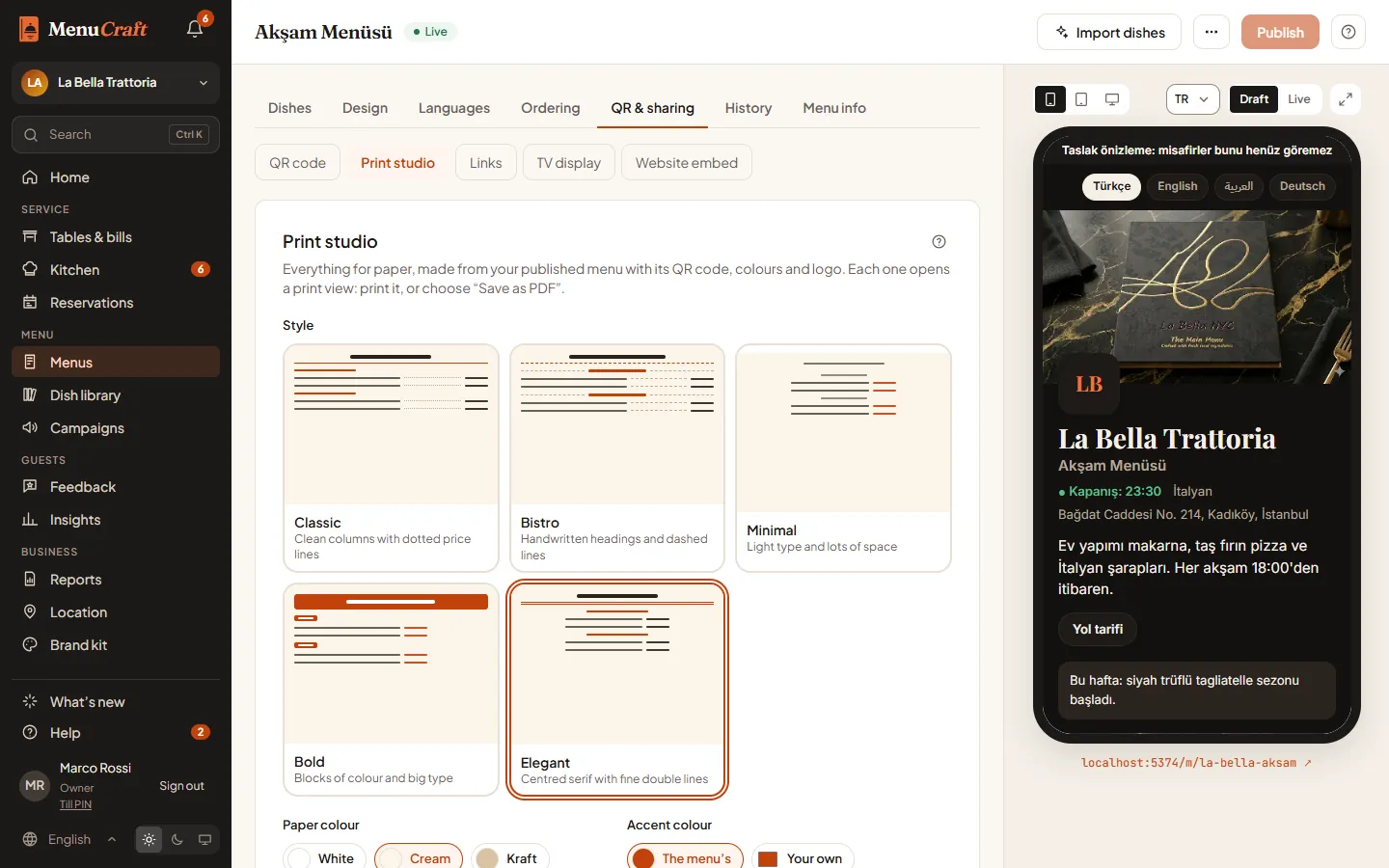
In QR & sharing, open Print studio and choose Table tents or Stickers. Print, fold and put one on every table. See Share, QR codes and printing.
See it as a guest
Scan a card with your own phone: the menu opens in the browser, in the phone's language when you added it.