
MenuCraft tells you when something needs you: in the bell at the top of the sidebar, in a card on the page for waiter calls, and for some things by email too.
The bell
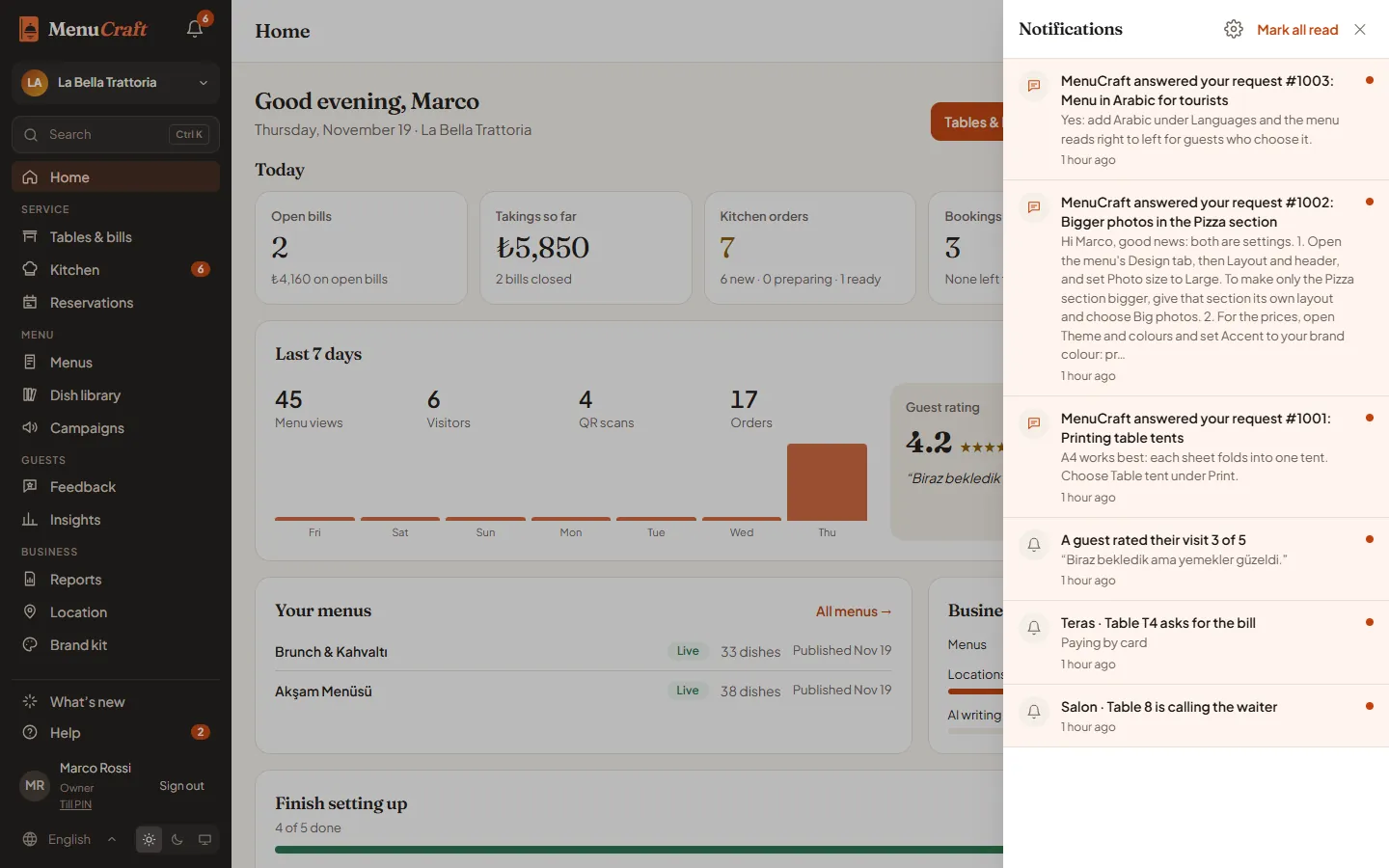
The bell beside the logo shows a number when something new has come in. Select it to open Notifications:
- the newest first, with a dot on the ones you haven't seen;
- select one to go where it happened, for example the booking or the finished import;
- Mark all read clears the number; Show older loads earlier ones.
What comes in
- Work that finished: an imported menu that is ready to check, a translation that is done.
- Guests at the tables: waiter calls and requests for the bill (also as a card in the corner of every page; see Ordering and waiter calls).
- Low ratings: a rating of 3 stars or less, with the table and the start of the comment. See Guest feedback.
- Bookings: new booking requests and bookings guests cancel. See Table reservations.
- Your own domain: when it goes live. See Your own domain.
- Support: when the MenuCraft team answers your request. See Support requests.
People on your team see the notifications for the locations they work at.
On your phone or computer
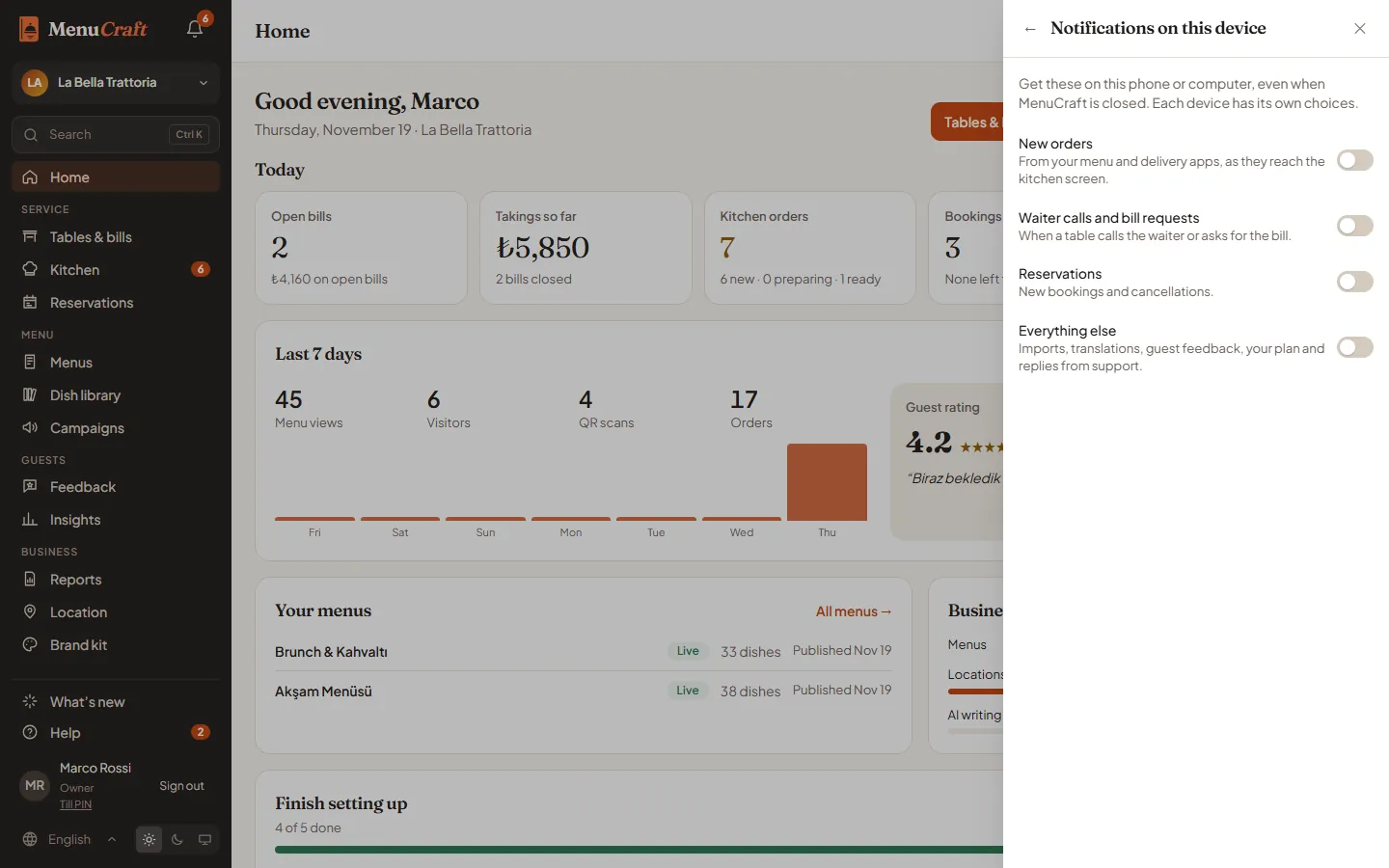
MenuCraft can also send notifications to your phone or computer, even when the app is closed: a new order, a table calling the waiter, a new booking.
- Open the bell, then the gear at the top of the list: Notifications on this device.
- Turn on the kinds you want here: New orders, Waiter calls and bill requests, Reservations, and Everything else.
- Allow notifications when your browser asks.
- Select Send a test to check that they arrive.
Each phone, tablet and computer has its own switches, so the kitchen tablet can get orders while your phone gets bookings. People on your team only get the ones for the locations they work at.
- On an iPhone or iPad, add MenuCraft to your Home Screen first (in Safari, tap Share, then "Add to Home Screen") and open it from there; notifications work only for apps on the Home Screen.
- If you blocked them by mistake, allow notifications for MenuCraft in your browser's site settings, then open the gear again.
By email
Some things also come by email, so you don't miss them when MenuCraft is closed: answers to your support requests, your domain going live, and team invitations. Guests get their own emails about their bookings when they give an email address.
Sounds
The Kitchen page plays a chime for every new order once you tap 🔕 Sound off so it shows 🔔 Sound on. Browsers only allow sound after a tap, and the tablet remembers your choice. See The kitchen screen.