
Everything you change in a menu is saved to its draft straight away. Guests keep seeing the last published version until you publish again, so you can work in peace and show the changes when they're ready.
Publish your changes
- Open the menu from Menus.
- Check the preview on the right.
- Select Publish at the top right.
Guests see the new menu at once, through the same link and QR code.
If some dishes guests can see have no price yet, MenuCraft asks first. Go back and add the prices, or select Publish anyway.
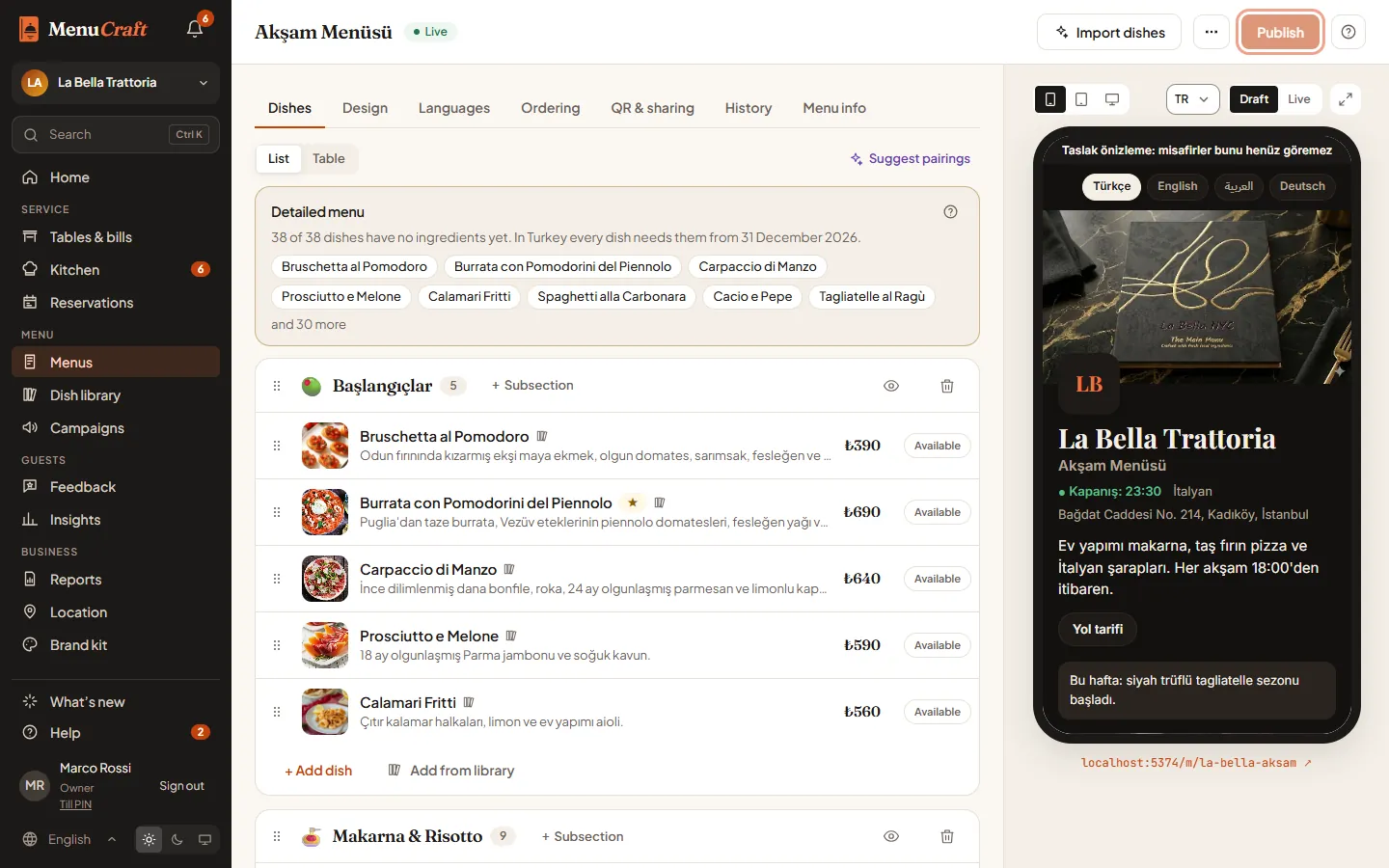
Draft, live or unpublished changes
The badge next to the menu's name tells you where it stands:
- Draft: never published. Guests can't open it yet.
- Live: guests see exactly what you see. Publish is greyed out because there is nothing new to publish.
- Unpublished changes: the menu is live, but you have changed something since. Guests still see the version you published last.
The same badges are shown on the Menus page.
Note: A few things reach guests at once, without publishing: marking a dish sold out or back on, the PIN of a private menu, and special days on the Location page. After you change your address or opening hours, publish your menus again to show them.
Use the live preview
The preview beside the editor shows your menu as guests will see it, and refreshes after every change. On a narrow screen it is below the editor.
- Phone, Tablet and Desktop: the three buttons at the top change the screen size.
- The language box (TR, EN…) shows the menu in each of its languages.
- Draft shows your changes, with the note Draft preview: guests can't see this yet. Live shows what guests see right now (once the menu is published).
- Expand preview makes the preview fill the screen; Back to editor (or Esc) brings the editor back.
- The address under the preview opens the live menu in a new tab.
What guests see
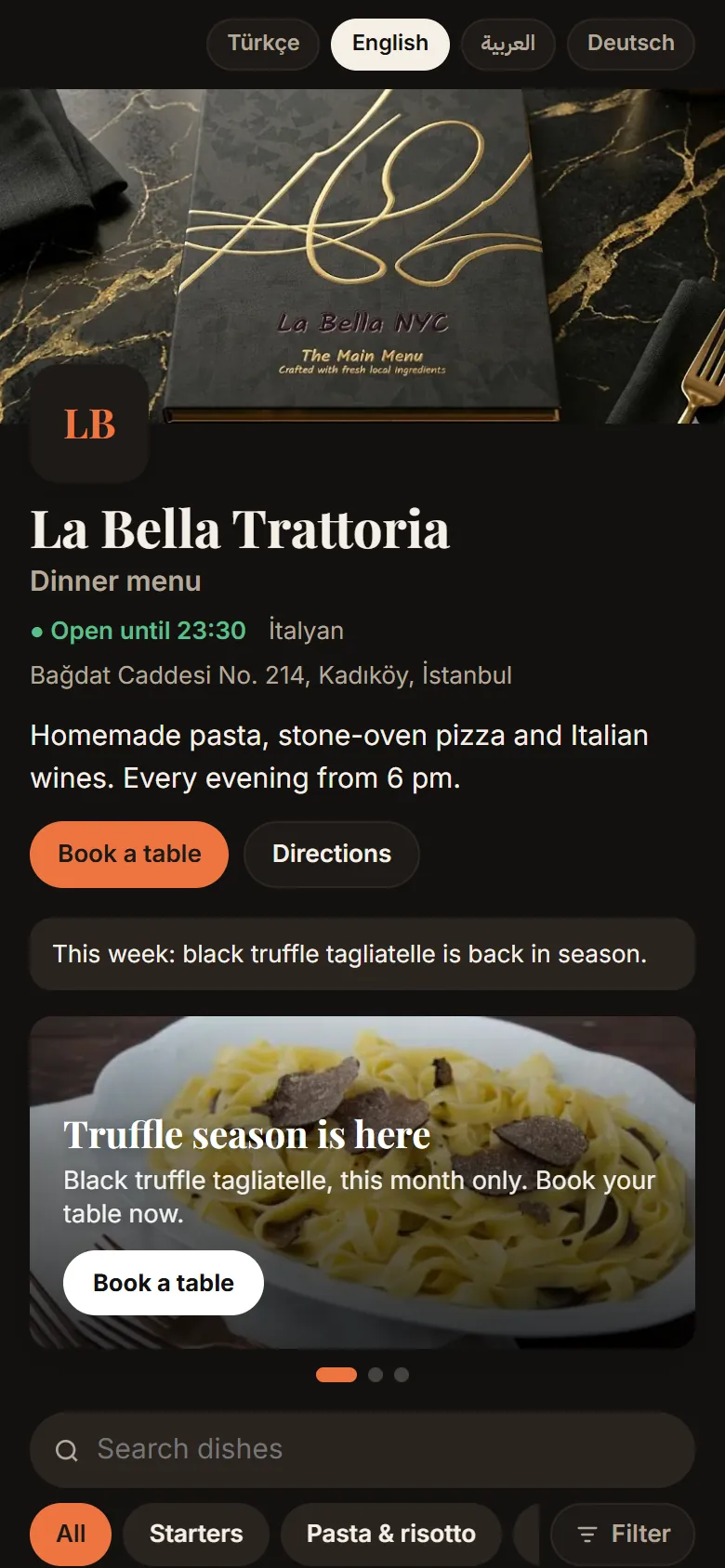
Guests open the menu with its QR code or link, on their own phone, with nothing to install. From top to bottom they see:
- buttons for the menu's languages;
- your cover photo, logo, restaurant name and the menu's name;
- whether you are open now, your cuisine and address;
- the menu's description, Book a table (if you take bookings) and Directions;
- the announcement banner, Search dishes and a button for each section;
- your dishes with photos, prices, sizes and allergens;
- the footer note at the very bottom.
What next
- Print the QR code or share the link: Share, QR codes and printing.
- Go back to an earlier version: Menu history.