
MenuCraft is where you build your digital menu, share it with a QR code and follow how guests use it. This guide shows where everything is.
Finish the welcome steps
Right after you sign up, MenuCraft asks three short questions:
- Your place: the name guests know you by and what kind of place it is.
- Language and currency: what your menus are written in and what prices are shown in.
- Your first menu: let AI draft it, pick a template, import a printed menu or start from scratch. See Create a menu.
Select Skip for now if you'd rather look around first. You can change all of it later on the Location page.
Find your way with the sidebar
The sidebar on the left holds every page. Home is at the top, and the rest is grouped by the job it does:
- Service, the day's work:
- Tables & bills: an open bill for each table, and counter sales. It appears once bills are on at the location; see Tables and bills.
- Kitchen: guests' orders, for a screen in the kitchen.
- Reservations: table bookings.
- Menu, what guests see:
- Menus: your menus. Open one to edit its dishes, design, languages and QR code.
- Dish library: dishes you keep once and use in several menus.
- Campaigns: a deal or an event at the top of your menu.
- Guests, how it's going:
- Feedback: what guests say about their visit.
- Insights: how often your menu is opened and what guests look at.
- Business, set up once:
- Location: your restaurant's name, address, opening hours, tables and devices.
- Brand kit: your logo, colours and fonts for every menu.
- Team: invite your staff and choose what they can do.
- Plan: your plan, what you use of it and your AI credits.
Help, with all the guides, is at the bottom, above your name. What’s new, just above it, lists new features and improvements in MenuCraft; its number counts the ones you haven’t seen yet.
A number next to Kitchen counts new orders nobody has started yet; next to Reservations, booking requests waiting for your answer. The bell beside the logo opens Notifications: finished imports, translations and more.
Staff see fewer pages (Home, Tables & bills, Kitchen, Reservations, Menus, Insights and Help). See Team and roles.
On a phone the sidebar is hidden: tap ☰ Menu at the top of the screen to open it. When the pages don't fit on the screen, scroll the list; your name, the language and the theme stay at the bottom.
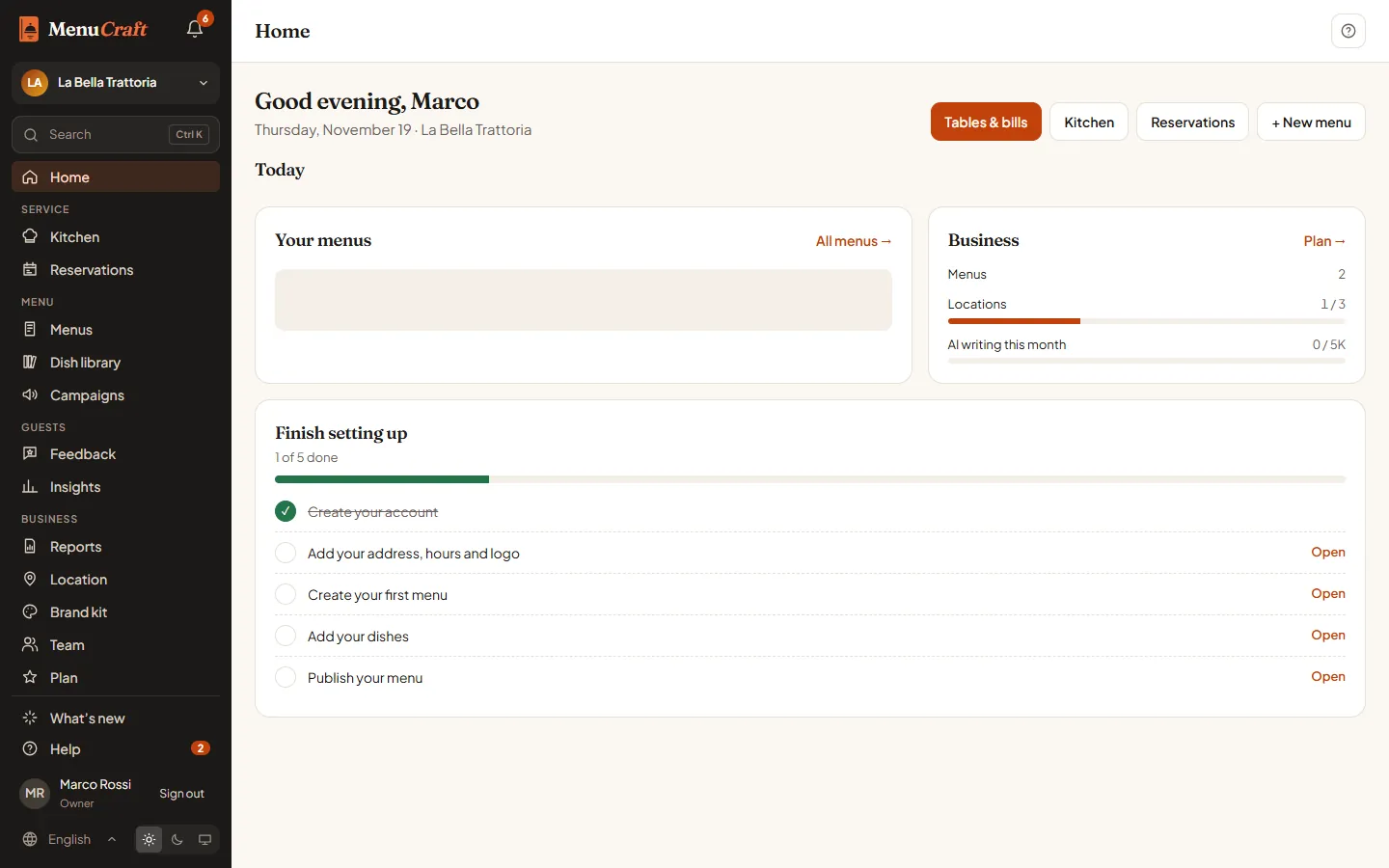
Read the home page
At the top, next to the greeting, are buttons for what you do most: Tables & bills (when bills are on), Kitchen, Reservations and + New menu. Below them:
- Today: how the location you are in is doing right now: Open bills and Takings so far (when bills are on), Kitchen orders, Bookings today and Menu views today. Select a box to open its page.
- Last 7 days: Menu views, Visitors, QR scans and Orders, each with the change against the week before, a small chart of views per day and your Guest rating. It appears once a menu is published; See insights → opens Insights.
- Your menus: each menu with its state (Live, Unpublished changes or Draft) and its number of dishes. Beside it, your plan: what you use of it and, during a trial, the days left.
- Worth trying: features you haven't set up yet, such as bills, the order board, table booking and campaigns. Set up takes you there.
- Finish setting up: five steps to a working menu: Create your account, Add your address, hours and logo, Create your first menu, Add your dishes and Publish your menu. Each step ticks itself when it's done; Open next to an open step takes you where you do it. The card goes away once all five are done.
When a guest calls the waiter or asks for the bill, a card shows the table at the bottom right of any page. Select Done once someone has gone to the table. See Ordering and waiter calls.
Switch between locations
With more than one restaurant, the box with your restaurant's name at the top of the sidebar picks the location you work on. Choose another one and menus, kitchen orders, bookings and statistics switch to it.
To open a new location, go to Location and select Add location. See Location and hours.
Change the app's language and theme
At the bottom of the sidebar:
- The button with the globe shows the app's language. Select it and pick another one. Your choice is saved to your account, so it follows you to other devices.
- The sun, moon and screen buttons beside it are Light, Dark and System (point at one to see its name). They change the colours of the app. System follows your phone or computer. This choice is remembered on each device.
The app's language is only for you. The languages guests can read your menu in are set per menu: see Menu languages.
Sign out is next to your name, just above.
Search with Ctrl+K
Select Search at the top of the sidebar, or press Ctrl+K (⌘K on a Mac), and start typing. You can jump to:
- any page or menu (each menu shows whether it is Live or a Draft);
- quick actions such as Create a menu, Import dishes from a photo or PDF, Invite someone to the team and Add a table booking;
- another location, a theme or the app's language;
- a help guide that matches your words.
Use the arrow keys to move, Enter to open and Esc to close. Accents don't matter: "kofte" finds "Köfte".
Get help on any page
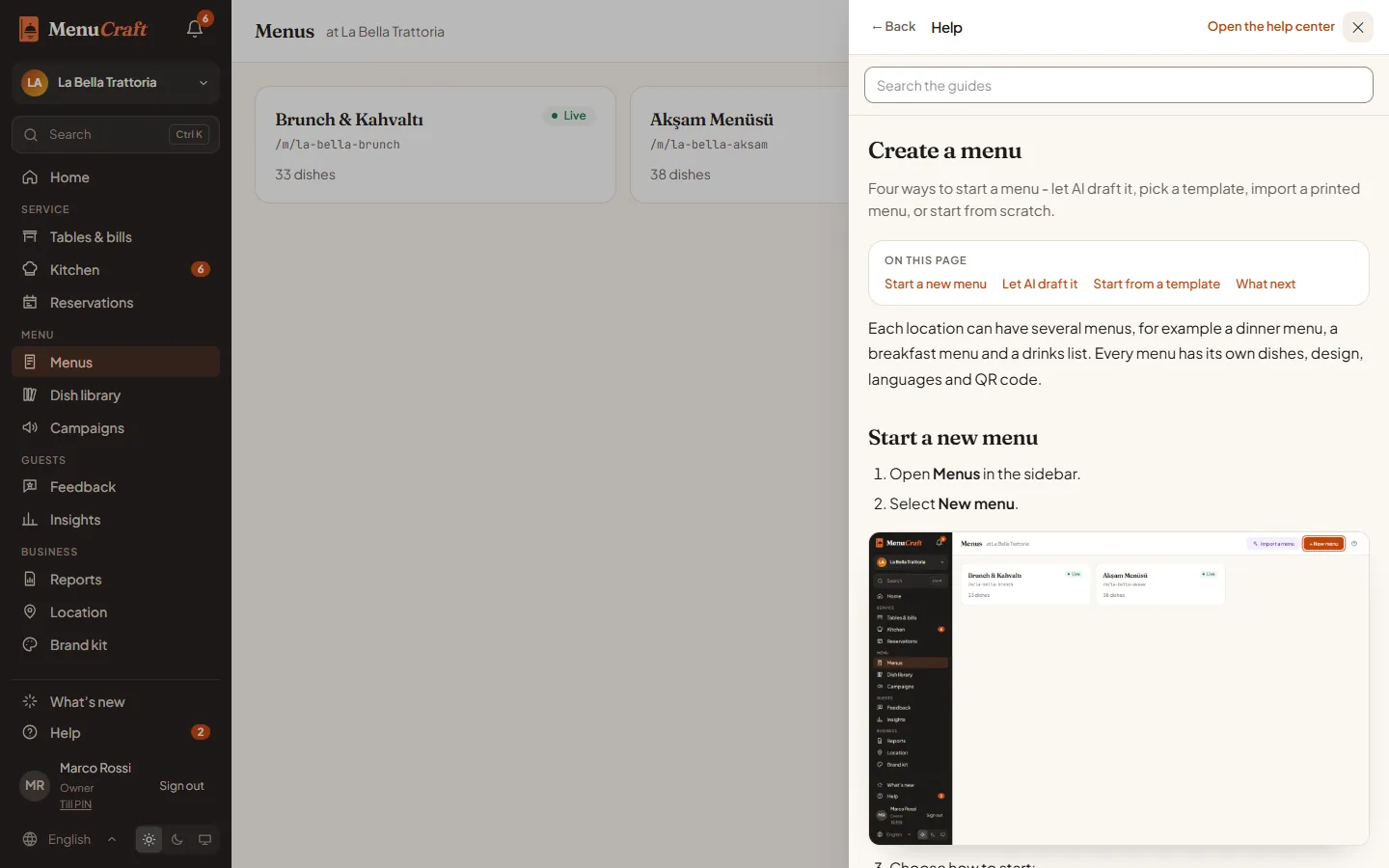
Every page has a question-mark button at the top right (Help for this page). It opens the guide for that page in a panel beside your work, so you can follow the steps as you go. In the menu editor it opens the guide for the tab you are on. Many cards also have a small question mark beside their title (Help with this): it opens the guide at the part about that card.
In the panel you can Search the guides, or select Open the help center to browse every guide by topic. Type a question in your own words, such as "how do I change a price": the search shows the part of a guide that answers it, with the matching words in bold. If nothing matches, you can ask the MenuCraft team straight from there, with your question already filled in.
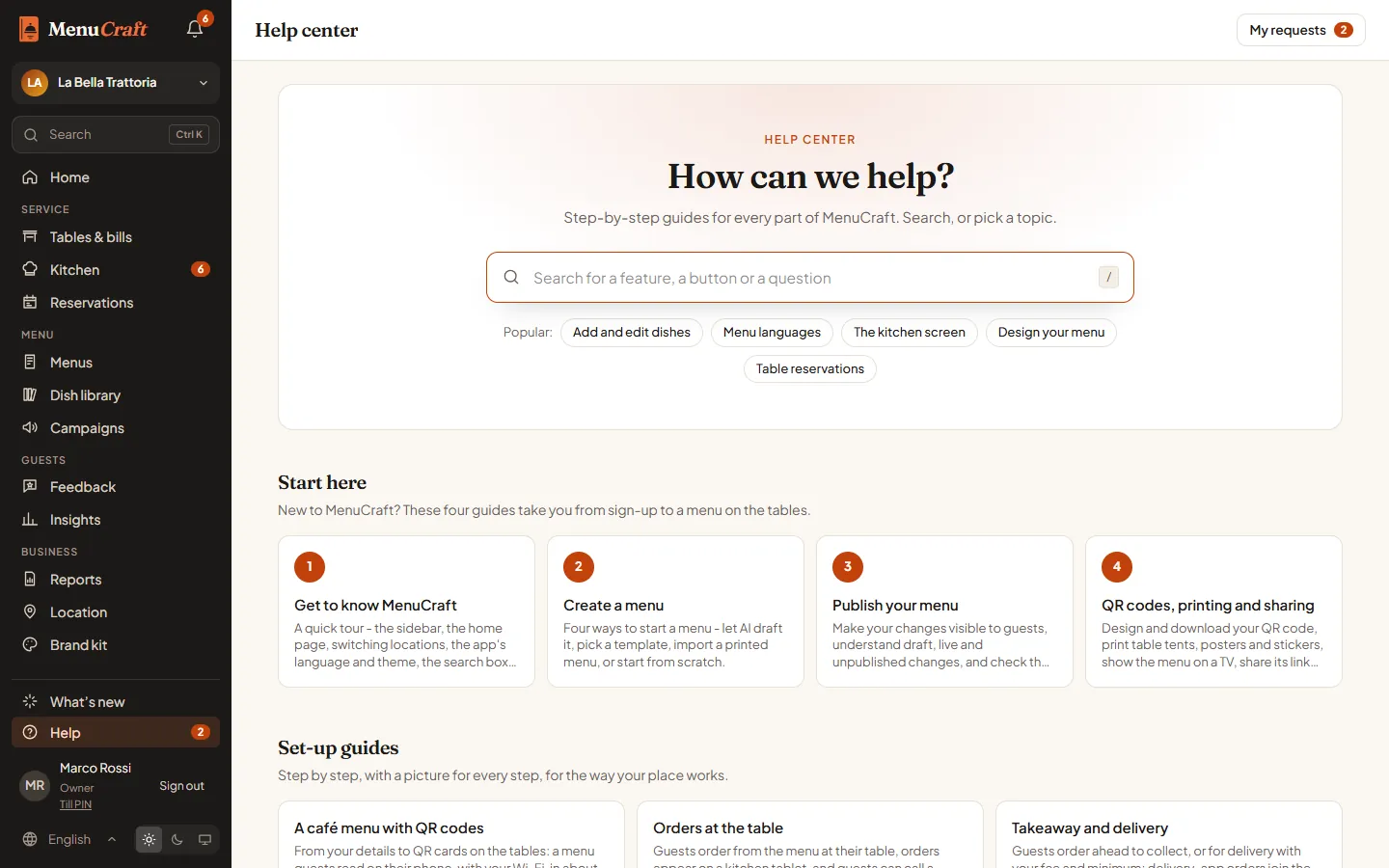
The help center starts with the first four steps, then lists every guide by topic. Press / on that page to jump to the search.
At the end of each guide, Was this helpful? tells us which guides need work. If you answer No, write what you were looking for.
Tip: The quickest way to a working menu is to follow Finish setting up on the home page from top to bottom.